
Build a Desktop App with CodeLLM and Python (Step-by-Step Tutorial)
Build a Desktop App with CodeLLM and Python (Step-by-Step Tutorial)
If you're eager to dive into AI-assisted coding and want a straightforward project to get started, this guide is for you. We'll walk through building a fun and simple Magic Eightball desktop app using Python and Tkinter, all powered by the versatile CodeLLM platform. Whether you're new to Python or curious about how AI can accelerate your development workflow, this step-by-step tutorial will help you create, test, debug, and launch your very own desktop app with ease.
This tutorial is inspired by Blog With Ben, who expertly demonstrates how CodeLLM by Abacus AI makes coding more accessible and efficient. Let’s get started!
Step 1: Set Up Your CodeLLM Account
First things first, to harness the power of AI-assisted coding, you need to sign up for CodeLLM — a powerful tool by Abacus AI designed to speed up your coding workflow by automatically selecting the best large language model (LLM) for the task at hand. It supports multiple AI models like GPT4.1, Claude, Gemini, and more, giving you flexibility in how you generate and refine your code.
CodeLLM is priced at $10 per user per month, providing excellent value for anyone looking to boost their coding productivity.
To get started:
- Go to the CodeLLM homepage and click the Get Started button.
- Sign up quickly using Apple, Google, or Microsoft accounts, or create a new account with your name, email, and password.
- Enter your billing information to complete the signup.
- Once signed in, you'll land on the Abacus AI dashboard where you can access various tools. For this project, select CodeLLM.
- Download and install the CodeLLM app (on Mac OS, drag the app icon to your Applications folder).
- Open CodeLLM and complete the quick onboarding process, including signing in again, choosing your preferred theme (light or dark), and selecting your default mode.
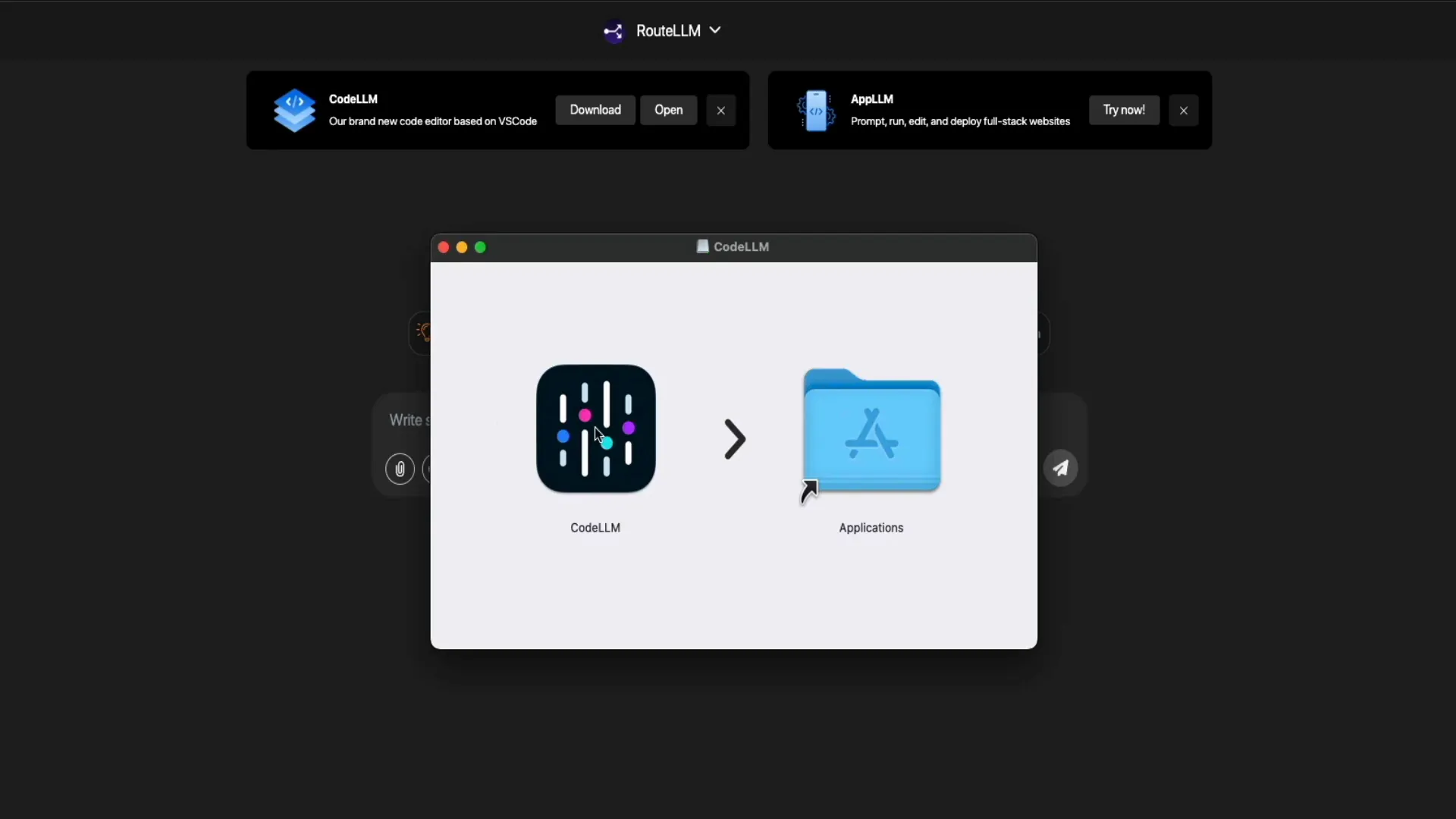
While you can toggle between two modes — Chat Mode and Code Mode — we’ll focus on both to get the most out of CodeLLM.
Step 2: Explore Chat Mode for Idea Generation and Quick Coding
Chat Mode is a conversational interface that lets you interact with AI models to brainstorm ideas, ask coding questions, or generate content. It’s like having an AI coworker to bounce ideas off or get quick coding help.
Here’s how you can use Chat Mode:
- Type your prompt or question into the simple prompt bar.
- Optionally, use the Search Web button to pull in live context from online sources.
- Choose an LLM model from the dropdown or leave it on the default to automatically use the best model.
- Click the send button and watch as the AI generates your response.
For example, you can ask Chat Mode to create an HTML template for a WordPress blog post, and it will quickly generate a clean, ready-to-use code snippet complete with headings, paragraphs, and lists.
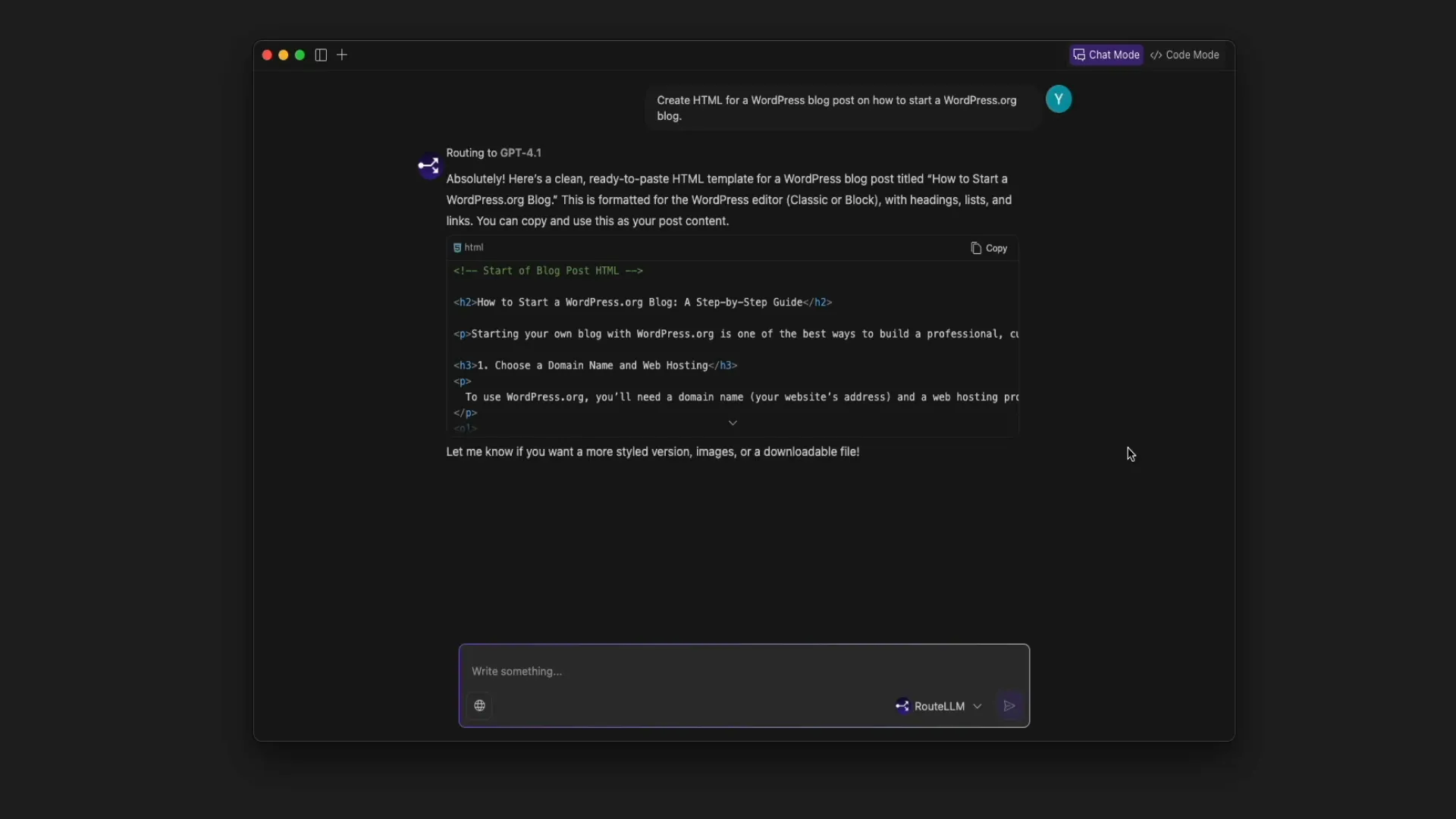
This tool is perfect for quick content generation, coding help, or brainstorming before diving into your actual project.
Step 3: Switch to Code Mode and Set Up Your Python Project
Once you’re ready to start coding, switch to Code Mode by clicking the toggle in the top right corner of the app. Code Mode is a dedicated IDE environment where you can write, run, and debug your Python code seamlessly.
When you first enter Code Mode, you’ll see a welcome screen where you can:
- Customize your theme (dark, light, or custom color themes).
- Access onboarding walkthroughs and helpful guides.
Note: If you accidentally close the welcome window, the easiest way to reopen it is by closing and reopening the app.
Now, let’s create our Magic Eightball Python project:
- Click the Get Started with Python walkthrough to open a guided setup.
- Open or create a new project folder. Name it magic_eightball or a name of your choice.
- Trust the project folder when prompted to enable full CodeLLM features.
- Create a new Python file where you will write your code. CodeLLM opens an untitled file for you to start coding.
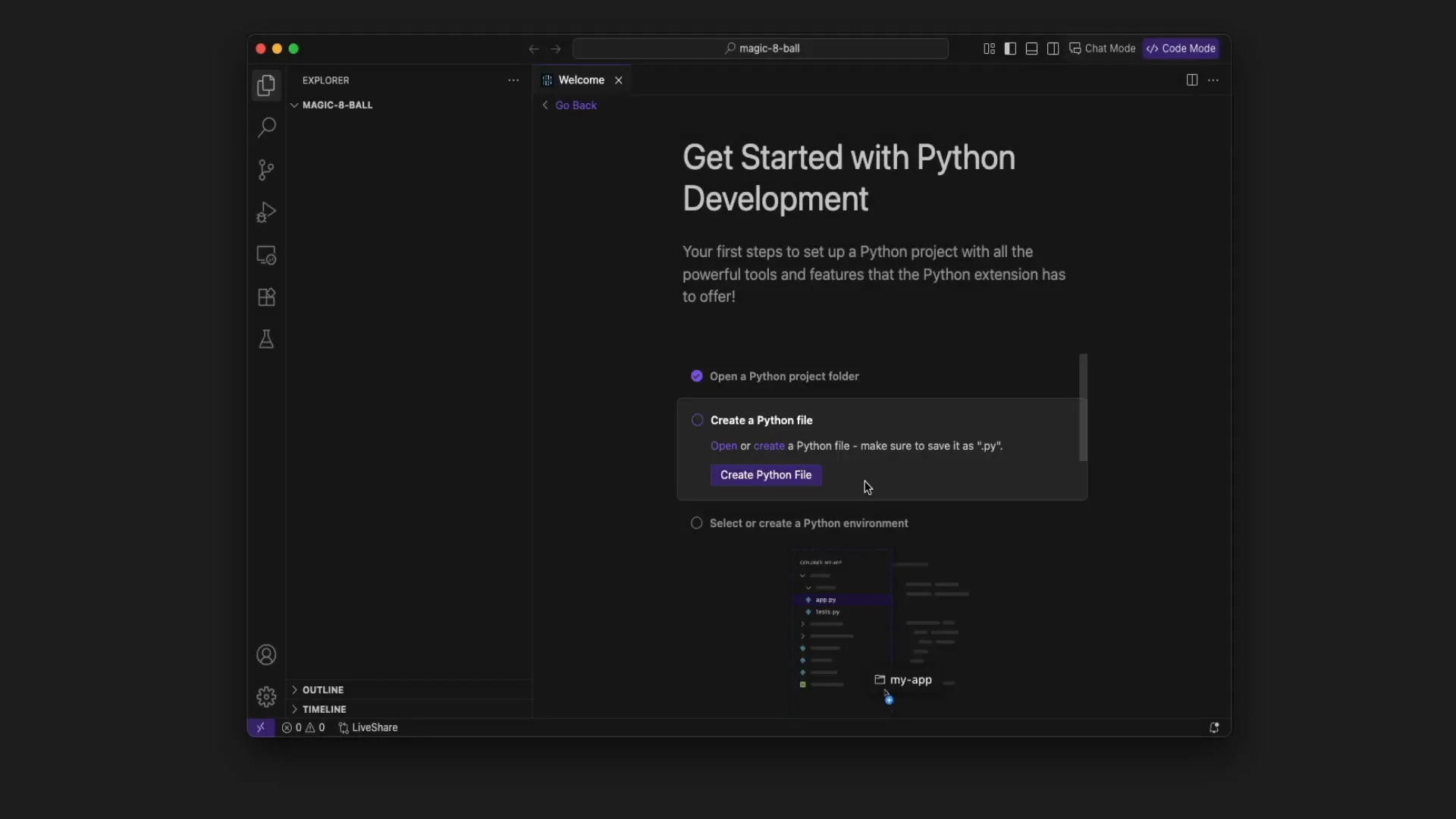
If your chat window disappears when opening a new file, reopen it using the chat icon in the upper right corner to keep generating code and interacting with AI.
Step 4: Generate Python Code for the Magic Eightball
With your Python file ready, it’s time to generate the Magic Eightball code using CodeLLM’s AI assistance:
- Select your preferred LLM for coding (GPT4.1 is recommended for Python).
- In the chat input, type a prompt like: “Write Python code for a magic eightball. The user asks a question and the program gives a random yes, no, maybe style answer from a list.”
- Submit the prompt and let the AI generate the complete Python code along with a simple explanation.
- Copy the generated code from the chat window and paste it into your Python file.
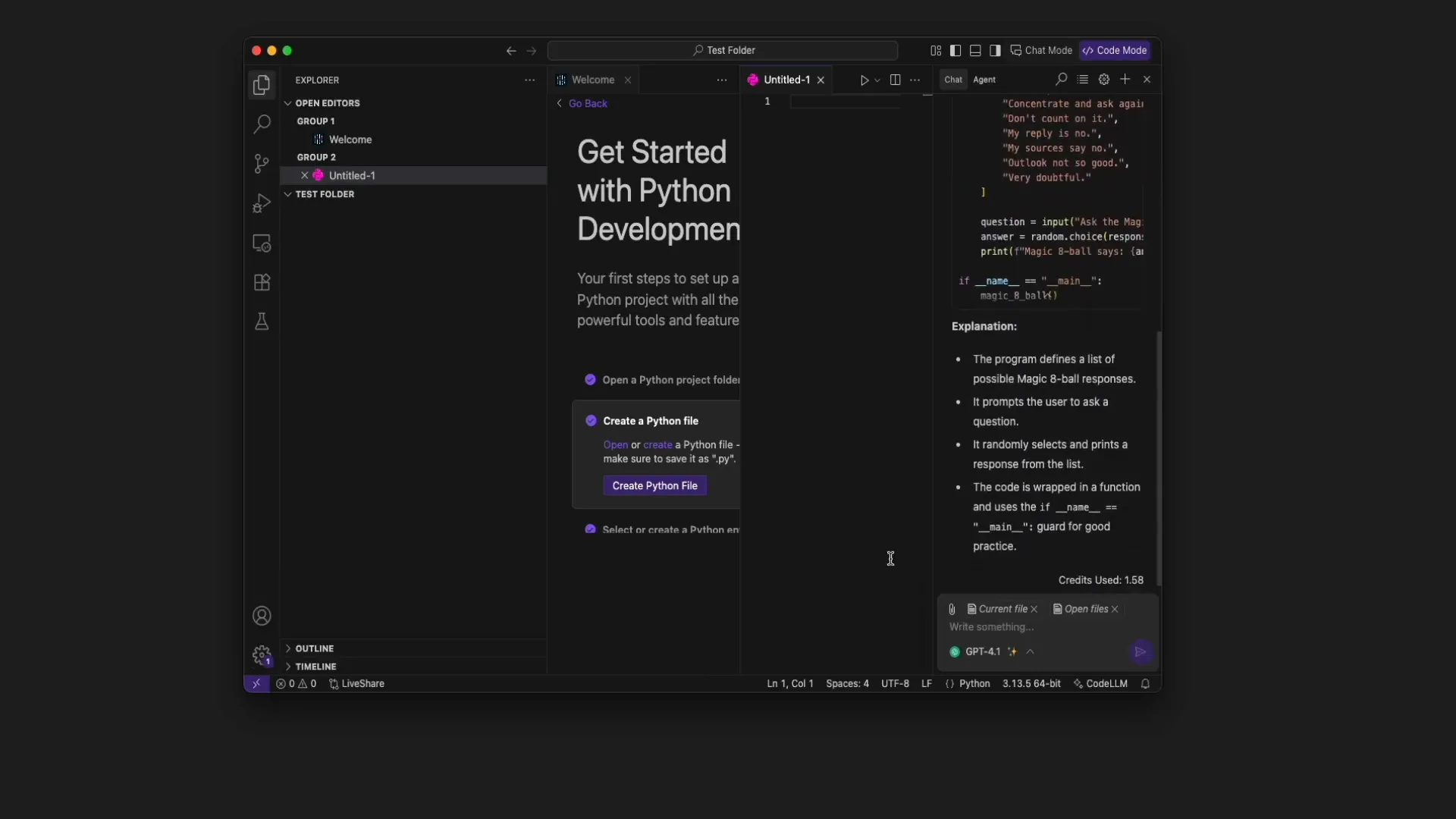
Step 5: Select a Python Environment and Run Your Code
Before running the code, you need to tell CodeLLM which Python interpreter to use:
- Click Select or create a Python environment.
- Choose an existing Python interpreter installed on your machine (e.g., Python 3.9.6 64bit).
- This ensures your project runs with the correct Python version and dependencies.
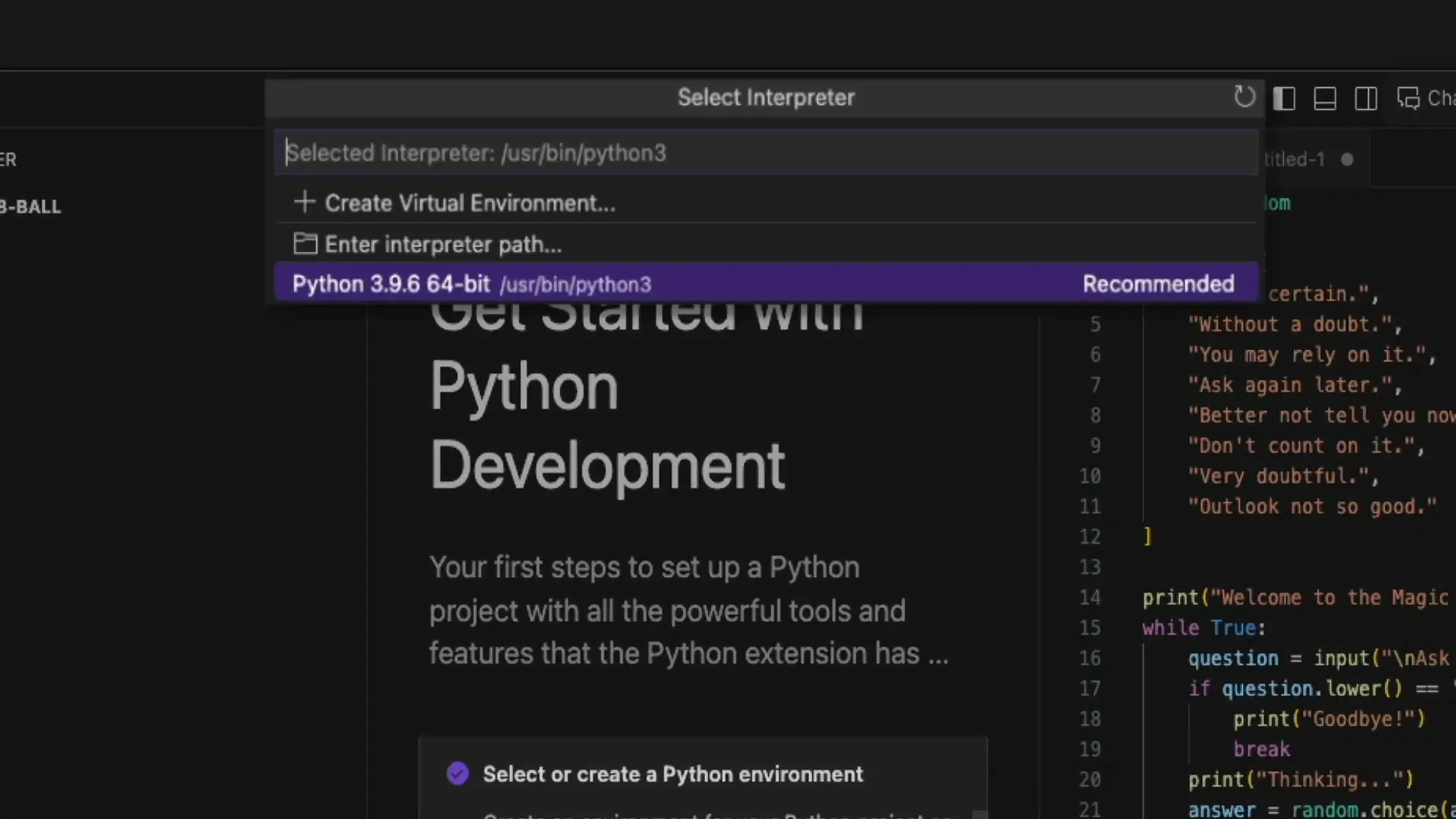
Now you’re ready to run your Magic Eightball script:
- Hover over the upper right corner of the file window to reveal the play button.
- Click it to run the Python file within CodeLLM’s terminal.
- Save your file with a name like magic8ball.py.
- The terminal will open, and you can interact with your Magic Eightball by typing questions and receiving randomized responses.
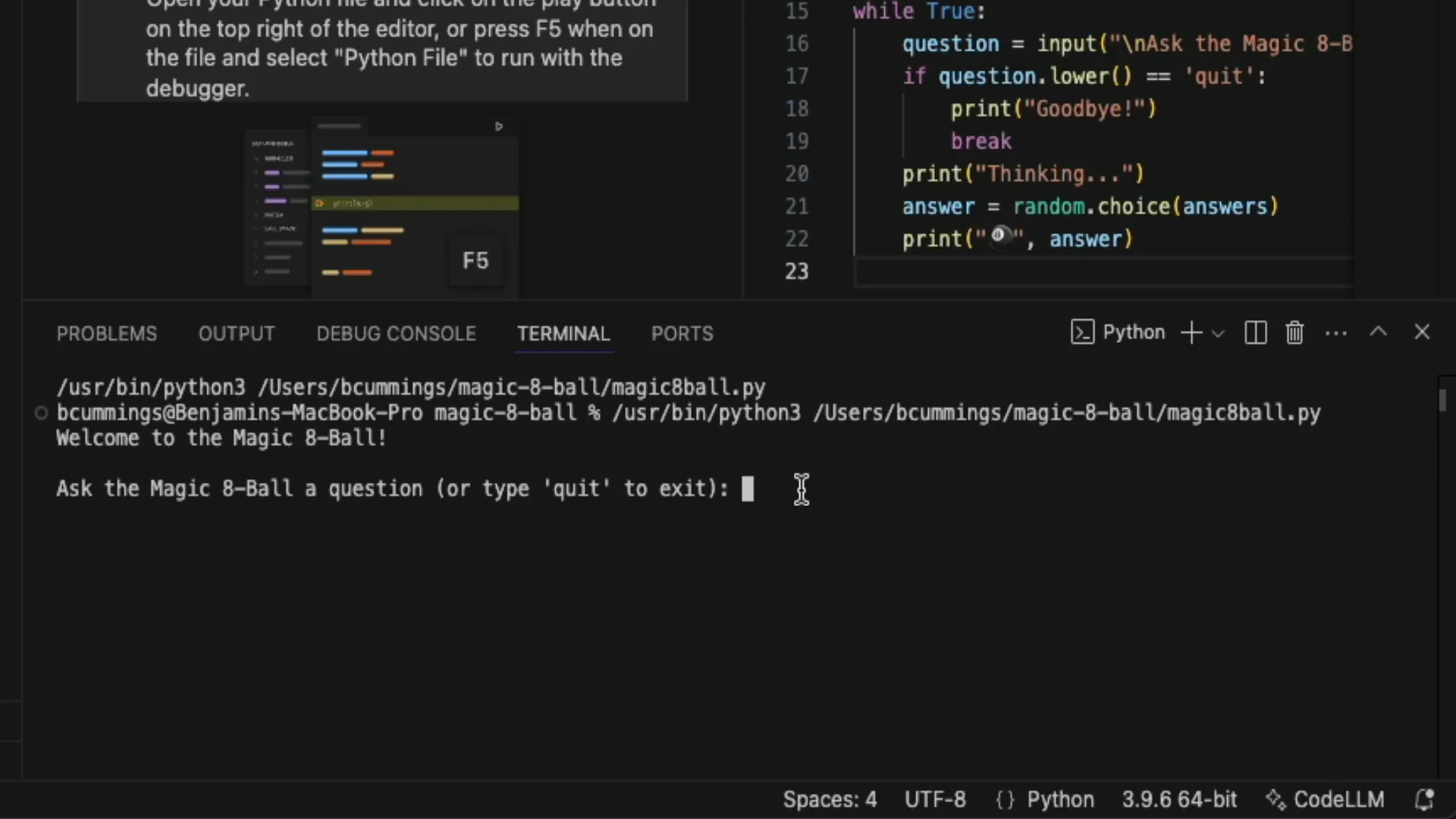
Here’s a fun example of questions and answers from the Magic Eightball:
- Will people watch my YouTube videos? — “You may rely on it.”
- Will I live in Antarctica one day? — “Without a doubt.”
- Will I win the lottery? — “You may rely on it.”
- Will I live to be 115 years old? — “Better not tell you now.”
- Will I run the San Diego Zoo? — “Without a doubt.”
- Will I sail the ocean? — “Better not tell you now.”
When you’re done playing, type quit to exit the program.
Step 6: Turn Your Script into a Desktop App with Tkinter
Typing commands in a terminal is fun, but what if your Magic Eightball had a sleek graphical interface? Enter Tkinter, Python’s built-in GUI toolkit that lets you create windows, buttons, text fields, and labels — perfect for building user-friendly desktop apps.
Here’s how to create a Tkinter-based Magic Eightball app:
- In the explorer panel on the left, create a new folder called magic_8ball_GUI to keep your GUI code organized separately.
- Create a new Python file inside this folder named magic8ball_gui.py.
- Use CodeLLM’s chat feature to generate Python code for a Magic Eightball desktop app GUI by prompting: “Write Python code for a magic eightball desktop app GUI using Tkinter.”
- Paste the generated code into your new file.
- Run the file using the play button in the upper right corner.
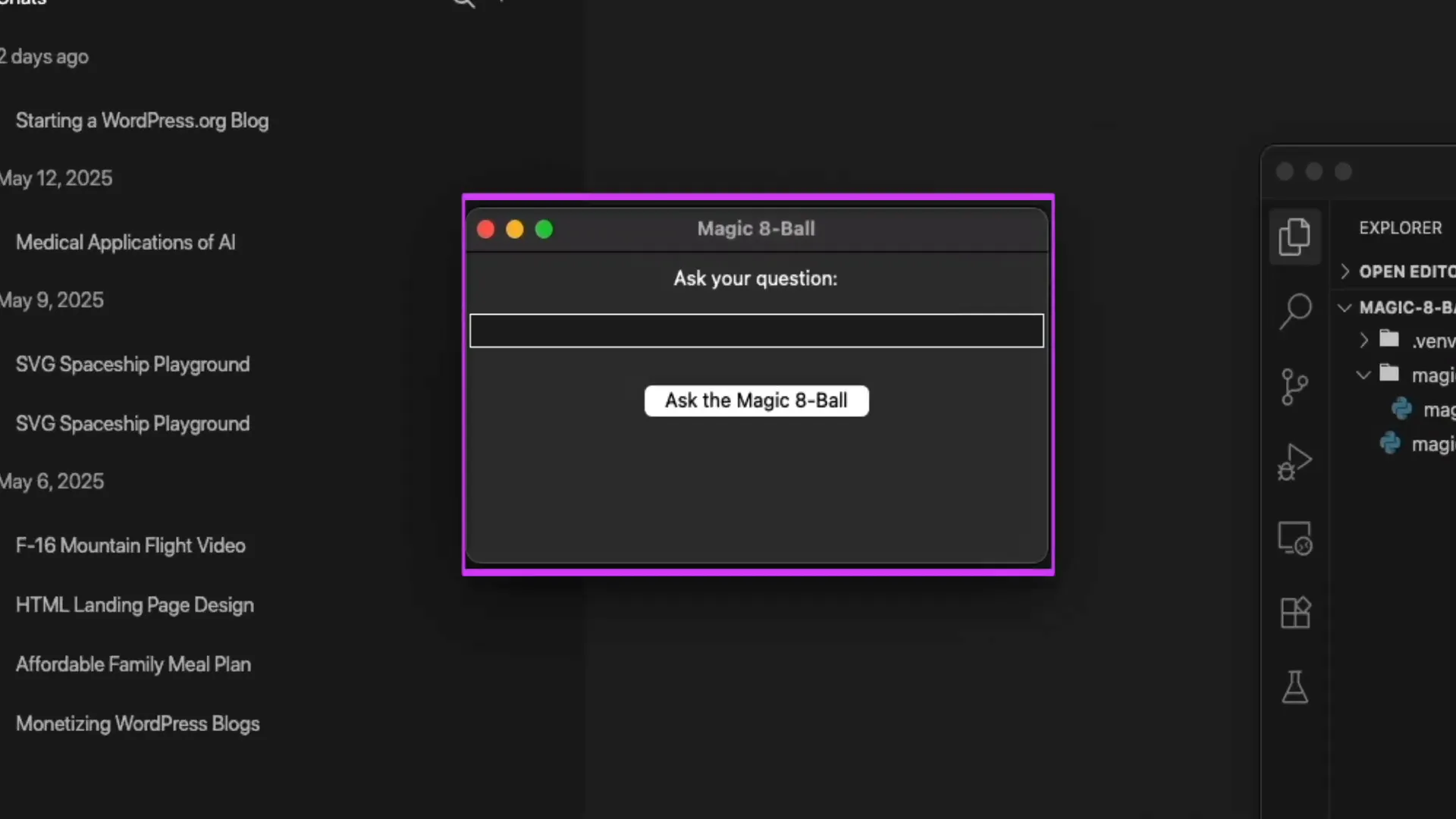
The app window will open with a clean interface where you can type your questions into a text field and click a button to get your Magic Eightball answer displayed right in the window. No more terminal typing — it feels like a real desktop application!
Step 7: Final Thoughts and Next Steps
This project showcases how CodeLLM simplifies the development process by guiding you through setup, code generation, running, and debugging — all within one powerful platform. Whether you’re a beginner or an experienced developer, AI-assisted tools like CodeLLM make coding more accessible and efficient.
From building simple scripts to creating polished desktop apps, you can leverage CodeLLM to accelerate your projects and explore new ideas with AI-powered assistance.
If you’re ready to speed up your development workflow and try out CodeLLM for yourself, visit https://codellm.abacus.ai/ and get started today.
Happy coding!
If you're eager to dive into AI-assisted coding and want a straightforward project to get started, this guide is for you. We'll walk through building a fun and simple Magic Eightball desktop app using Python and Tkinter, all powered by the versatile CodeLLM platform. Whether you're new to Python or curious about how AI can accelerate your development workflow, this step-by-step tutorial will help you create, test, debug, and launch your very own desktop app with ease.
This tutorial is inspired by Blog With Ben, who expertly demonstrates how CodeLLM by Abacus AI makes coding more accessible and efficient. Let’s get started!
Step 1: Set Up Your CodeLLM Account
First things first, to harness the power of AI-assisted coding, you need to sign up for CodeLLM — a powerful tool by Abacus AI designed to speed up your coding workflow by automatically selecting the best large language model (LLM) for the task at hand. It supports multiple AI models like GPT4.1, Claude, Gemini, and more, giving you flexibility in how you generate and refine your code.
CodeLLM is priced at $10 per user per month, providing excellent value for anyone looking to boost their coding productivity.
To get started:
- Go to the CodeLLM homepage and click the Get Started button.
- Sign up quickly using Apple, Google, or Microsoft accounts, or create a new account with your name, email, and password.
- Enter your billing information to complete the signup.
- Once signed in, you'll land on the Abacus AI dashboard where you can access various tools. For this project, select CodeLLM.
- Download and install the CodeLLM app (on Mac OS, drag the app icon to your Applications folder).
- Open CodeLLM and complete the quick onboarding process, including signing in again, choosing your preferred theme (light or dark), and selecting your default mode.
While you can toggle between two modes — Chat Mode and Code Mode — we’ll focus on both to get the most out of CodeLLM.
Step 2: Explore Chat Mode for Idea Generation and Quick Coding
Chat Mode is a conversational interface that lets you interact with AI models to brainstorm ideas, ask coding questions, or generate content. It’s like having an AI coworker to bounce ideas off or get quick coding help.
Here’s how you can use Chat Mode:
- Type your prompt or question into the simple prompt bar.
- Optionally, use the Search Web button to pull in live context from online sources.
- Choose an LLM model from the dropdown or leave it on the default to automatically use the best model.
- Click the send button and watch as the AI generates your response.
For example, you can ask Chat Mode to create an HTML template for a WordPress blog post, and it will quickly generate a clean, ready-to-use code snippet complete with headings, paragraphs, and lists.
This tool is perfect for quick content generation, coding help, or brainstorming before diving into your actual project.
Step 3: Switch to Code Mode and Set Up Your Python Project
Once you’re ready to start coding, switch to Code Mode by clicking the toggle in the top right corner of the app. Code Mode is a dedicated IDE environment where you can write, run, and debug your Python code seamlessly.
When you first enter Code Mode, you’ll see a welcome screen where you can:
- Customize your theme (dark, light, or custom color themes).
- Access onboarding walkthroughs and helpful guides.
Note: If you accidentally close the welcome window, the easiest way to reopen it is by closing and reopening the app.
Now, let’s create our Magic Eightball Python project:
- Click the Get Started with Python walkthrough to open a guided setup.
- Open or create a new project folder. Name it magic_eightball or a name of your choice.
- Trust the project folder when prompted to enable full CodeLLM features.
- Create a new Python file where you will write your code. CodeLLM opens an untitled file for you to start coding.
If your chat window disappears when opening a new file, reopen it using the chat icon in the upper right corner to keep generating code and interacting with AI.
Step 4: Generate Python Code for the Magic Eightball
With your Python file ready, it’s time to generate the Magic Eightball code using CodeLLM’s AI assistance:
- Select your preferred LLM for coding (GPT4.1 is recommended for Python).
- In the chat input, type a prompt like: “Write Python code for a magic eightball. The user asks a question and the program gives a random yes, no, maybe style answer from a list.”
- Submit the prompt and let the AI generate the complete Python code along with a simple explanation.
- Copy the generated code from the chat window and paste it into your Python file.
Step 5: Select a Python Environment and Run Your Code
Before running the code, you need to tell CodeLLM which Python interpreter to use:
- Click Select or create a Python environment.
- Choose an existing Python interpreter installed on your machine (e.g., Python 3.9.6 64bit).
- This ensures your project runs with the correct Python version and dependencies.
Now you’re ready to run your Magic Eightball script:
- Hover over the upper right corner of the file window to reveal the play button.
- Click it to run the Python file within CodeLLM’s terminal.
- Save your file with a name like magic8ball.py.
- The terminal will open, and you can interact with your Magic Eightball by typing questions and receiving randomized responses.
Here’s a fun example of questions and answers from the Magic Eightball:
- Will people watch my YouTube videos? — “You may rely on it.”
- Will I live in Antarctica one day? — “Without a doubt.”
- Will I win the lottery? — “You may rely on it.”
- Will I live to be 115 years old? — “Better not tell you now.”
- Will I run the San Diego Zoo? — “Without a doubt.”
- Will I sail the ocean? — “Better not tell you now.”
When you’re done playing, type quit to exit the program.
Step 6: Turn Your Script into a Desktop App with Tkinter
Typing commands in a terminal is fun, but what if your Magic Eightball had a sleek graphical interface? Enter Tkinter, Python’s built-in GUI toolkit that lets you create windows, buttons, text fields, and labels — perfect for building user-friendly desktop apps.
Here’s how to create a Tkinter-based Magic Eightball app:
- In the explorer panel on the left, create a new folder called magic_8ball_GUI to keep your GUI code organized separately.
- Create a new Python file inside this folder named magic8ball_gui.py.
- Use CodeLLM’s chat feature to generate Python code for a Magic Eightball desktop app GUI by prompting: “Write Python code for a magic eightball desktop app GUI using Tkinter.”
- Paste the generated code into your new file.
- Run the file using the play button in the upper right corner.
The app window will open with a clean interface where you can type your questions into a text field and click a button to get your Magic Eightball answer displayed right in the window. No more terminal typing — it feels like a real desktop application!
Step 7: Final Thoughts and Next Steps
This project showcases how CodeLLM simplifies the development process by guiding you through setup, code generation, running, and debugging — all within one powerful platform. Whether you’re a beginner or an experienced developer, AI-assisted tools like CodeLLM make coding more accessible and efficient.
From building simple scripts to creating polished desktop apps, you can leverage CodeLLM to accelerate your projects and explore new ideas with AI-powered assistance.
If you’re ready to speed up your development workflow and try out CodeLLM for yourself, visit https://codellm.abacus.ai/ and get started today.
Happy coding!

Written by Ben Cummings
Founder of blogwithben.com
Ben is the Co-Founder of Sage Wave Media, LLC which is the parent company of Blog With Ben. He enjoys teaching, blogging, startups, a hoppy IPA, and college basketball. Whenever he's not blogging, you can find him cruising around sunny San Diego with his amazing family.
0 Comments