
Automate Email & Scheduling with Serif AI Step-by-Step Guide
Automate Email & Scheduling with Serif AI Step-by-Step Guide
Serif AI acts like a personal executive assistant inside your inbox. It learns your writing style, sorts and labels incoming messages, drafts replies in your voice, manages scheduling, builds reusable playbooks, and stores a searchable knowledge base so you can spend less time on email and more time on meaningful work.
Step 1: Create your account and let Serif learn your inbox
Sign in with Gmail or Outlook and answer a few onboarding questions about what you do, your goals, and how you like to communicate. Serif scans your email history and begins building a profile of your tone, rates, and common workflows. This initial analysis takes a few minutes and may trigger follow-up emails asking for clarifications — respond like normal and Serif will incorporate the answers into your knowledge base.
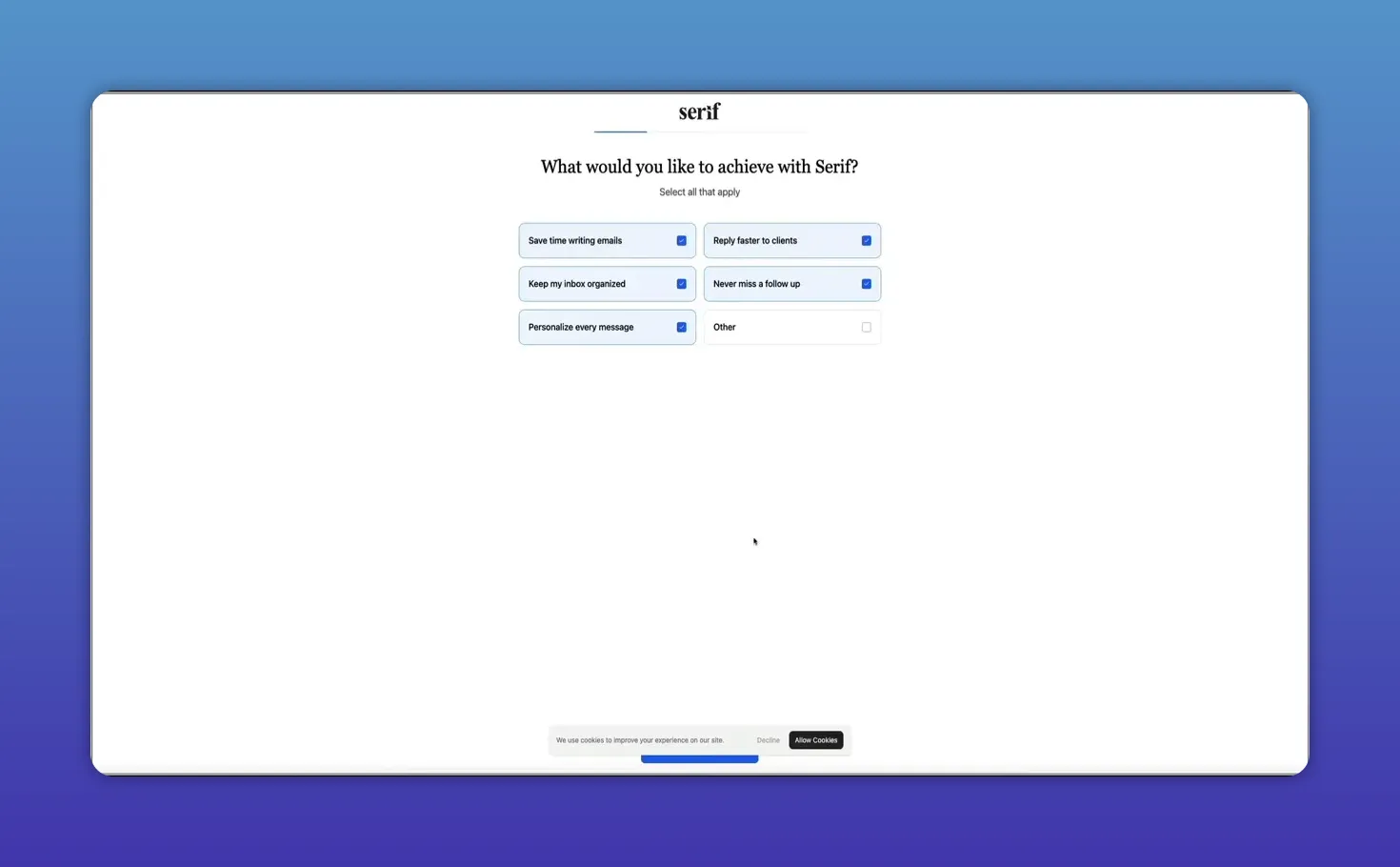
You'll be asked for billing information up front, but you get a full trial period to test everything. During setup, Serif generates summary documents (for example, pricing or sponsorship details) automatically so you don't have to recreate those assets manually.
Step 2: Set up automatic email labels
Once connected, Serif categorizes every incoming message with smart labels such as needs response, FYI, waiting for reply, and notification. These make it easy to scan an inbox and instantly spot what requires action versus what can be ignored.
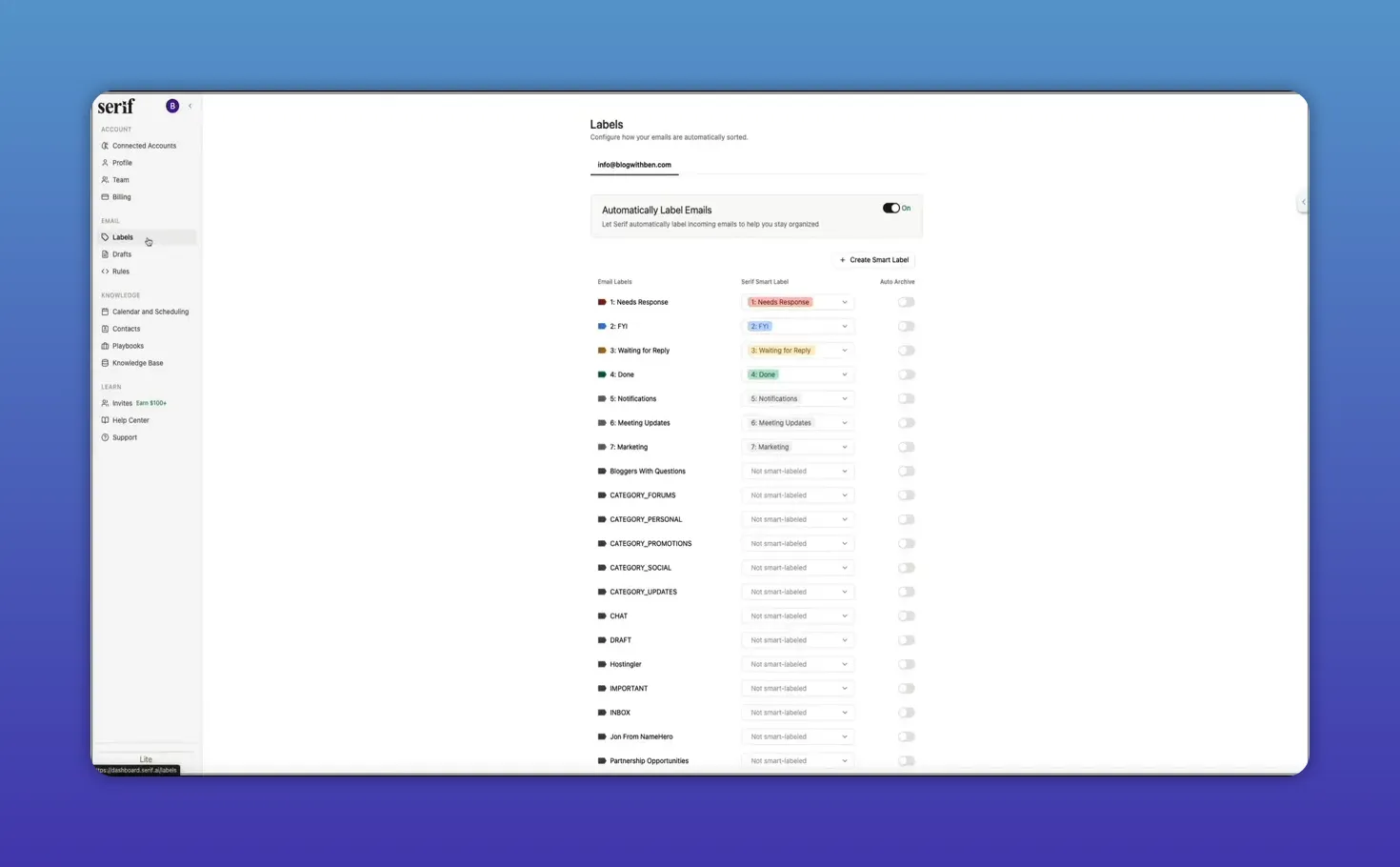
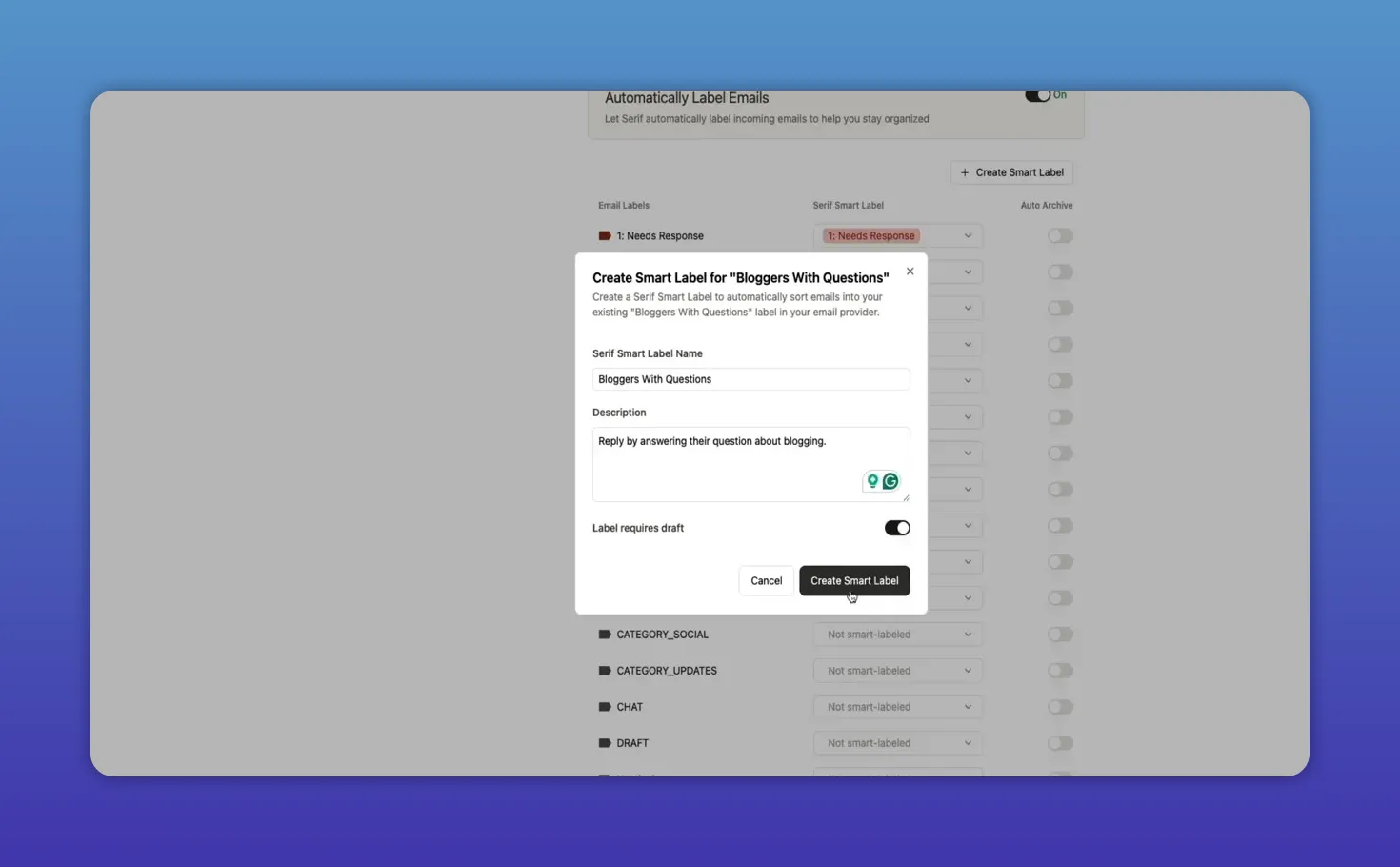
You can customize labels, change priorities, or instruct Serif to auto-archive types of email you never want to see. Creating a smart label is as simple as describing the condition — for example, “emails from bloggers asking questions” — and Serif will apply that label automatically going forward.
Step 3: Use drafted replies to save time
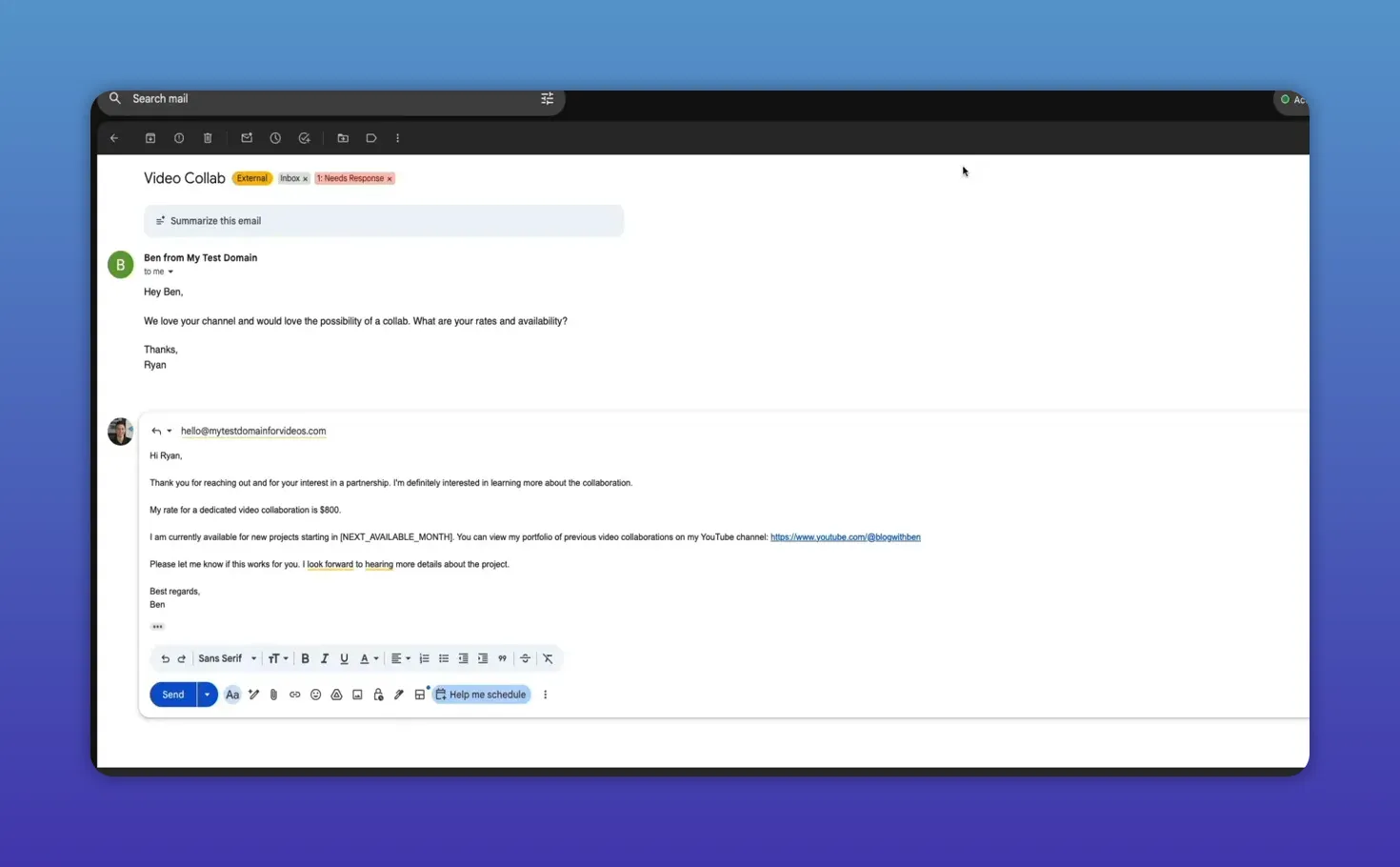
For messages labeled as needing a response, Serif drafts replies directly in your reply box. Those drafts match your writing style and the context of the conversation, so you can send with one click or tweak a few words.
Key capabilities:
- Multiple response options when nuance matters
- Placeholders if more info is required
- Automatic inclusion of team members in CC or BCC when appropriate
Step 4: Fine-tune how Serif writes and follows up
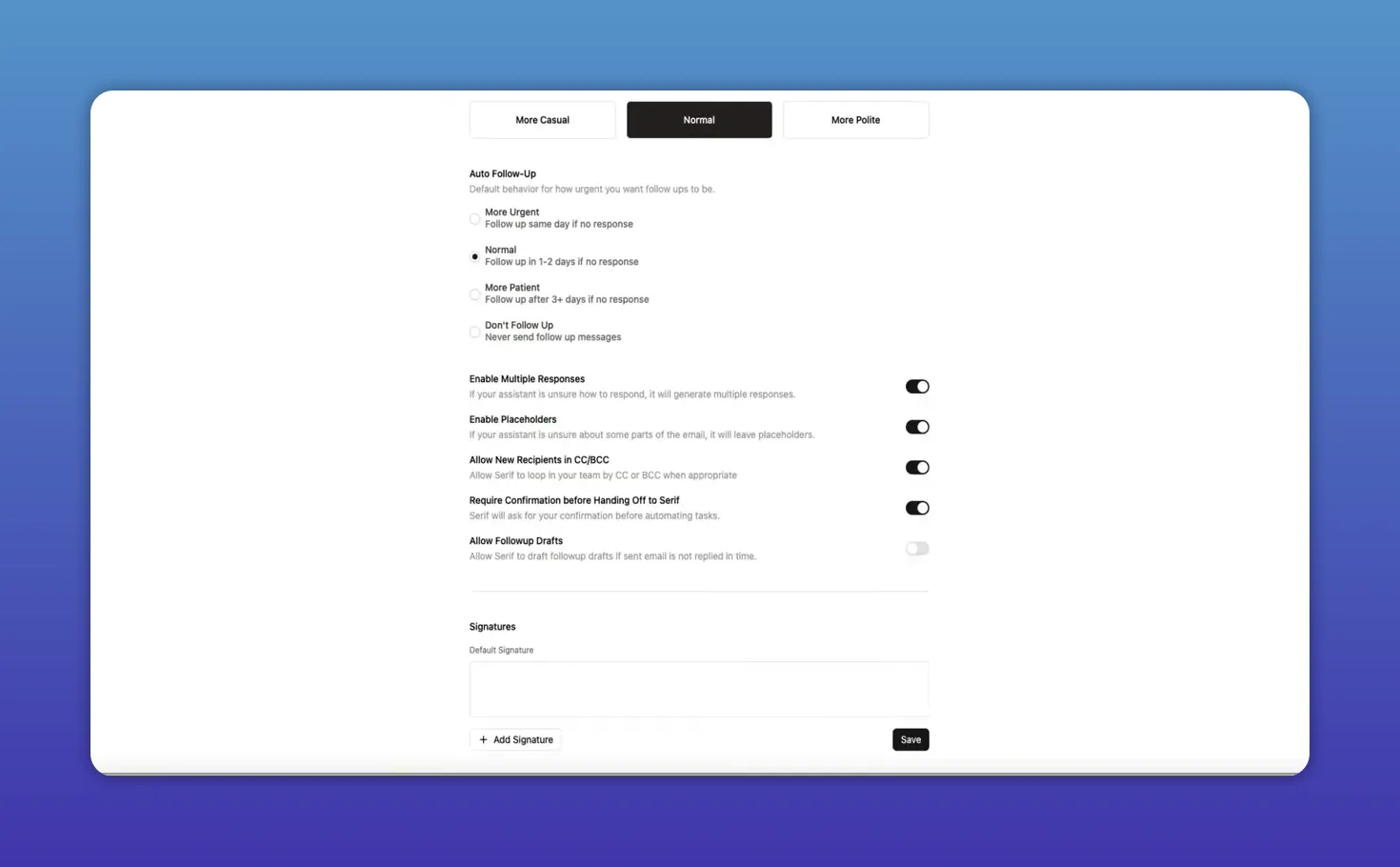
Inside the Drafts area you control tone (casual, polite, neutral), follow-up aggressiveness (same day, 1–2 days, patient), and whether Serif should create multiple replies when unsure. Add a default signature and let Serif use those settings automatically.
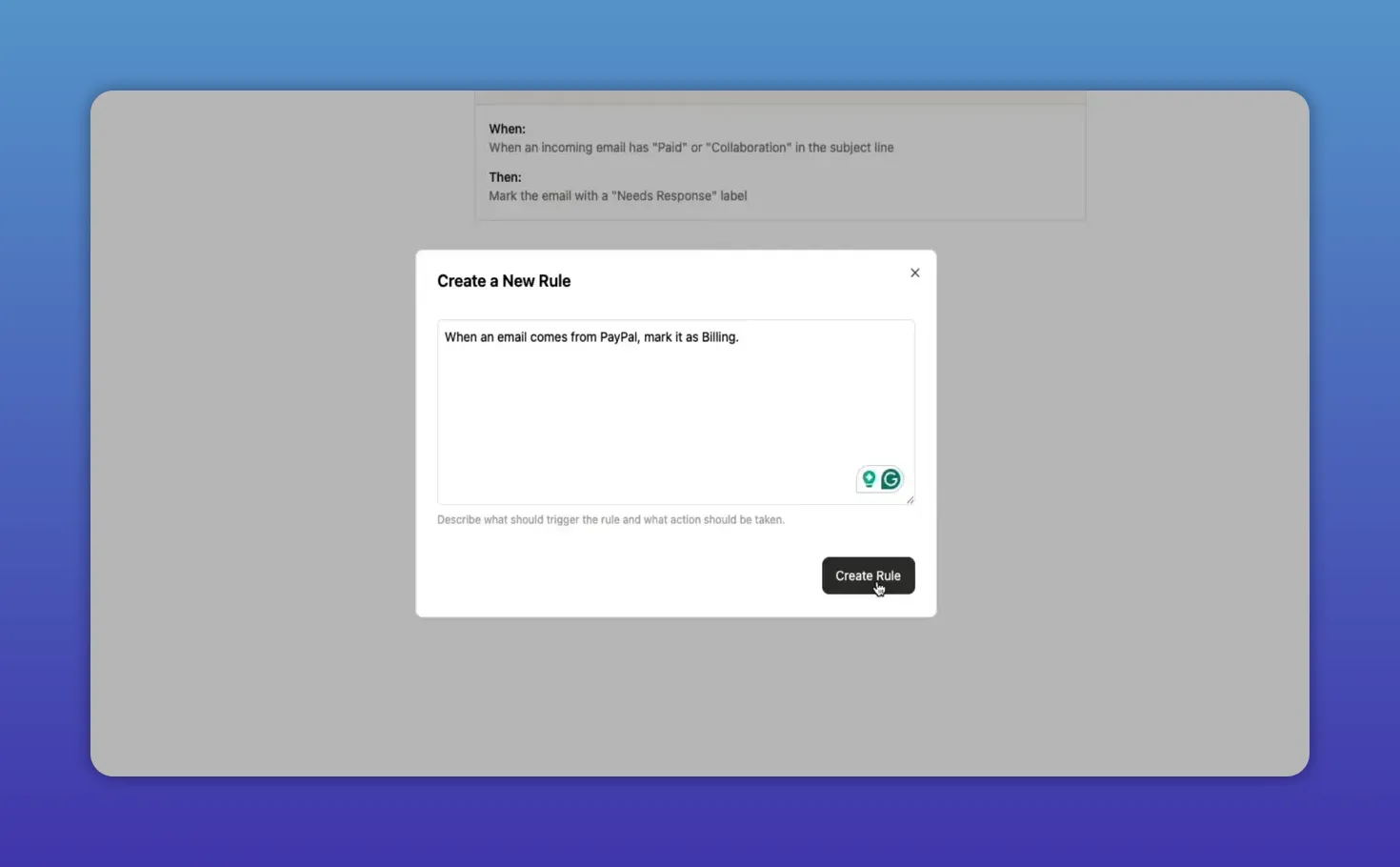
Use Rules to handle edge cases. Rules are written in plain language — for example, “mark all PayPal emails as billing” — and Serif will follow them automatically. Rules let you shape the assistant's behavior for unique scenarios without complex configuration.
Step 5: Teach Serif your calendar and scheduling preferences
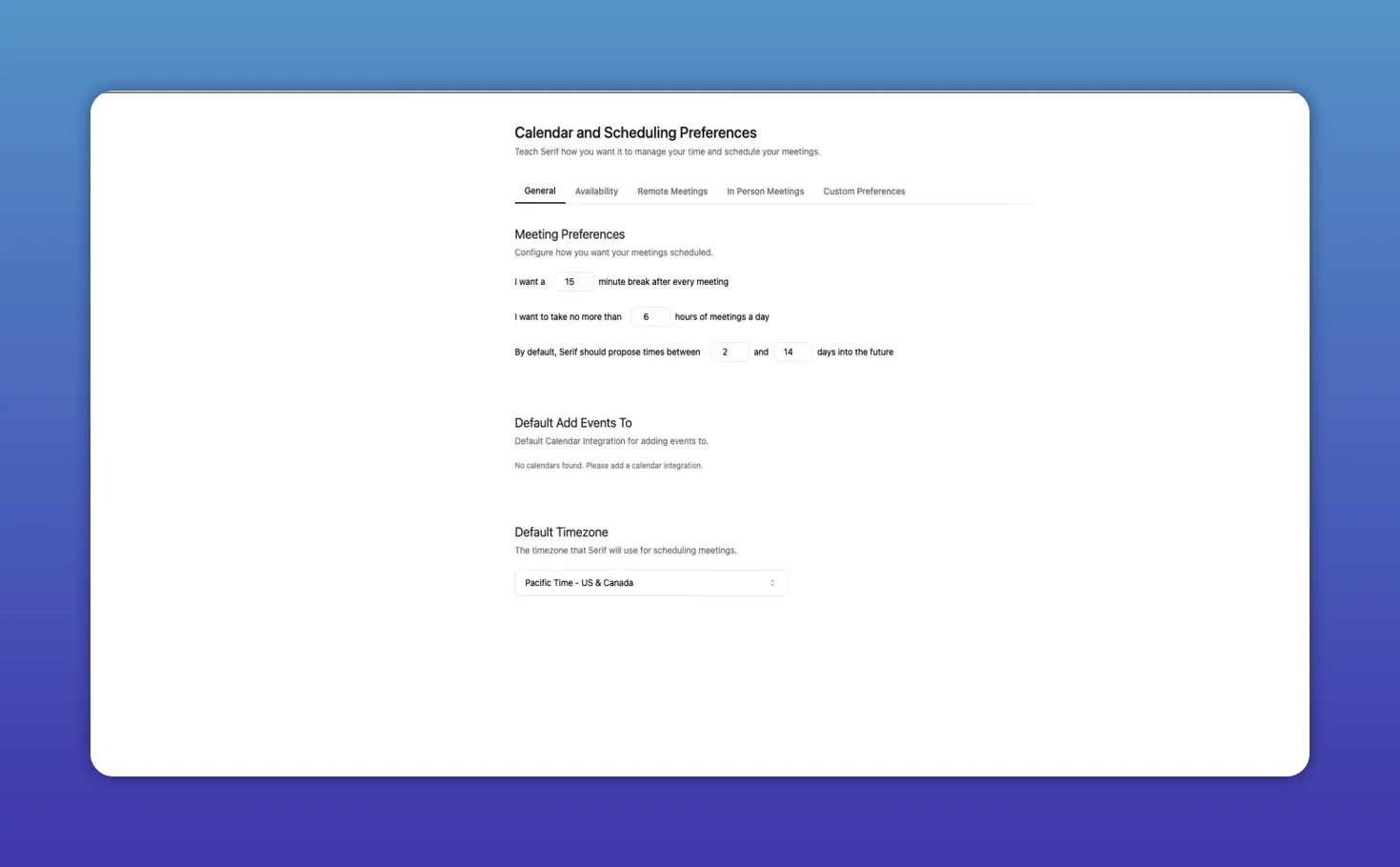
The calendar and scheduling area lets you teach Serif how to manage meeting requests on your behalf. Define break times between meetings, maximum daily booking hours, how far into the future to propose slots, and which calendar to add events to.
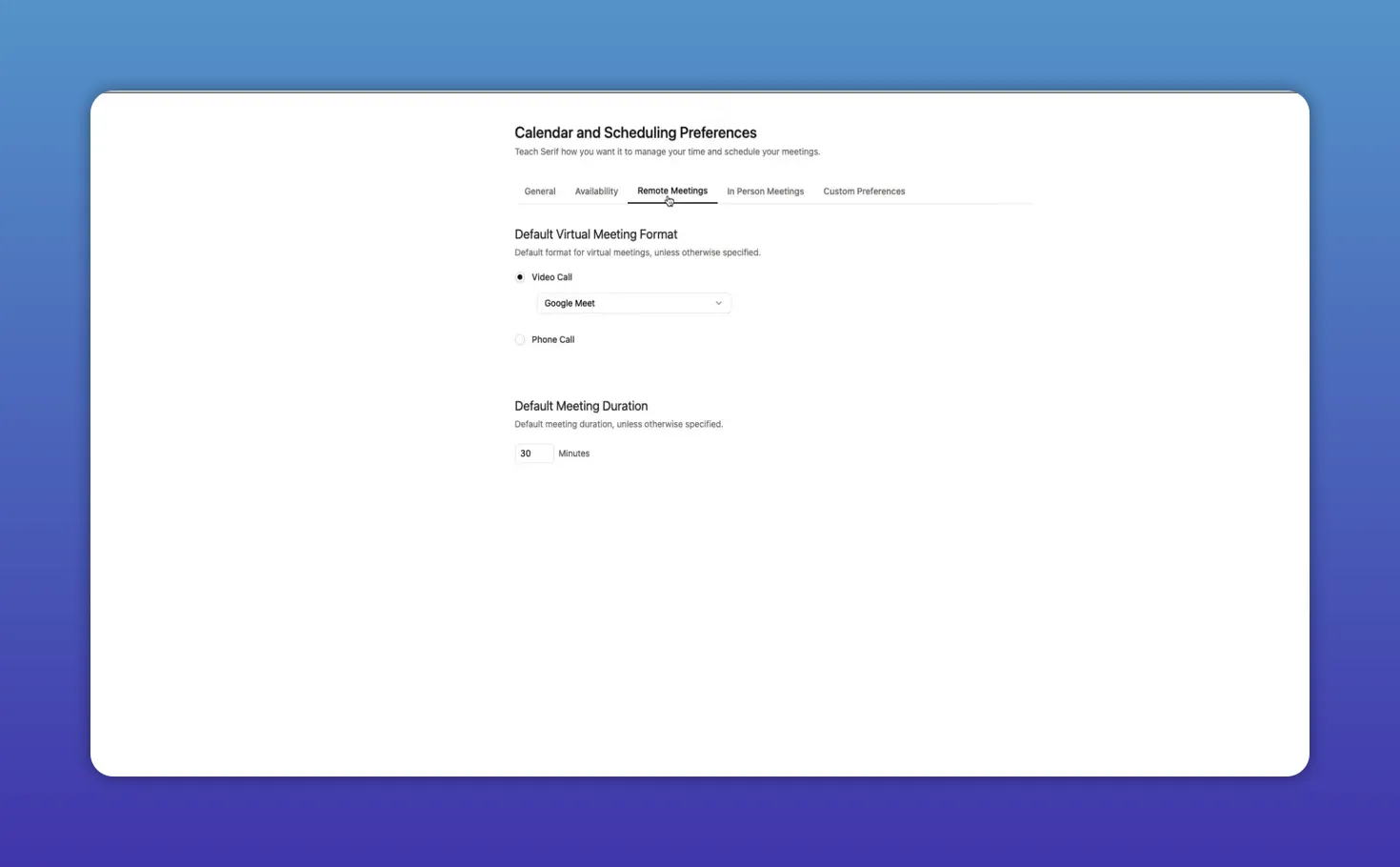
Availability is set by day and time so Serif only suggests slots that truly fit your routine. Remote and in-person preferences are separate:
- Default video conferencing option and meeting length
- In-person meeting locations, default duration, and travel time buffers
- Custom rules for special scheduling situations
Step 6: Leverage playbooks to make responses consistent
Playbooks store templates, workflows, and response patterns Serif detects in your communications. Serif often auto-generates playbooks based on recurring conversations — for example, sponsorship inquiries, negotiating low offers, or sending draft videos to partners.
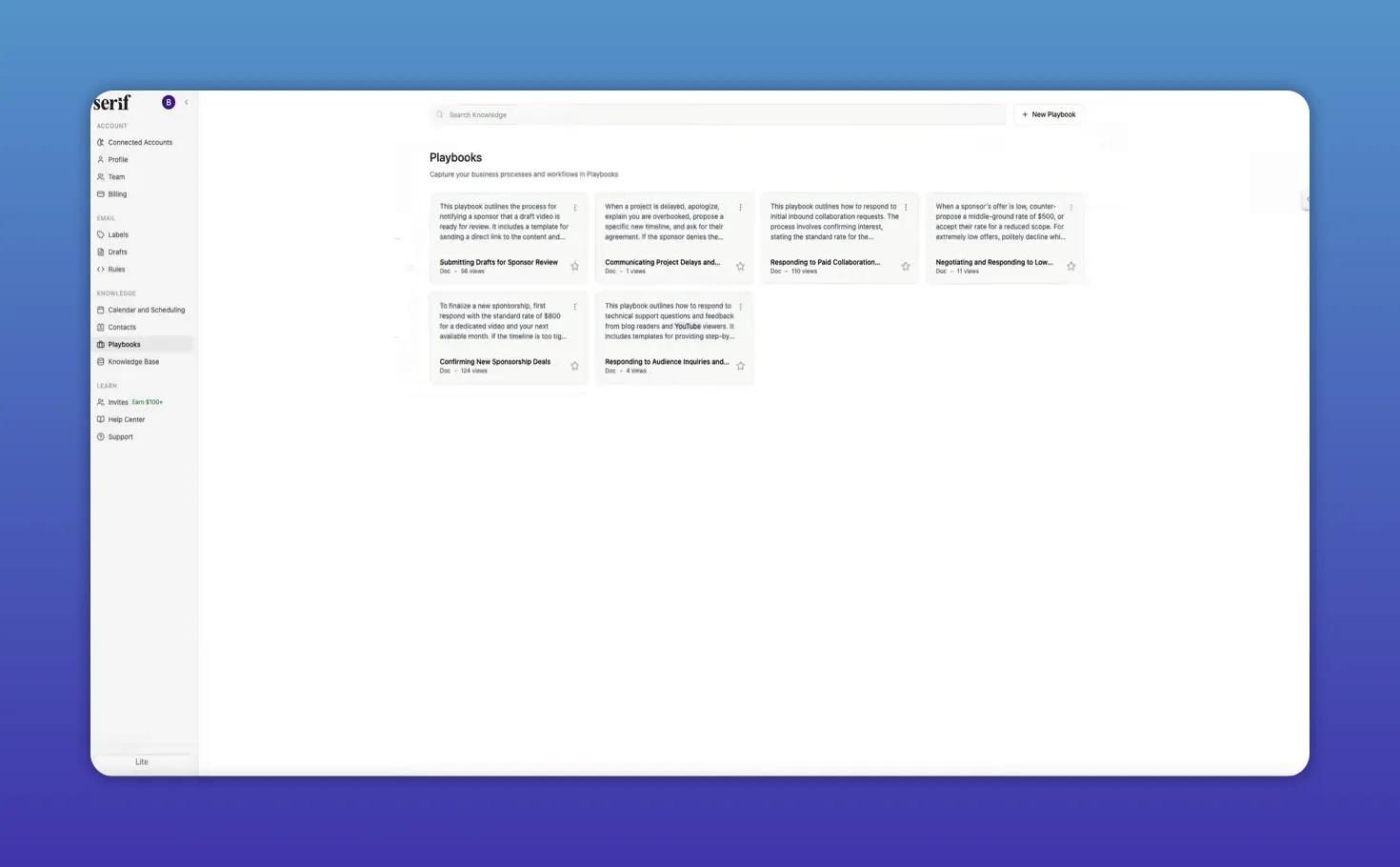
Each playbook contains the phrasing, rates, timelines, and steps Serif should follow, so replies remain accurate and consistent. You can also create playbooks manually to capture any process you want Serif to follow.
Step 7: Build a knowledge base that becomes the assistant's brain
The knowledge base stores all deeper information about your business and processes: sponsorship requirements, pricing sheets, content workflows, platform details, and more. Serif compiles many of these documents automatically from past threads and lets you add or upload files manually for extra context.
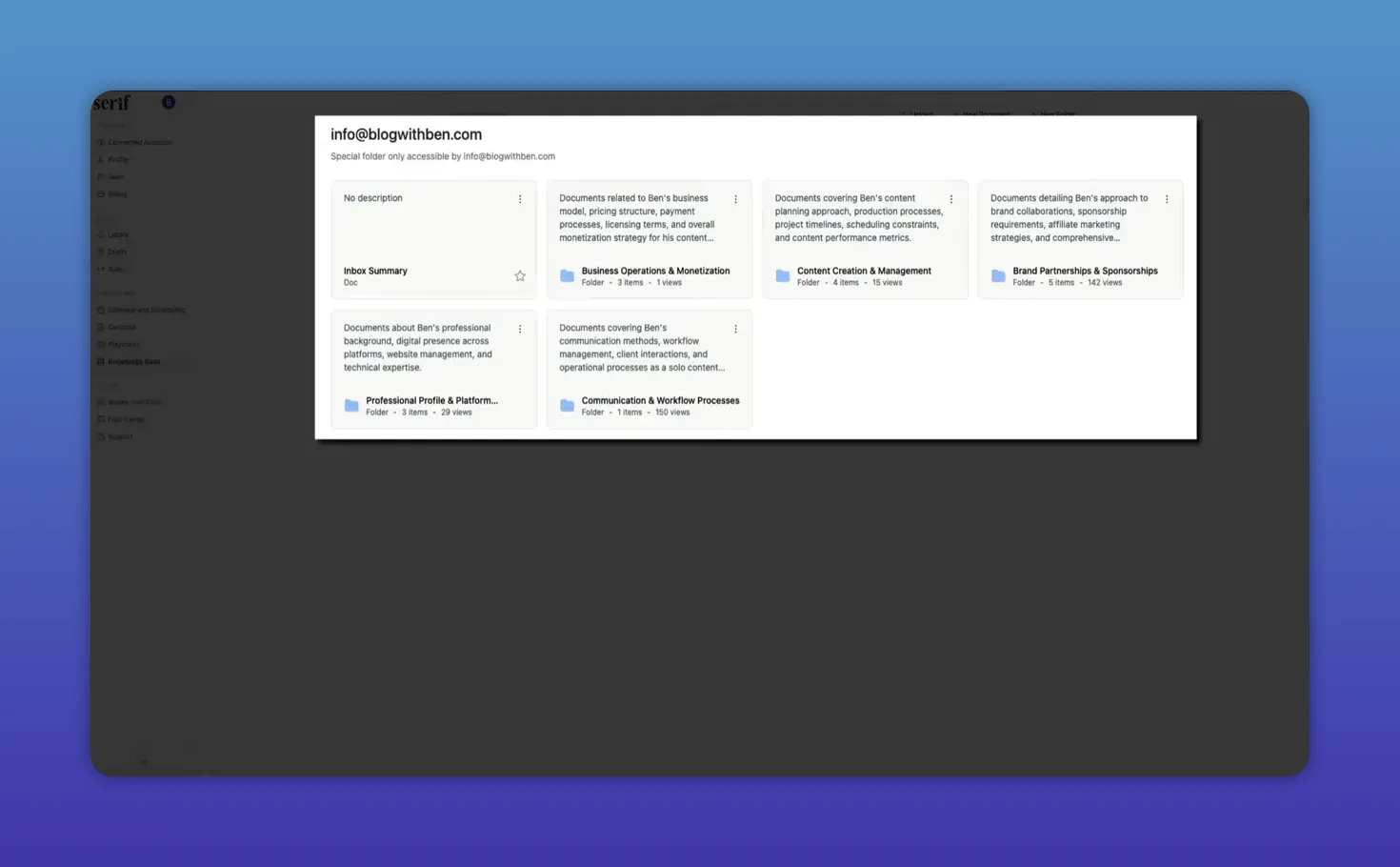
The more complete your knowledge base, the more confidently Serif can:
- Draft precise replies that reflect your rules and expectations
- Populate playbooks with accurate language and rates
- Handle scheduling and negotiation without constant oversight
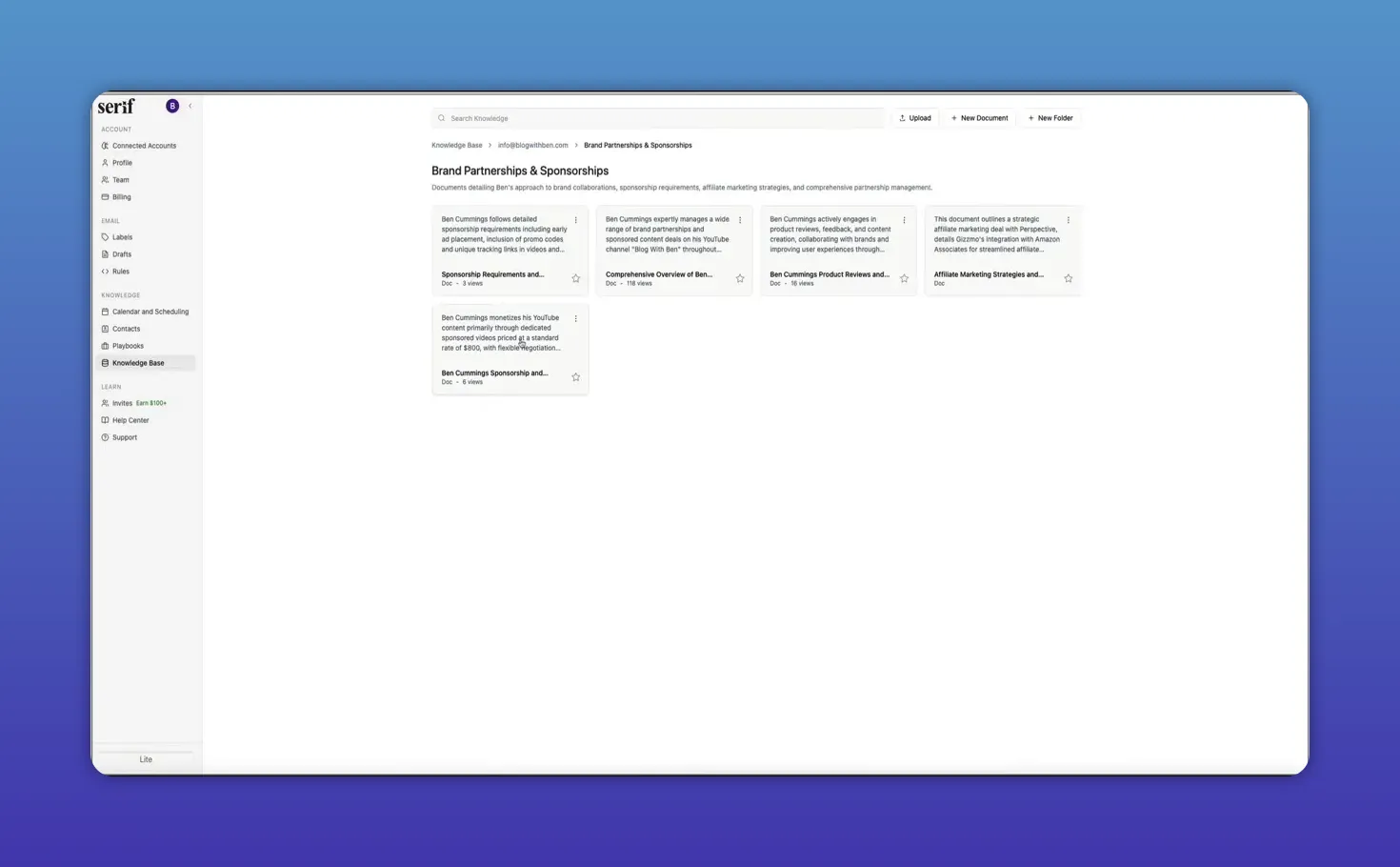
Step 8: Practical workflow tips
- Start small: enable automatic labels first and watch how Serif organizes a week of email.
- Review auto-generated documents in the knowledge base and correct any details that need clarification; those edits improve future replies.
- Create playbooks for high-value, repetitive interactions like partnerships and sponsor negotiations so the assistant responds consistently.
- Periodically audit rules and availability settings — your calendar and priorities change, and updating Serif keeps it useful.
Conclusion
Serif AI removes repetitive email work by categorizing messages, drafting replies in your voice, handling scheduling, and building a knowledge-driven system that scales with your business. When configured thoughtfully, it acts like an automated executive assistant that saves hours each week and keeps communication consistent. Try it for free today and see what it can do for your email management!
Serif AI acts like a personal executive assistant inside your inbox. It learns your writing style, sorts and labels incoming messages, drafts replies in your voice, manages scheduling, builds reusable playbooks, and stores a searchable knowledge base so you can spend less time on email and more time on meaningful work.
Step 1: Create your account and let Serif learn your inbox
Sign in with Gmail or Outlook and answer a few onboarding questions about what you do, your goals, and how you like to communicate. Serif scans your email history and begins building a profile of your tone, rates, and common workflows. This initial analysis takes a few minutes and may trigger follow-up emails asking for clarifications — respond like normal and Serif will incorporate the answers into your knowledge base.
You'll be asked for billing information up front, but you get a full trial period to test everything. During setup, Serif generates summary documents (for example, pricing or sponsorship details) automatically so you don't have to recreate those assets manually.
Step 2: Set up automatic email labels
Once connected, Serif categorizes every incoming message with smart labels such as needs response, FYI, waiting for reply, and notification. These make it easy to scan an inbox and instantly spot what requires action versus what can be ignored.
You can customize labels, change priorities, or instruct Serif to auto-archive types of email you never want to see. Creating a smart label is as simple as describing the condition — for example, “emails from bloggers asking questions” — and Serif will apply that label automatically going forward.
Step 3: Use drafted replies to save time
For messages labeled as needing a response, Serif drafts replies directly in your reply box. Those drafts match your writing style and the context of the conversation, so you can send with one click or tweak a few words.
Key capabilities:
- Multiple response options when nuance matters
- Placeholders if more info is required
- Automatic inclusion of team members in CC or BCC when appropriate
Step 4: Fine-tune how Serif writes and follows up
Inside the Drafts area you control tone (casual, polite, neutral), follow-up aggressiveness (same day, 1–2 days, patient), and whether Serif should create multiple replies when unsure. Add a default signature and let Serif use those settings automatically.
Use Rules to handle edge cases. Rules are written in plain language — for example, “mark all PayPal emails as billing” — and Serif will follow them automatically. Rules let you shape the assistant's behavior for unique scenarios without complex configuration.
Step 5: Teach Serif your calendar and scheduling preferences
The calendar and scheduling area lets you teach Serif how to manage meeting requests on your behalf. Define break times between meetings, maximum daily booking hours, how far into the future to propose slots, and which calendar to add events to.
Availability is set by day and time so Serif only suggests slots that truly fit your routine. Remote and in-person preferences are separate:
- Default video conferencing option and meeting length
- In-person meeting locations, default duration, and travel time buffers
- Custom rules for special scheduling situations
Step 6: Leverage playbooks to make responses consistent
Playbooks store templates, workflows, and response patterns Serif detects in your communications. Serif often auto-generates playbooks based on recurring conversations — for example, sponsorship inquiries, negotiating low offers, or sending draft videos to partners.
Each playbook contains the phrasing, rates, timelines, and steps Serif should follow, so replies remain accurate and consistent. You can also create playbooks manually to capture any process you want Serif to follow.
Step 7: Build a knowledge base that becomes the assistant's brain
The knowledge base stores all deeper information about your business and processes: sponsorship requirements, pricing sheets, content workflows, platform details, and more. Serif compiles many of these documents automatically from past threads and lets you add or upload files manually for extra context.
The more complete your knowledge base, the more confidently Serif can:
- Draft precise replies that reflect your rules and expectations
- Populate playbooks with accurate language and rates
- Handle scheduling and negotiation without constant oversight
Step 8: Practical workflow tips
- Start small: enable automatic labels first and watch how Serif organizes a week of email.
- Review auto-generated documents in the knowledge base and correct any details that need clarification; those edits improve future replies.
- Create playbooks for high-value, repetitive interactions like partnerships and sponsor negotiations so the assistant responds consistently.
- Periodically audit rules and availability settings — your calendar and priorities change, and updating Serif keeps it useful.
Conclusion
Serif AI removes repetitive email work by categorizing messages, drafting replies in your voice, handling scheduling, and building a knowledge-driven system that scales with your business. When configured thoughtfully, it acts like an automated executive assistant that saves hours each week and keeps communication consistent. Try it for free today and see what it can do for your email management!

Written by Ben Cummings
Founder of blogwithben.com
Ben is the Co-Founder of Sage Wave Media, LLC which is the parent company of Blog With Ben. He enjoys teaching, blogging, startups, a hoppy IPA, and college basketball. Whenever he's not blogging, you can find him cruising around sunny San Diego with his amazing family.
0 Comments