
CZUR Shine Ultra Unboxing & Tutorial
CZUR Shine Ultra Unboxing & Tutorial
If you’re searching for a fast, reliable, and versatile way to digitize books, documents, or present physical materials during live sessions, the CZUR Shine Ultra is an all-in-one solution worth your attention. Designed especially with educators, content creators, and professionals in mind, this device combines a high-quality document scanner with a visual presenter and video recorder. It not only streamlines your workflow but also enhances your ability to share, teach, and create with physical media.
In this comprehensive review, we’ll dive into everything the Shine Ultra offers — starting from the unboxing experience, setup process, and key features, to practical demonstrations of scanning books and using the visual presenter mode. Whether you teach online, digitize archives, or create content involving physical materials, the Shine Ultra promises to deliver quality and convenience that can elevate your work.
Unboxing the CZUR Shine Ultra Scanner
The CZUR Shine Ultra arrives in a thoughtfully organized package that makes the initial experience smooth. Inside the box, you’ll find:
- A detailed user manual and a quick-start one-pager guiding you through software download and setup.
- A CD containing the product software for those with CD-ROM drives (though most will download it online).
- The Shine Ultra scanner itself, compact and folded neatly for easy storage and transport.
- A black soft pad used as a backdrop for scanning — this helps create a clean, professional-looking scan.
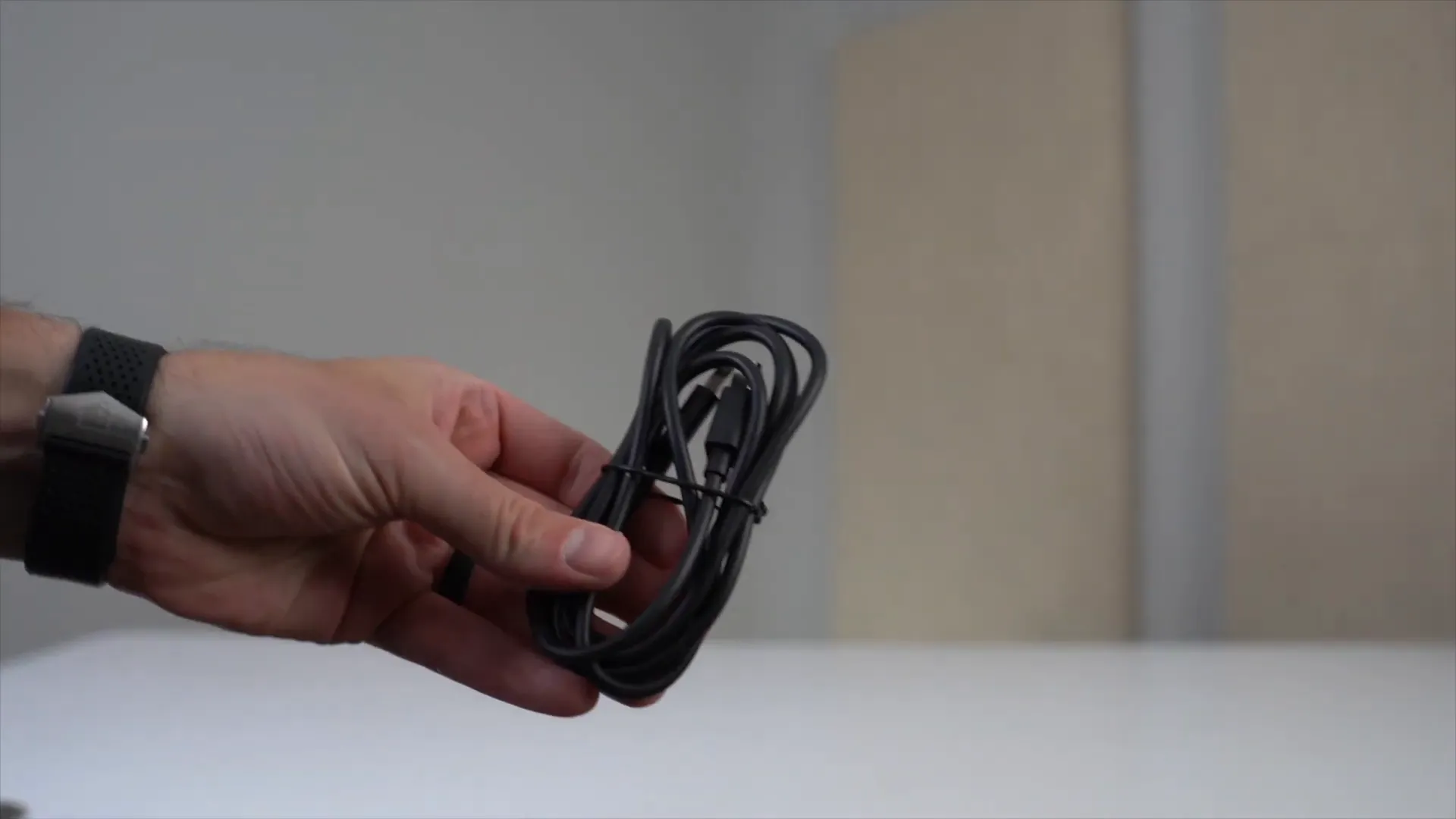
- A USB cable (USB-B to USB-A) for connecting the scanner to your computer.
- Finger cots, which are specialized add-ons worn on your fingers to hold book pages flat without obstructing scans.
- An optional foot pedal that enables hands-free scanning, especially helpful when using finger cots or scanning multiple pages.
The build quality of the Shine Ultra stands out immediately — it feels solid, professionally made, and not flimsy at all. Its compact design means it won’t clutter your workspace with bulky equipment, making it an excellent choice for desks with limited space.
Setting Up the CZUR Shine Ultra: Software and Hardware
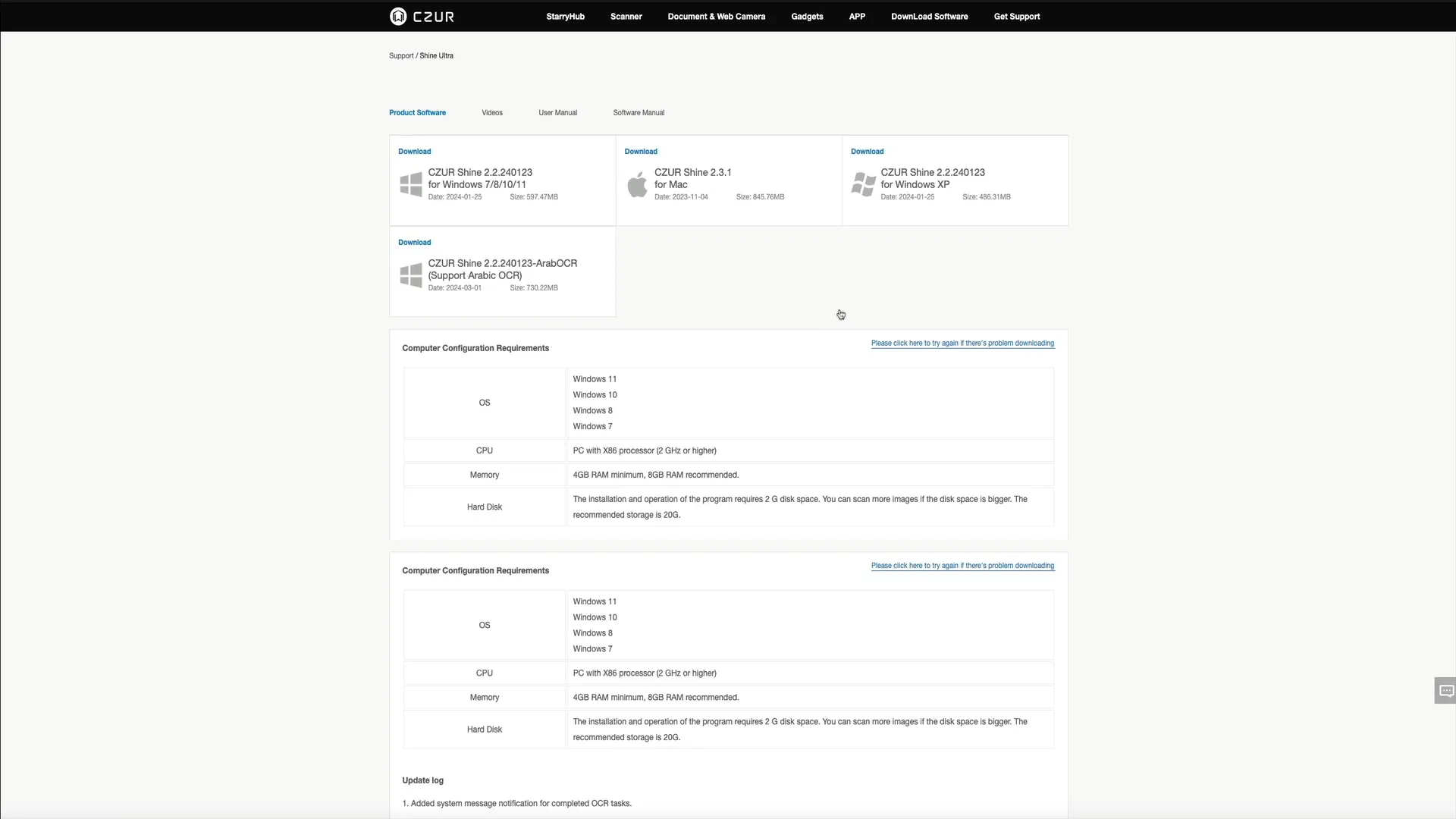
To get started with the Shine Ultra, you’ll first need to download the free software from czur.com. The website’s download section lets you select your specific device model — in this case, the Shine Ultra — and choose the appropriate software version for your computer, whether PC or Mac.
Once downloaded, the installation process is straightforward:
- Open the downloaded installer and agree to the terms.
- Drag the app to your Applications folder (on Mac) or follow the standard installation prompts on PC.
- Launch the app and enter your device’s serial number found on the bottom of the scanner.
- Confirm your purchase location and enter your email to receive helpful guides and tutorials from CZUR.
This streamlined setup ensures you can start scanning quickly, even if you’re new to document scanners.
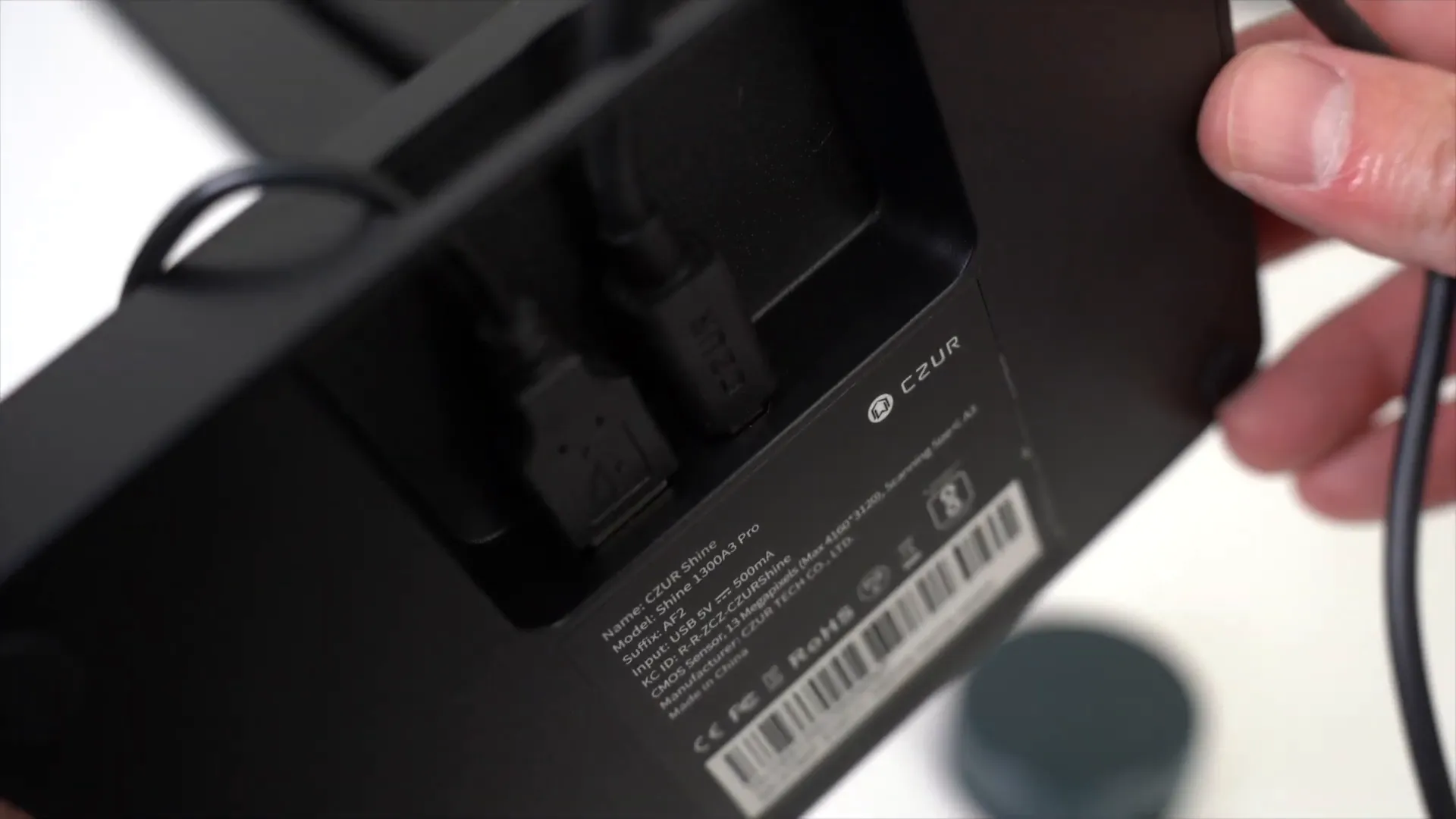
Physically connecting the device is just as simple. The scanner has two ports on its base:
- A USB-B port for the main scanner connection.
- A USB-A port for the foot pedal.
Plug the USB-B cable into the scanner and the USB-A end into your computer. If your computer lacks USB-A ports, like many modern MacBooks, a USB-C adapter will be necessary.
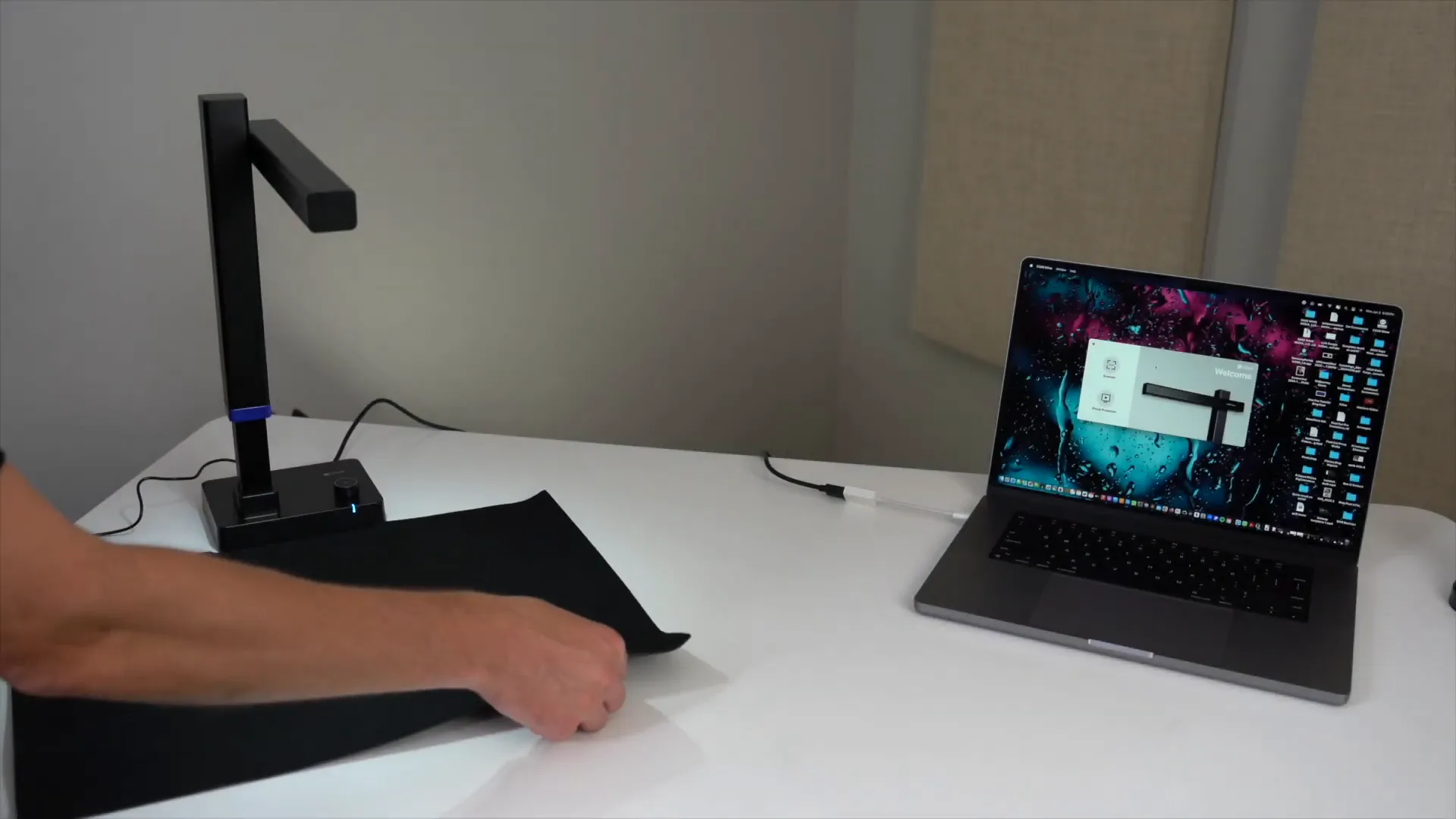
Once connected, extend the scanner’s arm by pulling up on the side with the blue marker. This lifts the camera over your workspace for scanning or presenting. Place the black foam pad on the base, aligning its notch for a sleek backdrop that enhances scan quality.
How to Scan Documents and Books with the CZUR Shine Ultra
One of the Shine Ultra’s standout features is its ease of use when scanning physical documents or books. For example, scanning your child’s homework or textbooks becomes a breeze.
Start by placing the book or document on the black foam pad. The scanner has an adjustable light controlled by a knob — turn it left or right to brighten or darken, and press it once to toggle the light on or off. Adjust lighting as needed for optimal scan clarity.
Open the CZUR app on your computer and choose between two modes:
- Scanner Mode: For capturing physical pages and converting them into digital files.
- Visual Presenter Mode: For live projection, annotation, and video recording (covered later).
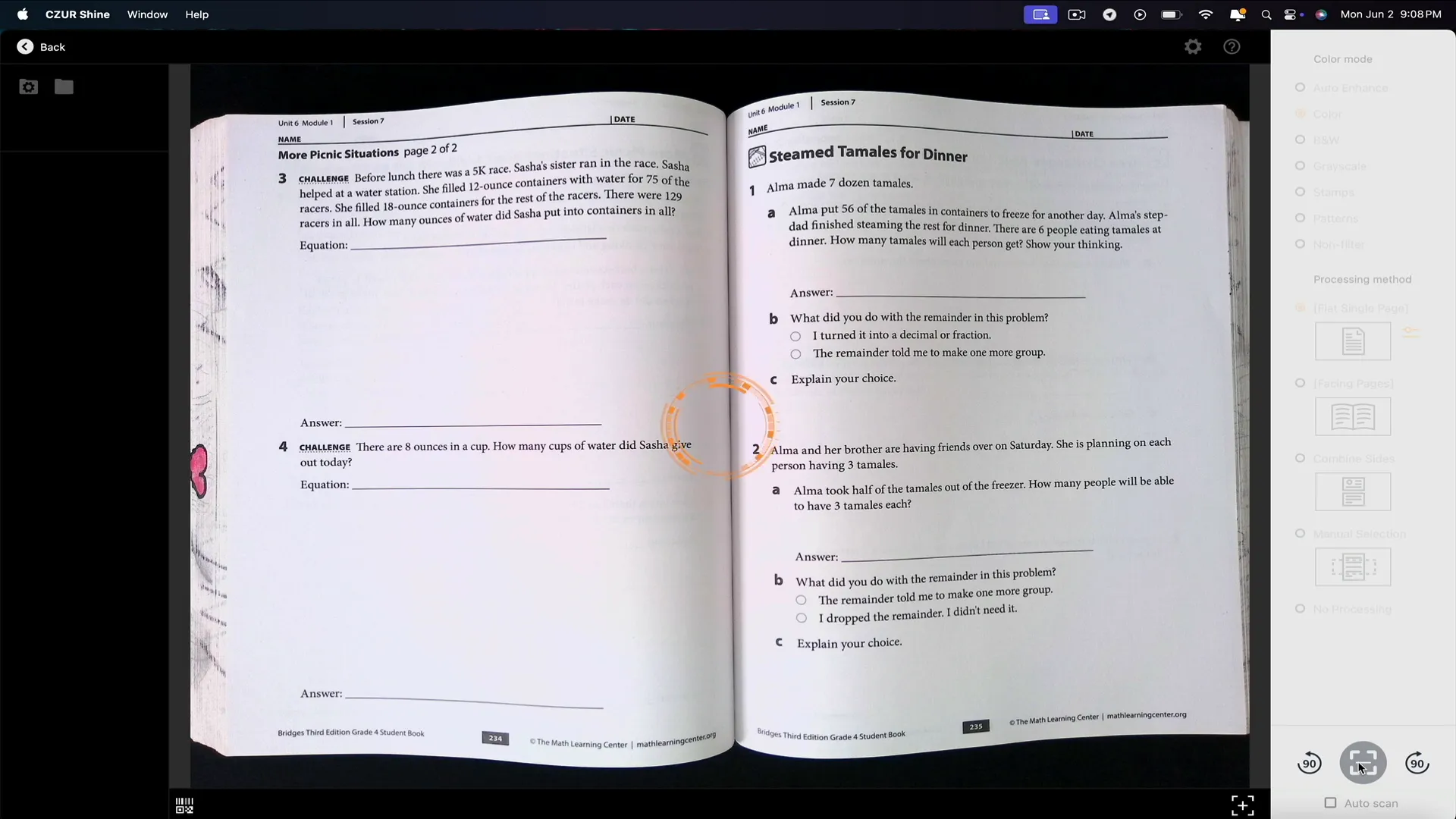
In Scanner Mode, the preview interface shows a live view of the document under the camera. The app automatically detects the edges of your document with an orange outline, so you don’t need to manually crop or select your scan area. However, manual selection is available if you want more control.
You can configure various scan settings, including color modes and processing methods:
- Flat Single Page: Scan one page at a time.
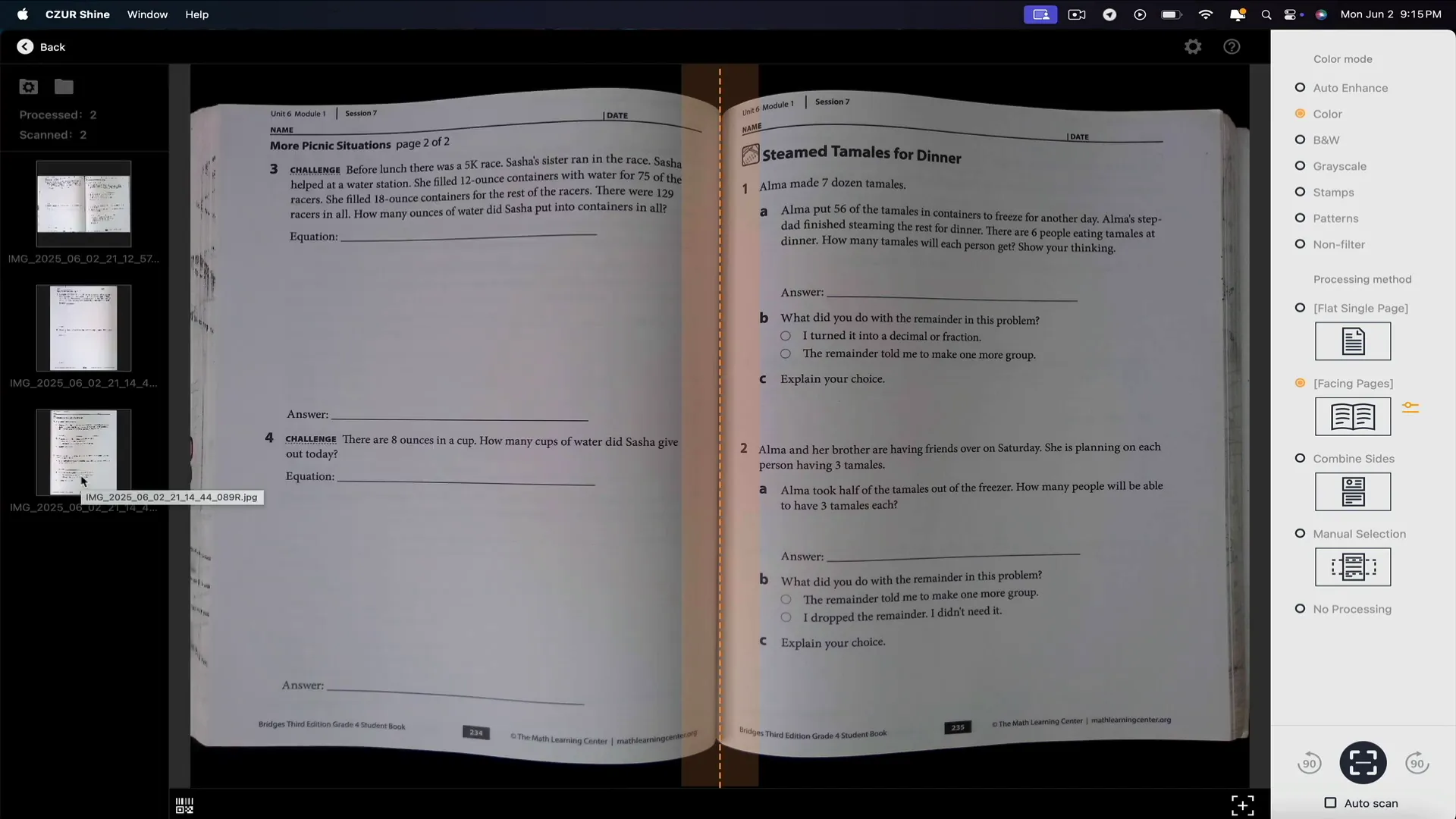
- Facing Pages: Scan two pages at once (ideal for open books).
- Combined Slides, Manual Selection, and No Processing: Additional options for specialized scanning needs.
Click the scan button or use the foot pedal (if connected) to capture your scan. The resulting images appear in a sidebar for preview and editing.
The scan quality is impressive — high definition, fast, and clear. When scanning facing pages, align the book’s center with the dotted guide line, and the software will create two separate images for each page automatically.
You can export scanned images in multiple formats, including Word, Excel, and PDF, directly from the app. The software also allows batch editing, such as cropping, color adjustments, watermarking, and printing, making it a powerful tool for document management.
Using the Visual Presenter Mode for Live Presentations
The Shine Ultra’s Visual Presenter mode turns the scanner into a modern document camera, perfect for educators and professionals who want to share physical materials during live sessions. This mode streams a real-time video feed of whatever is under the camera, making it ideal for virtual teaching, remote meetings, or business presentations.
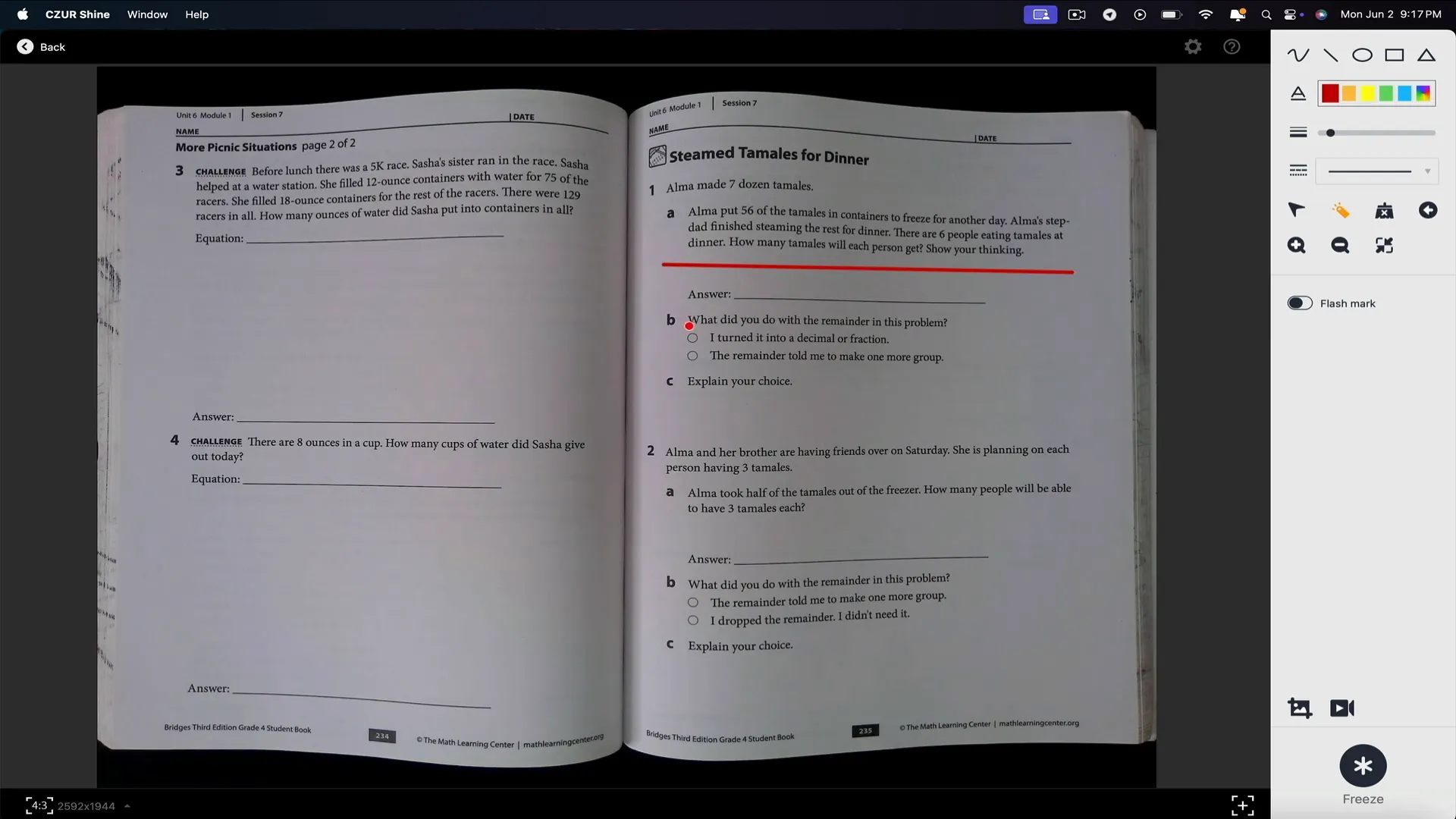
To activate this mode, select “Visual Presenter” in the app, then click the play button. You’ll see the live feed on the left and an interactive toolbar on the right.
This toolbar includes useful tools such as:
- Drawing lines or annotations directly onto the live feed.
- A laser pointer feature for highlighting.
- Zoom in and zoom out controls for focusing on details.
You can even record the live session with audio by clicking the video icon and pressing the red record button. This records both the video feed and ambient sound, allowing you to create tutorials, online lessons, or presentations that can be saved and shared later.
Once recording is complete, you can preview your video within the app, eliminating the need to pre-scan or photograph materials. The real-time interaction this mode offers helps replicate an in-person experience, enabling spontaneous explanations, discussions, and collaborations.
Enhancing Efficiency with Finger Cots and the Foot Pedal
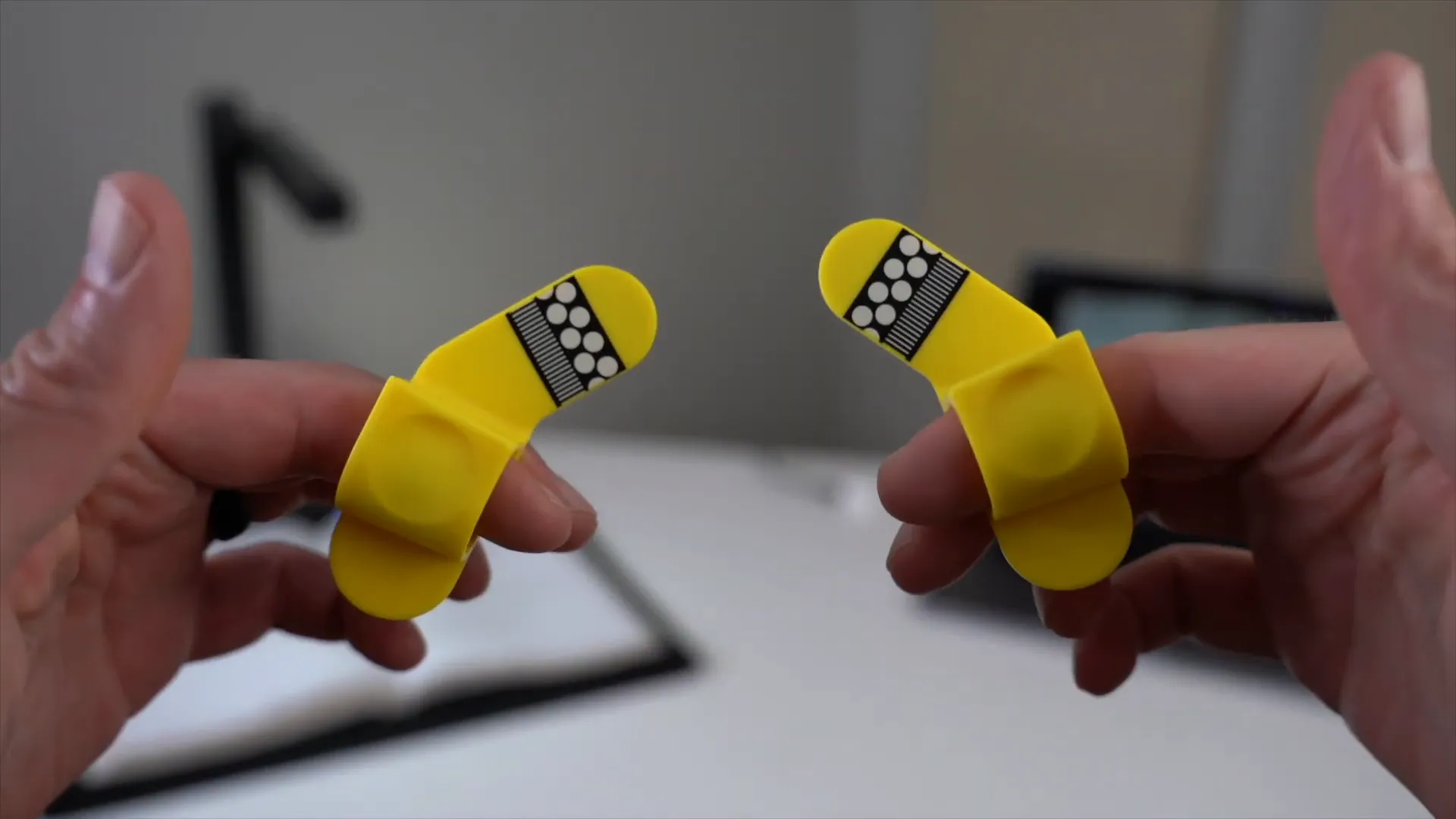
For book scanning, one common challenge is keeping pages flat, especially near the spine where pages tend to curl or lift. The Shine Ultra includes finger cots — small coverings you wear on your fingers to hold pages down without obstructing the scan.
What’s clever is the pattern of black and white dots and lines printed on the finger cots. The scanner’s software recognizes this pattern and automatically removes your fingers from the final scanned image, ensuring clean scans without distracting shadows or obstructions.
Since your hands are occupied holding pages flat, clicking the scan button manually isn’t always convenient. That’s where the optional foot pedal comes in handy. Connected to the scanner, it allows you to trigger scans hands-free by simply pressing it with your foot. This small but thoughtful feature greatly speeds up the scanning process, especially when working with lots of pages.
Final Thoughts: Is the CZUR Shine Ultra Worth It?
After thoroughly testing the CZUR Shine Ultra, I’m genuinely impressed by its versatility, ease of use, and thoughtful design details. Whether you’re digitizing books, showcasing physical documents, or presenting live during virtual meetings or classes, the Shine Ultra delivers clean, high-quality images and a seamless workflow.
The inclusion of finger cots with automatic finger removal and the hands-free foot pedal are standout features that make scanning large volumes efficient and hassle-free. The compact, professional build and adjustable lighting further enhance the user experience.
For content creators, educators, and anyone producing visual material regularly, this device is more than just a scanner — it’s a powerful presentation tool that helps you communicate your ideas clearly and professionally.
While the Shine Ultra is currently priced around $200, with a Shine Ultra Pro available for about $300 offering better camera quality and faster connectivity, the base model offers fantastic value for most users.
If you’re looking for a flexible, reliable tool to elevate your teaching, tutorials, or documentation process, the CZUR Shine Ultra is definitely worth considering.
For more information or to purchase, visit the official CZUR website or trusted retailers.
If you’re searching for a fast, reliable, and versatile way to digitize books, documents, or present physical materials during live sessions, the CZUR Shine Ultra is an all-in-one solution worth your attention. Designed especially with educators, content creators, and professionals in mind, this device combines a high-quality document scanner with a visual presenter and video recorder. It not only streamlines your workflow but also enhances your ability to share, teach, and create with physical media.
In this comprehensive review, we’ll dive into everything the Shine Ultra offers — starting from the unboxing experience, setup process, and key features, to practical demonstrations of scanning books and using the visual presenter mode. Whether you teach online, digitize archives, or create content involving physical materials, the Shine Ultra promises to deliver quality and convenience that can elevate your work.
Unboxing the CZUR Shine Ultra Scanner
The CZUR Shine Ultra arrives in a thoughtfully organized package that makes the initial experience smooth. Inside the box, you’ll find:
- A detailed user manual and a quick-start one-pager guiding you through software download and setup.
- A CD containing the product software for those with CD-ROM drives (though most will download it online).
- The Shine Ultra scanner itself, compact and folded neatly for easy storage and transport.
- A black soft pad used as a backdrop for scanning — this helps create a clean, professional-looking scan.
- A USB cable (USB-B to USB-A) for connecting the scanner to your computer.
- Finger cots, which are specialized add-ons worn on your fingers to hold book pages flat without obstructing scans.
- An optional foot pedal that enables hands-free scanning, especially helpful when using finger cots or scanning multiple pages.
The build quality of the Shine Ultra stands out immediately — it feels solid, professionally made, and not flimsy at all. Its compact design means it won’t clutter your workspace with bulky equipment, making it an excellent choice for desks with limited space.
Setting Up the CZUR Shine Ultra: Software and Hardware
To get started with the Shine Ultra, you’ll first need to download the free software from czur.com. The website’s download section lets you select your specific device model — in this case, the Shine Ultra — and choose the appropriate software version for your computer, whether PC or Mac.
Once downloaded, the installation process is straightforward:
- Open the downloaded installer and agree to the terms.
- Drag the app to your Applications folder (on Mac) or follow the standard installation prompts on PC.
- Launch the app and enter your device’s serial number found on the bottom of the scanner.
- Confirm your purchase location and enter your email to receive helpful guides and tutorials from CZUR.
This streamlined setup ensures you can start scanning quickly, even if you’re new to document scanners.
Physically connecting the device is just as simple. The scanner has two ports on its base:
- A USB-B port for the main scanner connection.
- A USB-A port for the foot pedal.
Plug the USB-B cable into the scanner and the USB-A end into your computer. If your computer lacks USB-A ports, like many modern MacBooks, a USB-C adapter will be necessary.
Once connected, extend the scanner’s arm by pulling up on the side with the blue marker. This lifts the camera over your workspace for scanning or presenting. Place the black foam pad on the base, aligning its notch for a sleek backdrop that enhances scan quality.
How to Scan Documents and Books with the CZUR Shine Ultra
One of the Shine Ultra’s standout features is its ease of use when scanning physical documents or books. For example, scanning your child’s homework or textbooks becomes a breeze.
Start by placing the book or document on the black foam pad. The scanner has an adjustable light controlled by a knob — turn it left or right to brighten or darken, and press it once to toggle the light on or off. Adjust lighting as needed for optimal scan clarity.
Open the CZUR app on your computer and choose between two modes:
- Scanner Mode: For capturing physical pages and converting them into digital files.
- Visual Presenter Mode: For live projection, annotation, and video recording (covered later).
In Scanner Mode, the preview interface shows a live view of the document under the camera. The app automatically detects the edges of your document with an orange outline, so you don’t need to manually crop or select your scan area. However, manual selection is available if you want more control.
You can configure various scan settings, including color modes and processing methods:
- Flat Single Page: Scan one page at a time.
- Facing Pages: Scan two pages at once (ideal for open books).
- Combined Slides, Manual Selection, and No Processing: Additional options for specialized scanning needs.
Click the scan button or use the foot pedal (if connected) to capture your scan. The resulting images appear in a sidebar for preview and editing.
The scan quality is impressive — high definition, fast, and clear. When scanning facing pages, align the book’s center with the dotted guide line, and the software will create two separate images for each page automatically.
You can export scanned images in multiple formats, including Word, Excel, and PDF, directly from the app. The software also allows batch editing, such as cropping, color adjustments, watermarking, and printing, making it a powerful tool for document management.
Using the Visual Presenter Mode for Live Presentations
The Shine Ultra’s Visual Presenter mode turns the scanner into a modern document camera, perfect for educators and professionals who want to share physical materials during live sessions. This mode streams a real-time video feed of whatever is under the camera, making it ideal for virtual teaching, remote meetings, or business presentations.
To activate this mode, select “Visual Presenter” in the app, then click the play button. You’ll see the live feed on the left and an interactive toolbar on the right.
This toolbar includes useful tools such as:
- Drawing lines or annotations directly onto the live feed.
- A laser pointer feature for highlighting.
- Zoom in and zoom out controls for focusing on details.
You can even record the live session with audio by clicking the video icon and pressing the red record button. This records both the video feed and ambient sound, allowing you to create tutorials, online lessons, or presentations that can be saved and shared later.
Once recording is complete, you can preview your video within the app, eliminating the need to pre-scan or photograph materials. The real-time interaction this mode offers helps replicate an in-person experience, enabling spontaneous explanations, discussions, and collaborations.
Enhancing Efficiency with Finger Cots and the Foot Pedal
For book scanning, one common challenge is keeping pages flat, especially near the spine where pages tend to curl or lift. The Shine Ultra includes finger cots — small coverings you wear on your fingers to hold pages down without obstructing the scan.
What’s clever is the pattern of black and white dots and lines printed on the finger cots. The scanner’s software recognizes this pattern and automatically removes your fingers from the final scanned image, ensuring clean scans without distracting shadows or obstructions.
Since your hands are occupied holding pages flat, clicking the scan button manually isn’t always convenient. That’s where the optional foot pedal comes in handy. Connected to the scanner, it allows you to trigger scans hands-free by simply pressing it with your foot. This small but thoughtful feature greatly speeds up the scanning process, especially when working with lots of pages.
Final Thoughts: Is the CZUR Shine Ultra Worth It?
After thoroughly testing the CZUR Shine Ultra, I’m genuinely impressed by its versatility, ease of use, and thoughtful design details. Whether you’re digitizing books, showcasing physical documents, or presenting live during virtual meetings or classes, the Shine Ultra delivers clean, high-quality images and a seamless workflow.
The inclusion of finger cots with automatic finger removal and the hands-free foot pedal are standout features that make scanning large volumes efficient and hassle-free. The compact, professional build and adjustable lighting further enhance the user experience.
For content creators, educators, and anyone producing visual material regularly, this device is more than just a scanner — it’s a powerful presentation tool that helps you communicate your ideas clearly and professionally.
While the Shine Ultra is currently priced around $200, with a Shine Ultra Pro available for about $300 offering better camera quality and faster connectivity, the base model offers fantastic value for most users.
If you’re looking for a flexible, reliable tool to elevate your teaching, tutorials, or documentation process, the CZUR Shine Ultra is definitely worth considering.
For more information or to purchase, visit the official CZUR website or trusted retailers.

Written by Ben Cummings
Co-Founder of Sage Wave Media
Ben is the Co-Founder of Sage Wave Media, LLC which is the parent company of Blog With Ben. He enjoys teaching, blogging, startups, a hoppy IPA, and college basketball. Whenever he's not blogging, you can find him cruising around sunny San Diego with his amazing family.
0 Comments