
GenSpark 2026 Guide — Build Websites, AI Slides & Automated Workflows
GenSpark 2026 Guide — Build Websites, AI Slides & Automated Workflows
If you’re tired of juggling half a dozen AI tools just to get real work done, Genspark
takes a very different approach. Instead of locking you into a single model or narrow feature set, Genspark brings unlimited AI chat, image generation, slides, web development, video, and automation into one unified workspace. In this guide, you’ll see how to use Genspark in 2026 to build presentations, launch websites, create visuals, automate email, and connect everything into practical, repeatable workflows, all without bouncing between platforms.
Step 1: Generate polished presentations quickly with AI Slides
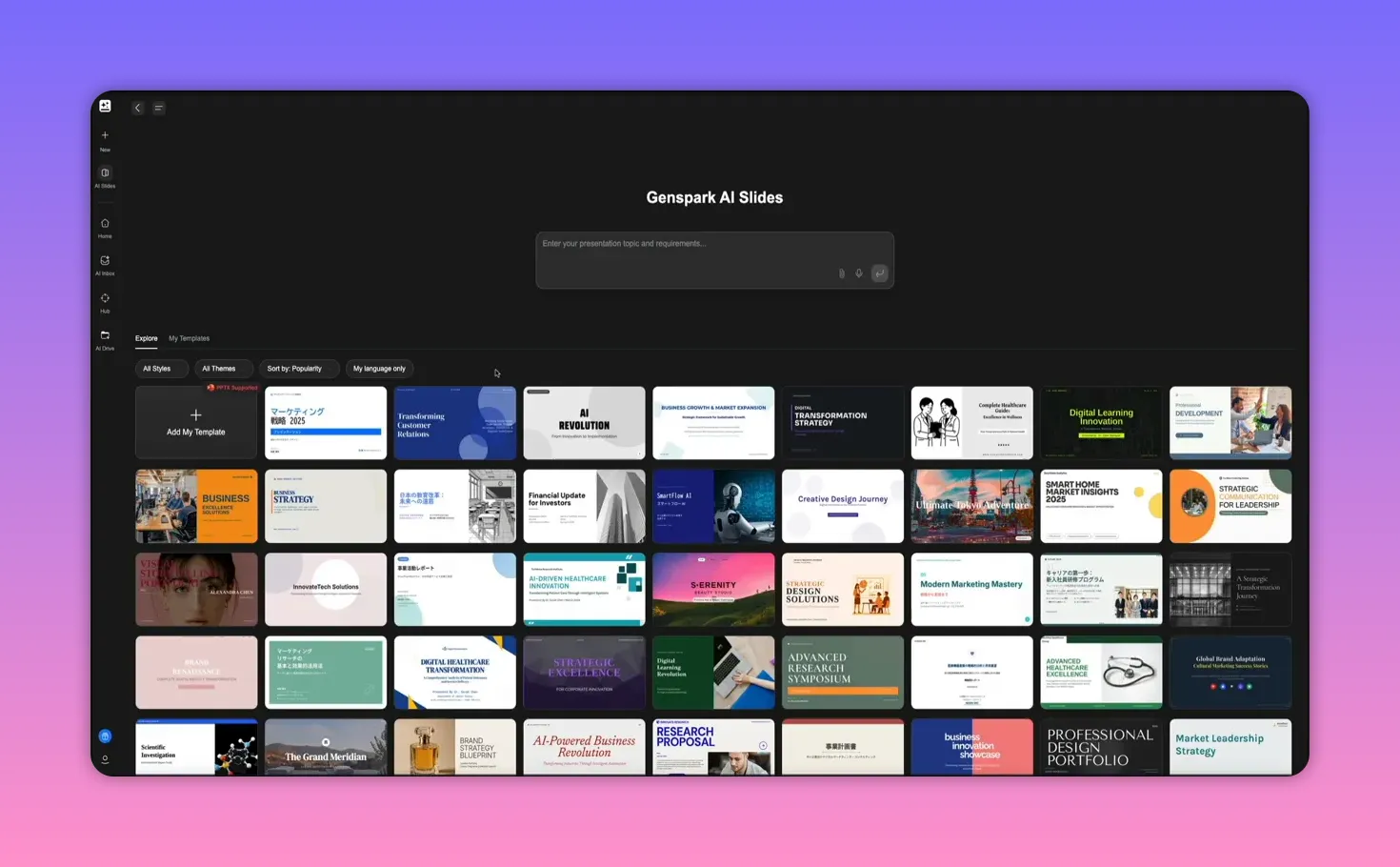
Turn a few notes or an outline into a full, research-backed slide deck without wrestling with slide templates or image searches. Use AI Slides to generate a consistent, professional presentation complete with charts, tables, images, and speaker notes from a single prompt.
How it works in practice:
- Open AI Slides and enter a clear prompt describing the topic, desired sections, and any data or images to include.
- GenSpark runs parallel tools, pulls live data if requested, plans the slide structure, and builds each page with a unified style and typography.
Suggested prompt example:
Create a 12-slide deck on the WordPress blogging industry. Include an industry overview, key stats, 2 data tables, 3 charts, and high-quality images that match the WordPress brand. Add speaker notes for each slide.
When the agent finishes, you get an editable slide workspace and a summary of everything that was created. Use quick actions to export to PowerPoint, add speaker notes, or generate an AI-narrated video version.
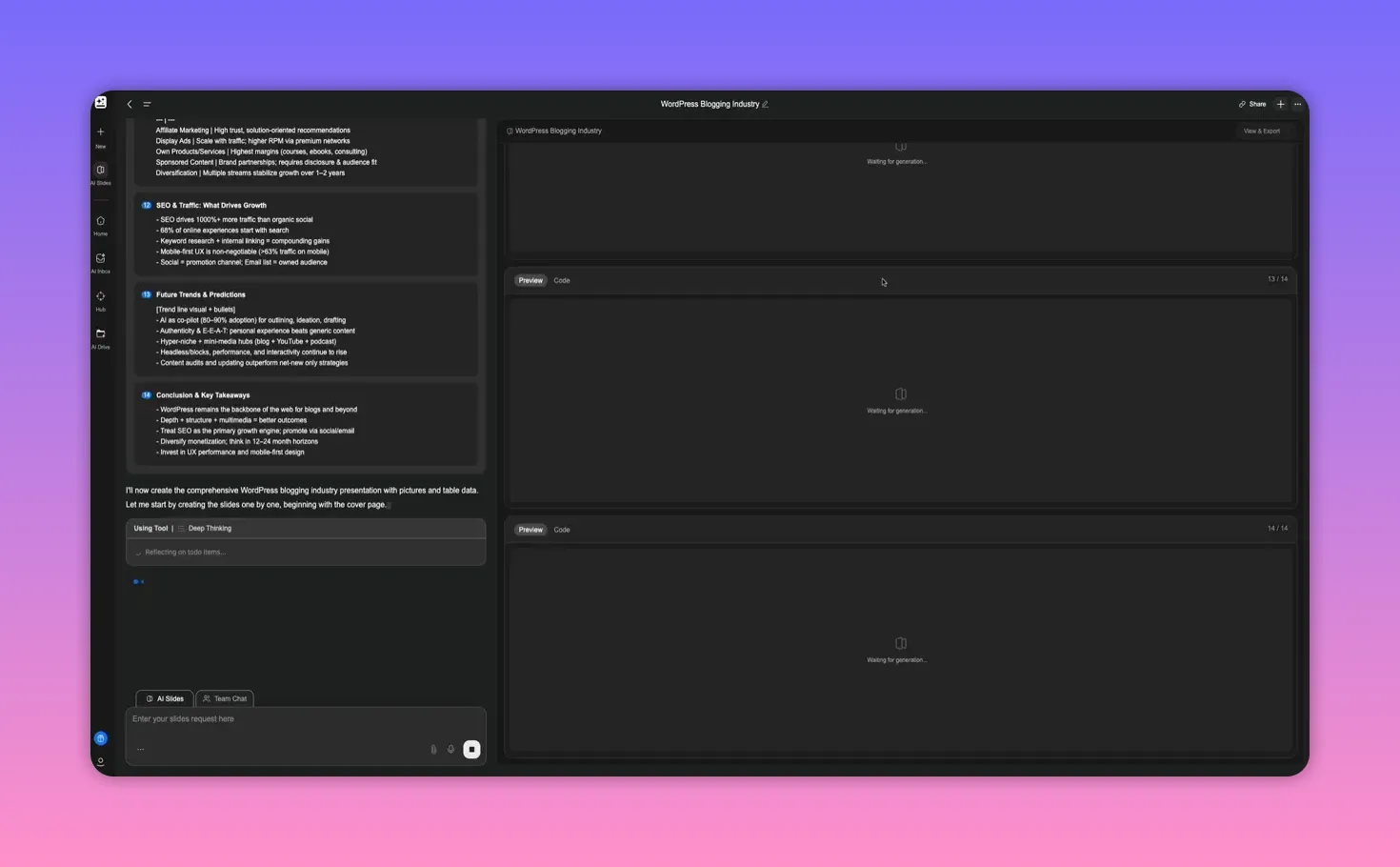
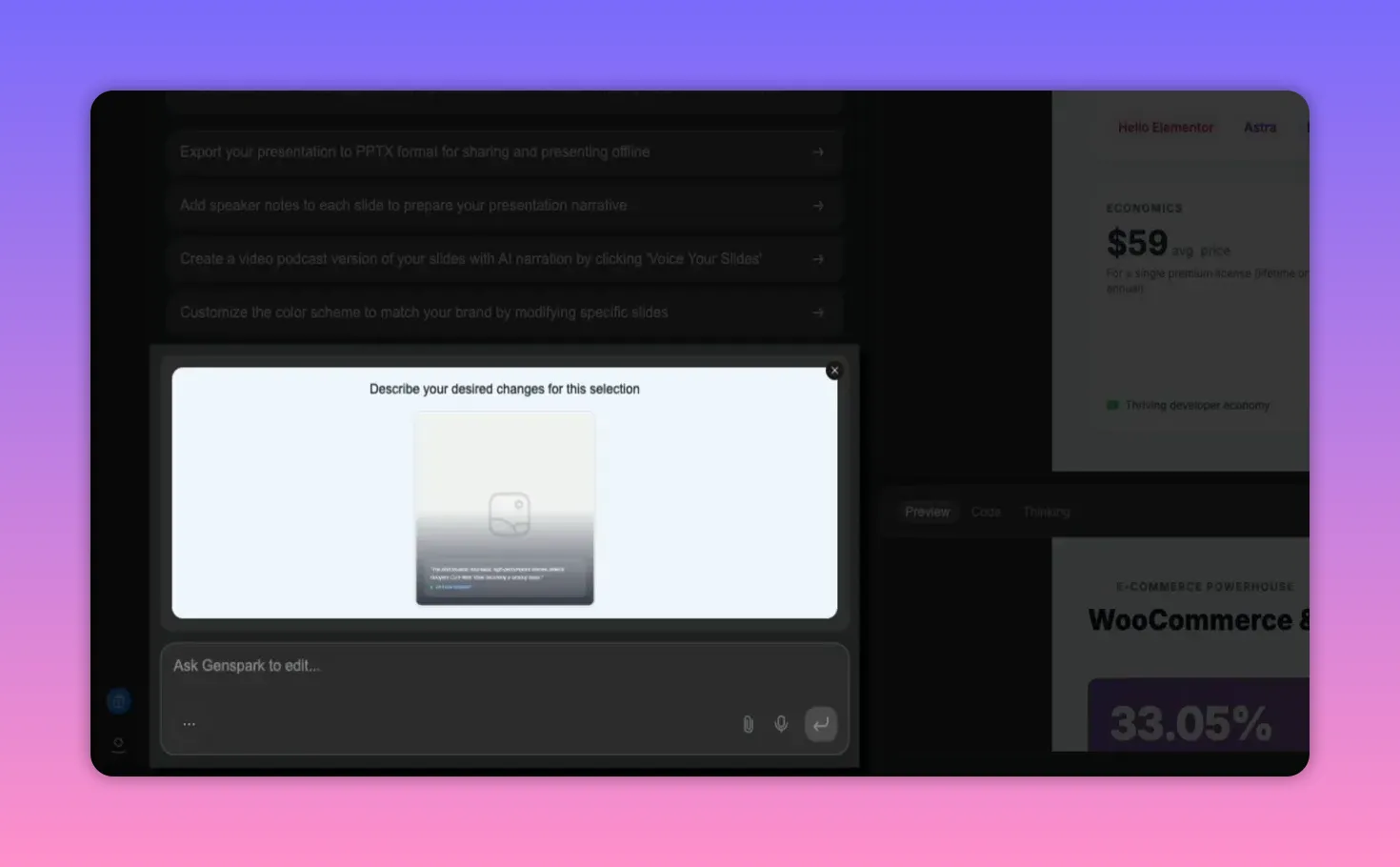
If you need to swap or add images, use AI Edit to target a specific slide element and give a simple instruction such as “Replace placeholder image with the Divvy theme logo.” The agent will search, align, and insert a high-quality image that matches the design.
Tips
- Include the desired number of slides in your prompt to guide the structure.
- Turn on web search if you want live stats or citations.
- Use the color scheme quick actions to match brand colors across all slides.
Step 2: Build, preview, and publish websites with AI Developer
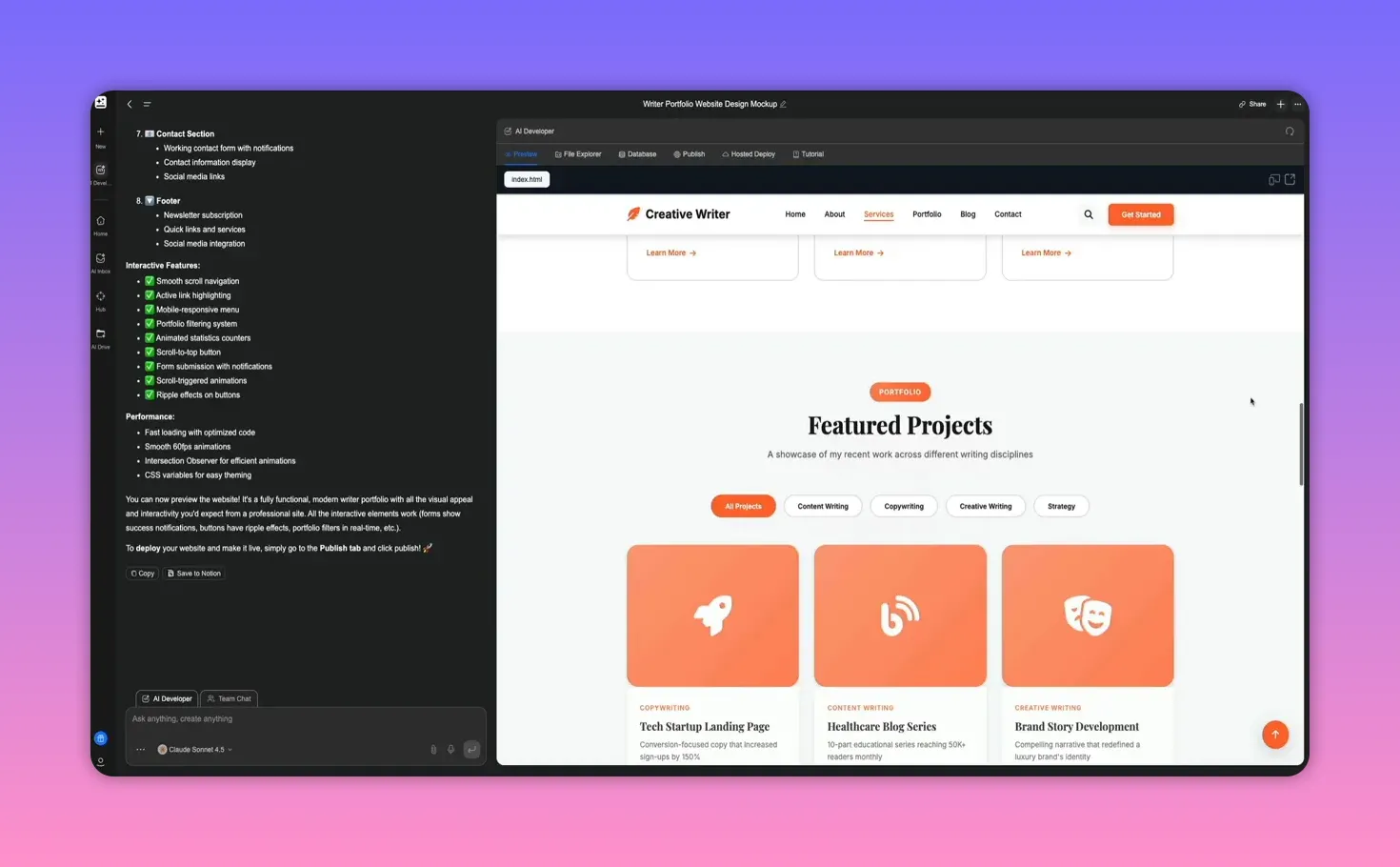
AI Developer combines design, code generation, and hosting so you can move from concept to deployed site inside one workspace. Describe the site, point to a reference URL if you want a specific aesthetic, and let the agent create HTML, CSS, and JavaScript files automatically.
Workflow summary:
- Choose “simple website or web app” to spin up the environment.
- Give a detailed prompt specifying layout, colors, typography, and functionality.
- Select the model that fits the task: faster model for quick iterations or a more powerful model for complex reasoning and coding.
Preview and responsiveness
The live preview updates as code is generated. Check desktop, tablet, and mobile views from the preview toolbar to validate responsive behavior without external tools.
Project files and hosting
- Inspect HTML, CSS, and JS in the file explorer or download them to work locally.
- Use the hosted deploy option to launch instantly on a GenSpark subdomain, or follow guided Cloudflare steps to connect a custom domain.
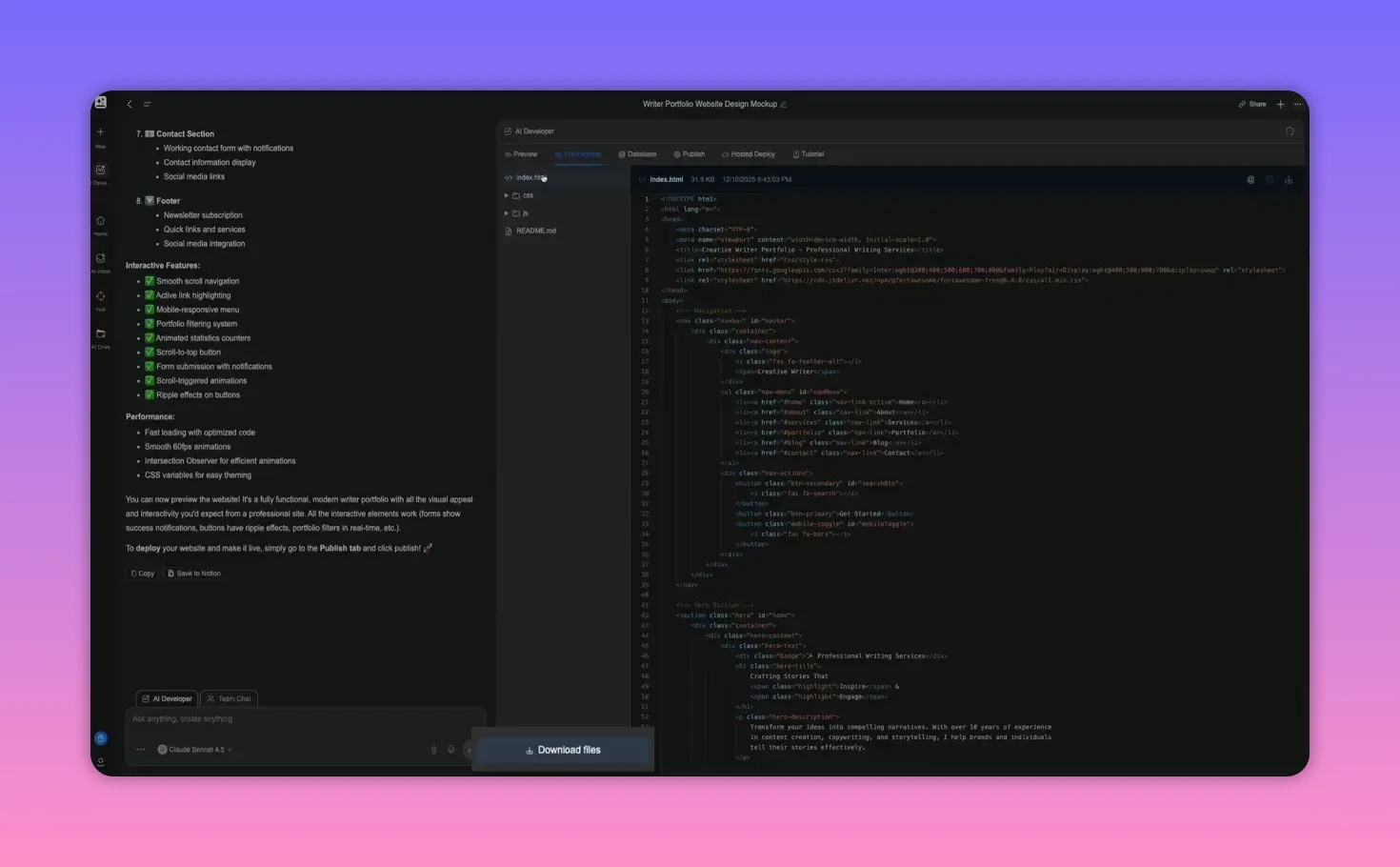
Make global changes with natural language. For example, instruct the agent to change every mention of a name or to apply a new color palette from an uploaded image. The agent scans the project, updates files, and shows the code diffs.
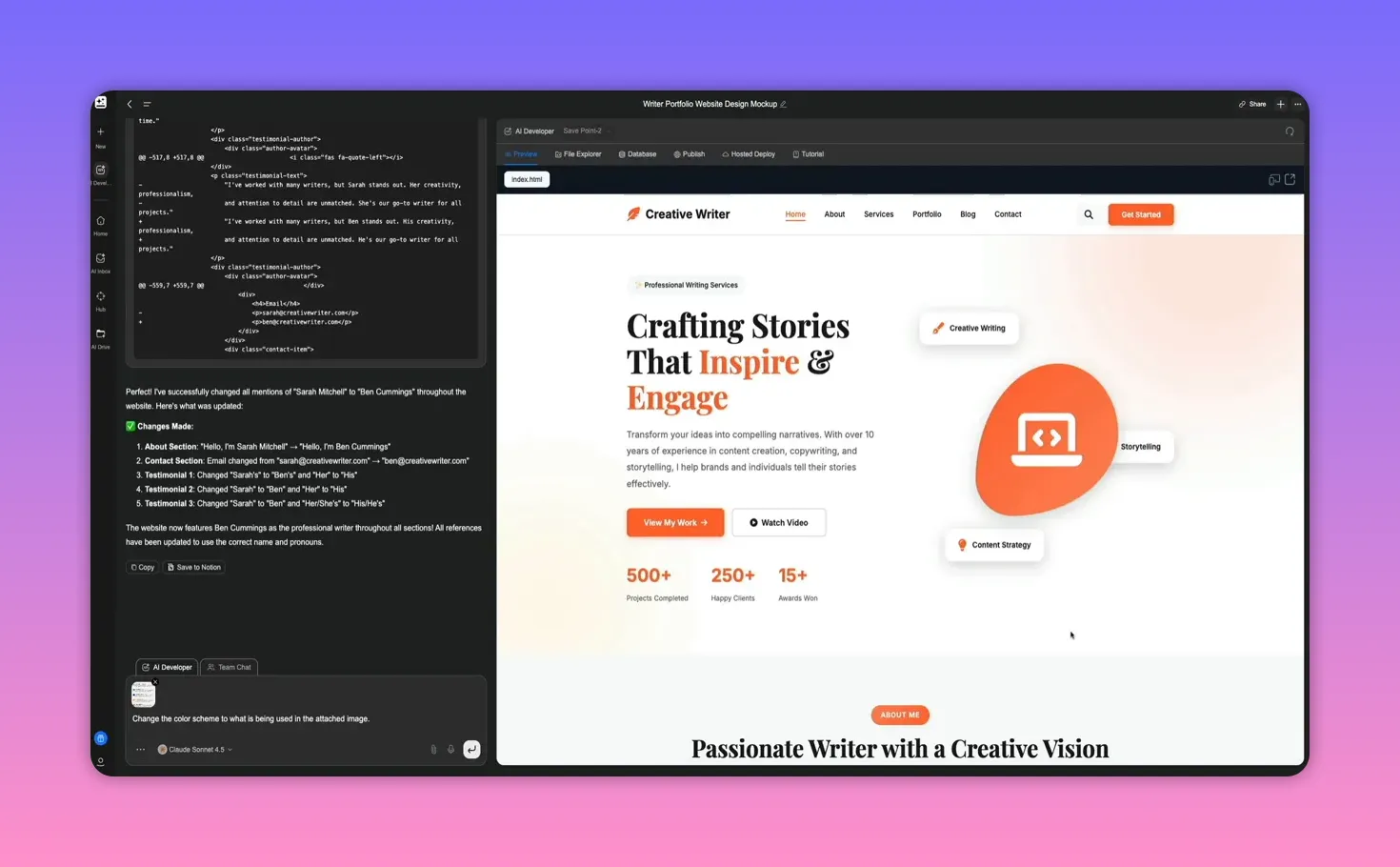
Sample prompt
Change all mentions of “Sarah Mitchell” to “Ben Cummings” across the project files.
Why this speeds work up
- You avoid switching between design tools, code editors, and hosting panels.
- Global updates, color extraction from images, and instant previews reduce iteration time.
Step 3: Use AI Chat as your flexible research and planning hub
AI Chat combines conversational assistance with model selection and optional web search. Use it for outlining, researching, drafting, and iterating on anything from video scripts to product requirements.
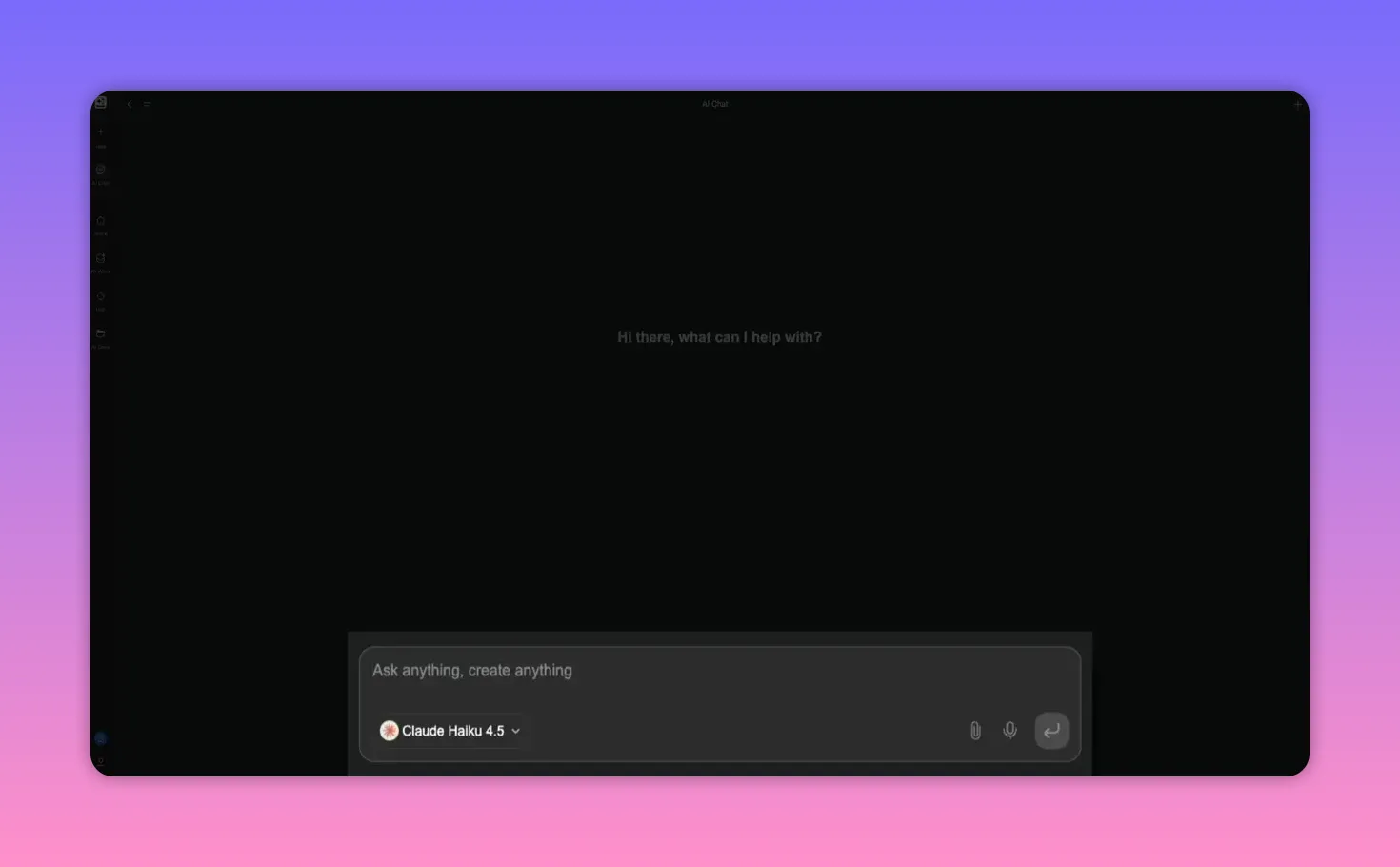
Key controls to know:
- Model selector: switch between GPT versions, Claude, Gemini, and others based on depth and speed requirements.
- Search web toggle: enable live web retrieval to source current facts, verify data, or pull content from a URL.
Example use case: ask for a structured video outline, then refine it into a script, blog post, or slide deck — all within the same conversation. The chat shows when it uses tools such as web reading, giving transparency into the response generation.
Step 4: Create and animate visuals with AI Image and Video
The AI Image workspace centralizes image generation, editing, and conversion to short video clips. You can choose from multiple image models, apply consistent styles, and use quick apps for common edits.
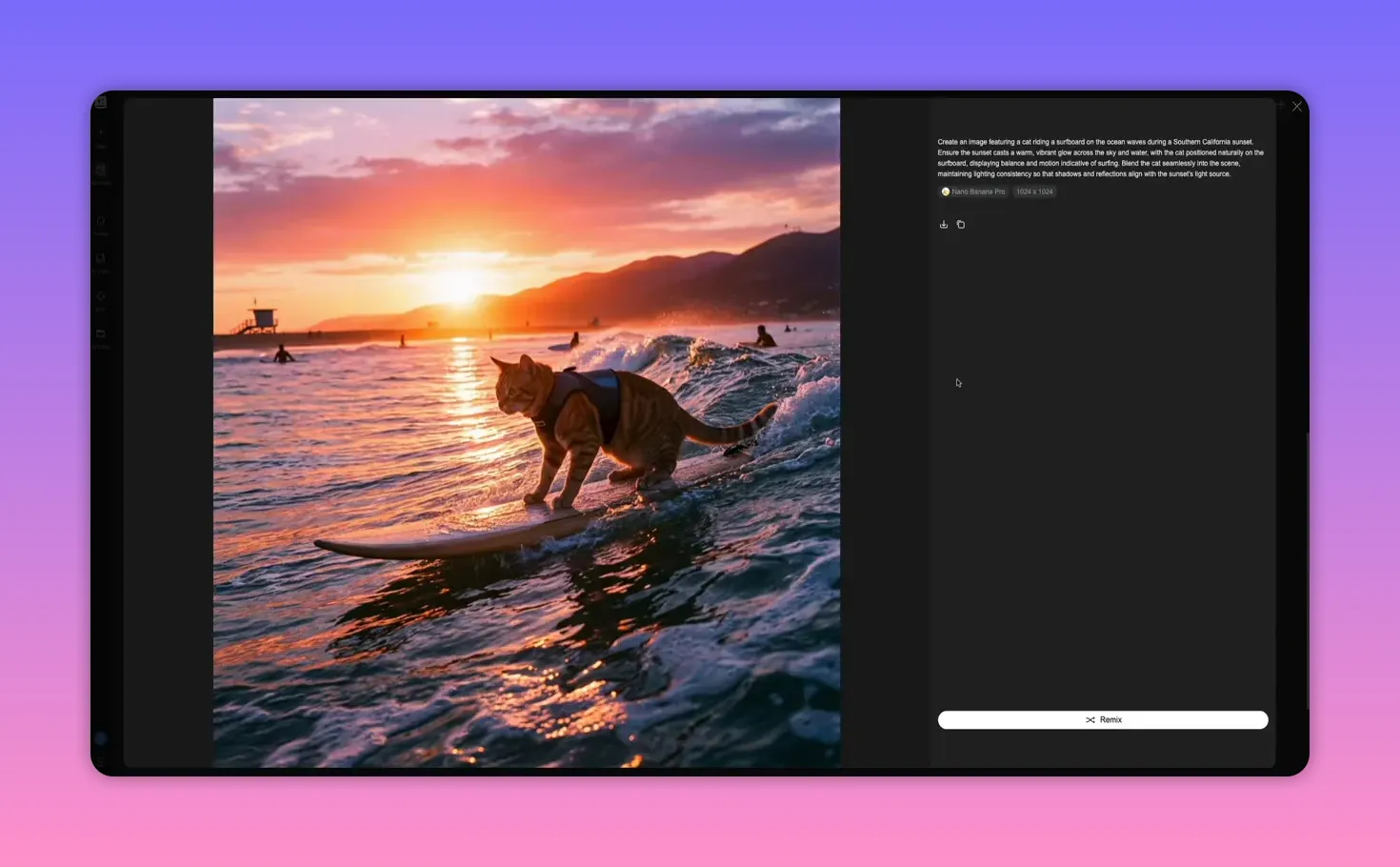
Quick features:
- Generate image from text prompts using models like Nano Banana Pro for fast, high-resolution results.
- Autoprompt and auto style to refine prompts and enforce a consistent visual aesthetic across outputs.
- Quick apps: Background Remover, Magic Eraser, Unblur, Expand, and more for fast cleanups.
Turn a still into motion by selecting image-to-video. The agent uses the image as a foundation, builds a motion prompt, and outputs a short cinematic clip with atmospheric and camera behavior instructions.
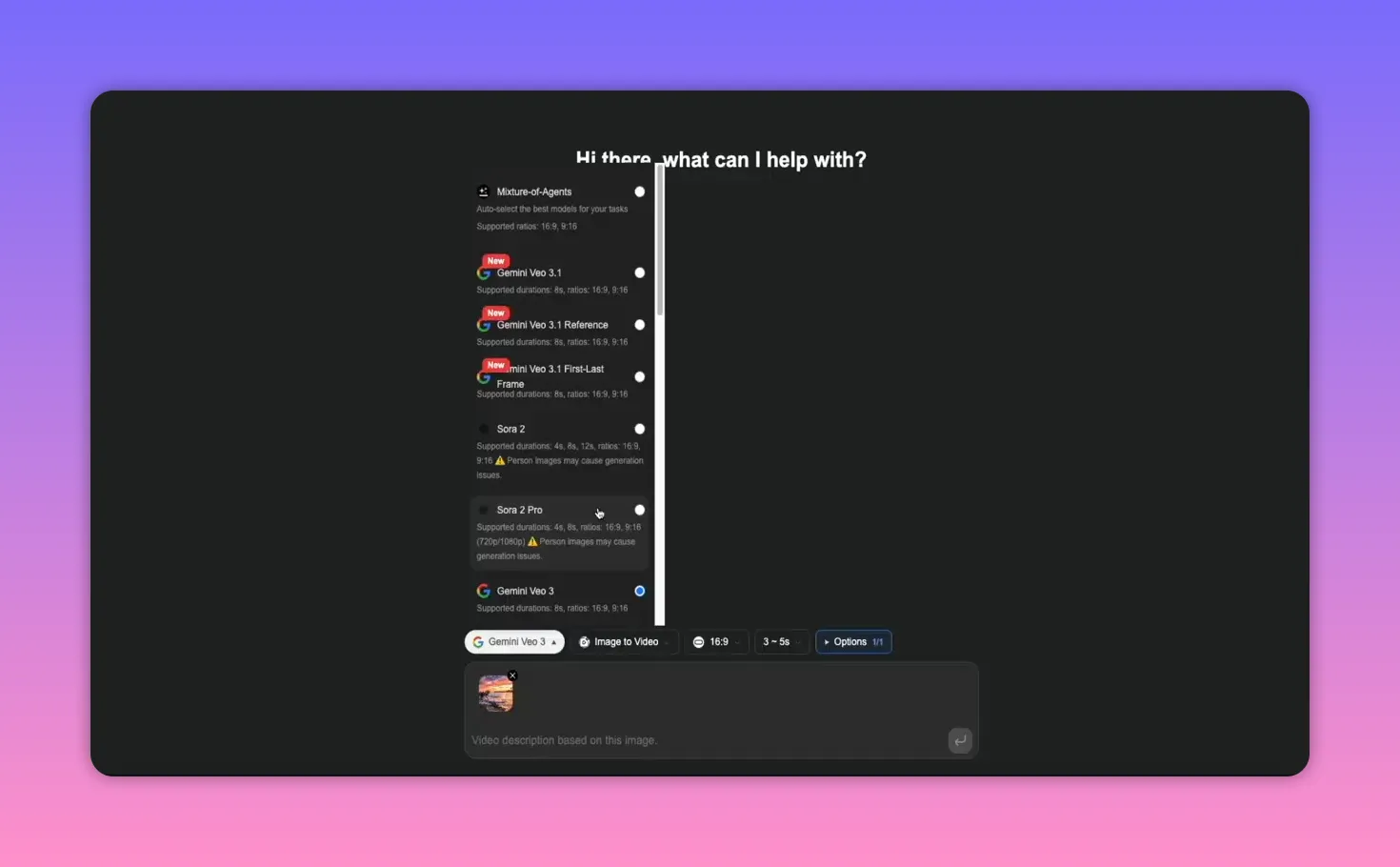
Sample prompt
Cat surfing in Southern California at sunset, cinematic lighting, motion blur on the wave, realistic style.
Step 5: Automate email and tasks using AI Inbox
AI Inbox connects to Gmail or Outlook and acts as an intelligent layer on top of your email. Use natural language to summarize threads, draft replies, extract action items, and turn messages into tasks or workflows.
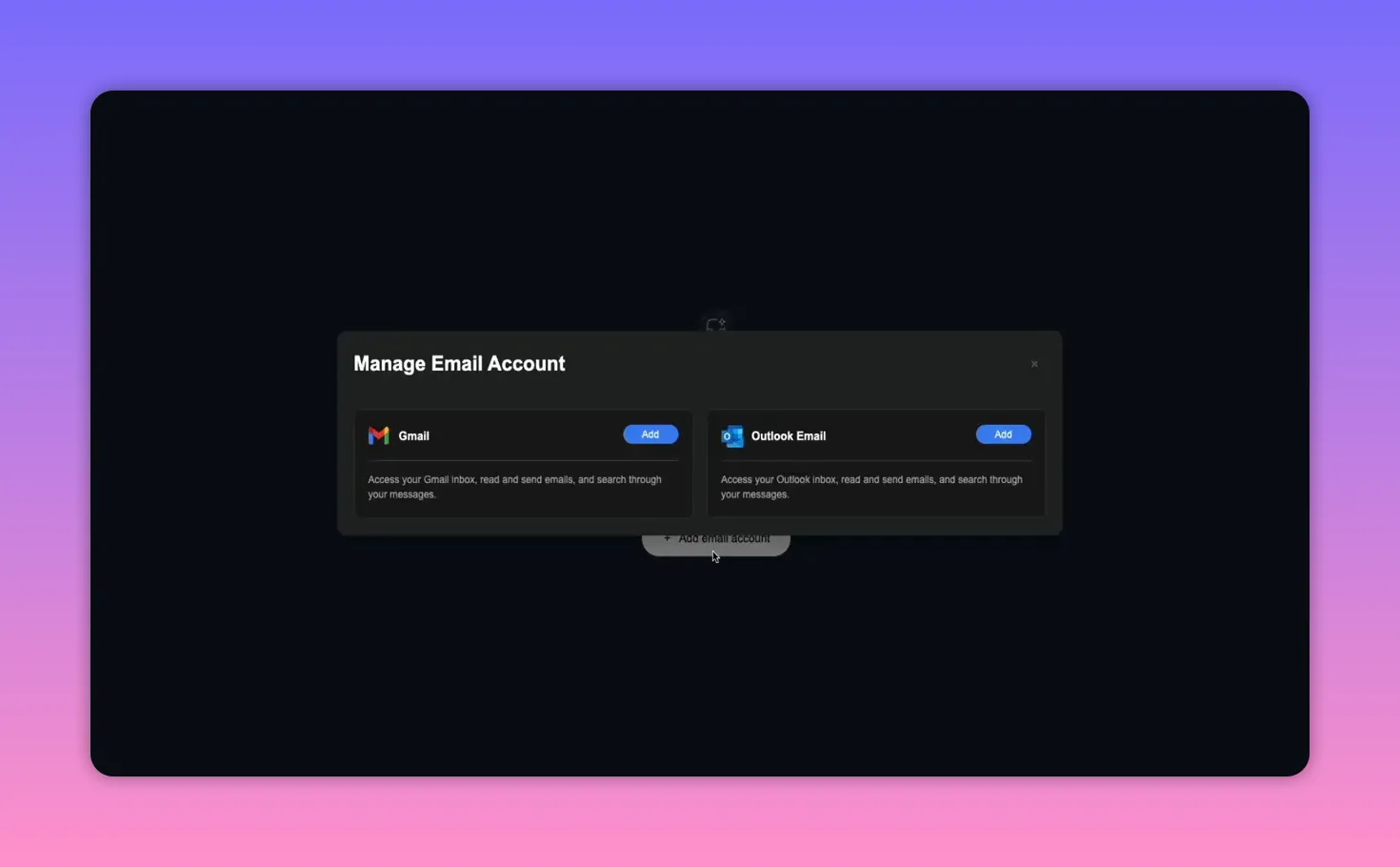
Voice-first interactions
Enable real-time voice to speak directly to the agent and draft messages hands-free. The agent creates a draft you can review and send.
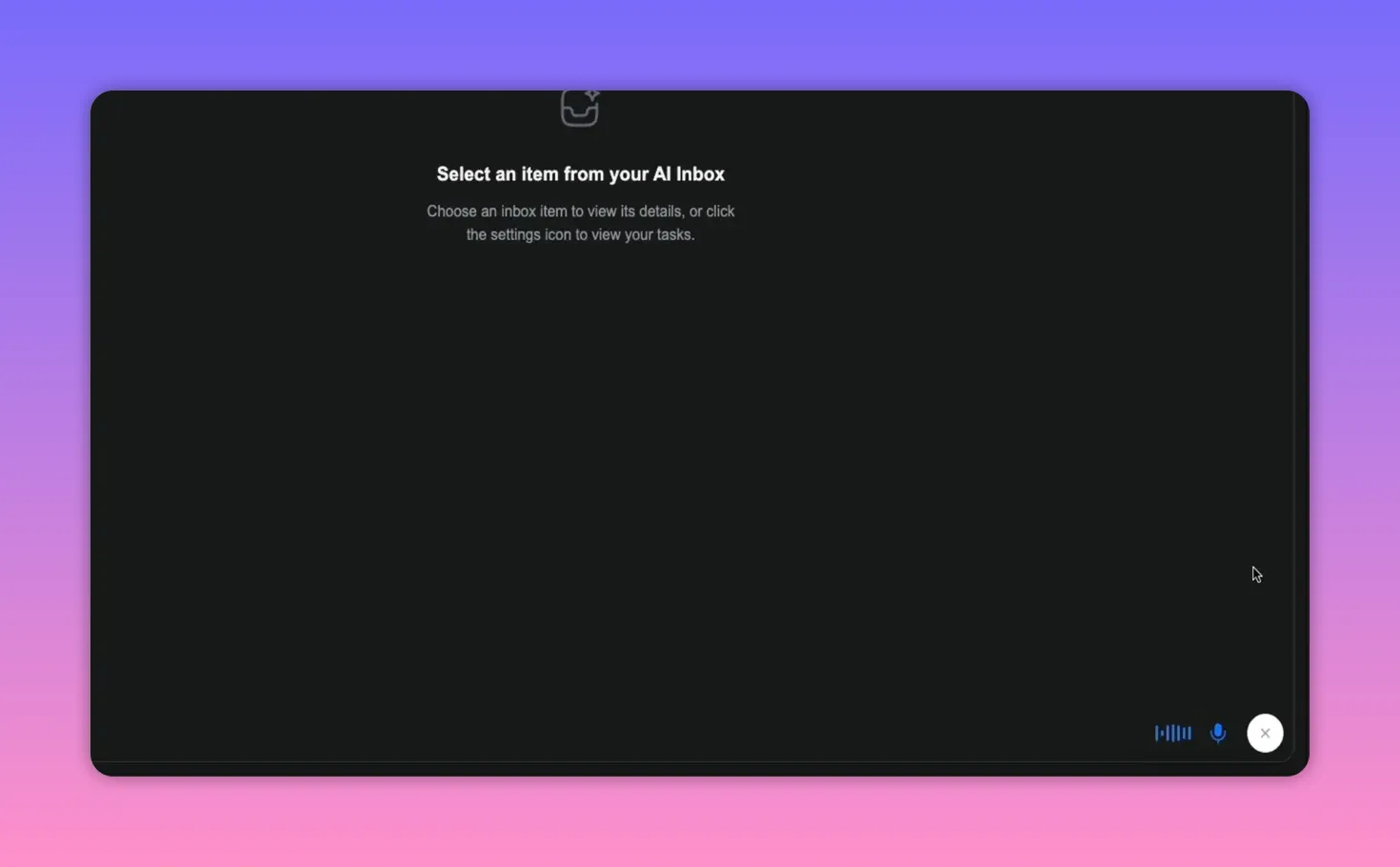
AI Inbox capabilities
- Summarize long email threads and extract next steps.
- Prioritize and organize conversations by urgency.
- Auto-generate follow-ups or convert emails into structured tasks.
Step 6: Put it together — practical workflows and publishing
Combine the tools to move from idea to published result in one platform.
- Draft a content outline in AI Chat.
- Generate slides from that outline in AI Slides and add speaker notes.
- Create supporting images or thumbnails in AI Image and animate a short clip for social promos.
- Build a landing page in AI Developer and deploy to a GenSpark subdomain or a custom domain via Cloudflare.
- Use AI Inbox to manage follow-ups, schedule outreach, and extract tasks from responses.
Publishing options
- Instant publish to a GenSpark subdomain for demos and internal reviews.
- Guided Cloudflare setup to map a custom domain using generated API tokens and step-by-step instructions.
Step 7: Example prompts to accelerate results
Copy and adapt these to speed up common tasks.
- Create a 10-slide market overview on the AI image generation industry with 3 charts, 2 data tables, and speaker notes for each slide.
- Build a responsive portfolio site inspired by https://example.com. Match layout, colors, and section structure. Include contact form and blog index.
- Generate a hero image of a cat surfing at sunset in realistic style. Then create a 4-second cinematic animation with gentle camera push-in.
- Summarize unread emails from the last 48 hours, extract action items, and draft three short replies: one follow-up, one meeting request, and one thank-you note.
Final thoughts and next steps
GenSpark brings multiple AI models and creative workflows into a single workspace. It moves beyond a single chatbot by combining generation, editing, deployment, and automation — all accessible through conversation and targeted prompts.
If you want to experiment:
- Start with free credits on signup to test AI Chat and AI Image.
- Try generating one slide deck and one simple site to compare time savings versus manual workflows.
- Use the model selector and web search toggle to tailor outputs for speed, creativity, or factual accuracy.
Notable features to watch for: unlimited AI Chat and AI Image usage for 2026 on supported plans, multiple image and video models like Nano Banana Pro, and the ability to extract color palettes from images and apply them globally in seconds.
Apply these steps and prompts to get functional prototypes, marketing assets, and published sites in a fraction of the usual time.
If you’re tired of juggling half a dozen AI tools just to get real work done, Genspark
takes a very different approach. Instead of locking you into a single model or narrow feature set, Genspark brings unlimited AI chat, image generation, slides, web development, video, and automation into one unified workspace. In this guide, you’ll see how to use Genspark in 2026 to build presentations, launch websites, create visuals, automate email, and connect everything into practical, repeatable workflows, all without bouncing between platforms.
Step 1: Generate polished presentations quickly with AI Slides
Turn a few notes or an outline into a full, research-backed slide deck without wrestling with slide templates or image searches. Use AI Slides to generate a consistent, professional presentation complete with charts, tables, images, and speaker notes from a single prompt.
How it works in practice:
- Open AI Slides and enter a clear prompt describing the topic, desired sections, and any data or images to include.
- GenSpark runs parallel tools, pulls live data if requested, plans the slide structure, and builds each page with a unified style and typography.
Suggested prompt example:
Create a 12-slide deck on the WordPress blogging industry. Include an industry overview, key stats, 2 data tables, 3 charts, and high-quality images that match the WordPress brand. Add speaker notes for each slide.
When the agent finishes, you get an editable slide workspace and a summary of everything that was created. Use quick actions to export to PowerPoint, add speaker notes, or generate an AI-narrated video version.
If you need to swap or add images, use AI Edit to target a specific slide element and give a simple instruction such as “Replace placeholder image with the Divvy theme logo.” The agent will search, align, and insert a high-quality image that matches the design.
Tips
- Include the desired number of slides in your prompt to guide the structure.
- Turn on web search if you want live stats or citations.
- Use the color scheme quick actions to match brand colors across all slides.
Step 2: Build, preview, and publish websites with AI Developer
AI Developer combines design, code generation, and hosting so you can move from concept to deployed site inside one workspace. Describe the site, point to a reference URL if you want a specific aesthetic, and let the agent create HTML, CSS, and JavaScript files automatically.
Workflow summary:
- Choose “simple website or web app” to spin up the environment.
- Give a detailed prompt specifying layout, colors, typography, and functionality.
- Select the model that fits the task: faster model for quick iterations or a more powerful model for complex reasoning and coding.
Preview and responsiveness
The live preview updates as code is generated. Check desktop, tablet, and mobile views from the preview toolbar to validate responsive behavior without external tools.
Project files and hosting
- Inspect HTML, CSS, and JS in the file explorer or download them to work locally.
- Use the hosted deploy option to launch instantly on a GenSpark subdomain, or follow guided Cloudflare steps to connect a custom domain.
Make global changes with natural language. For example, instruct the agent to change every mention of a name or to apply a new color palette from an uploaded image. The agent scans the project, updates files, and shows the code diffs.
Sample prompt
Change all mentions of “Sarah Mitchell” to “Ben Cummings” across the project files.
Why this speeds work up
- You avoid switching between design tools, code editors, and hosting panels.
- Global updates, color extraction from images, and instant previews reduce iteration time.
Step 3: Use AI Chat as your flexible research and planning hub
AI Chat combines conversational assistance with model selection and optional web search. Use it for outlining, researching, drafting, and iterating on anything from video scripts to product requirements.
Key controls to know:
- Model selector: switch between GPT versions, Claude, Gemini, and others based on depth and speed requirements.
- Search web toggle: enable live web retrieval to source current facts, verify data, or pull content from a URL.
Example use case: ask for a structured video outline, then refine it into a script, blog post, or slide deck — all within the same conversation. The chat shows when it uses tools such as web reading, giving transparency into the response generation.
Step 4: Create and animate visuals with AI Image and Video
The AI Image workspace centralizes image generation, editing, and conversion to short video clips. You can choose from multiple image models, apply consistent styles, and use quick apps for common edits.
Quick features:
- Generate image from text prompts using models like Nano Banana Pro for fast, high-resolution results.
- Autoprompt and auto style to refine prompts and enforce a consistent visual aesthetic across outputs.
- Quick apps: Background Remover, Magic Eraser, Unblur, Expand, and more for fast cleanups.
Turn a still into motion by selecting image-to-video. The agent uses the image as a foundation, builds a motion prompt, and outputs a short cinematic clip with atmospheric and camera behavior instructions.
Sample prompt
Cat surfing in Southern California at sunset, cinematic lighting, motion blur on the wave, realistic style.
Step 5: Automate email and tasks using AI Inbox
AI Inbox connects to Gmail or Outlook and acts as an intelligent layer on top of your email. Use natural language to summarize threads, draft replies, extract action items, and turn messages into tasks or workflows.
Voice-first interactions
Enable real-time voice to speak directly to the agent and draft messages hands-free. The agent creates a draft you can review and send.
AI Inbox capabilities
- Summarize long email threads and extract next steps.
- Prioritize and organize conversations by urgency.
- Auto-generate follow-ups or convert emails into structured tasks.
Step 6: Put it together — practical workflows and publishing
Combine the tools to move from idea to published result in one platform.
- Draft a content outline in AI Chat.
- Generate slides from that outline in AI Slides and add speaker notes.
- Create supporting images or thumbnails in AI Image and animate a short clip for social promos.
- Build a landing page in AI Developer and deploy to a GenSpark subdomain or a custom domain via Cloudflare.
- Use AI Inbox to manage follow-ups, schedule outreach, and extract tasks from responses.
Publishing options
- Instant publish to a GenSpark subdomain for demos and internal reviews.
- Guided Cloudflare setup to map a custom domain using generated API tokens and step-by-step instructions.
Step 7: Example prompts to accelerate results
Copy and adapt these to speed up common tasks.
- Create a 10-slide market overview on the AI image generation industry with 3 charts, 2 data tables, and speaker notes for each slide.
- Build a responsive portfolio site inspired by https://example.com. Match layout, colors, and section structure. Include contact form and blog index.
- Generate a hero image of a cat surfing at sunset in realistic style. Then create a 4-second cinematic animation with gentle camera push-in.
- Summarize unread emails from the last 48 hours, extract action items, and draft three short replies: one follow-up, one meeting request, and one thank-you note.
Final thoughts and next steps
GenSpark brings multiple AI models and creative workflows into a single workspace. It moves beyond a single chatbot by combining generation, editing, deployment, and automation — all accessible through conversation and targeted prompts.
If you want to experiment:
- Start with free credits on signup to test AI Chat and AI Image.
- Try generating one slide deck and one simple site to compare time savings versus manual workflows.
- Use the model selector and web search toggle to tailor outputs for speed, creativity, or factual accuracy.
Notable features to watch for: unlimited AI Chat and AI Image usage for 2026 on supported plans, multiple image and video models like Nano Banana Pro, and the ability to extract color palettes from images and apply them globally in seconds.
Apply these steps and prompts to get functional prototypes, marketing assets, and published sites in a fraction of the usual time.

Written by Ben Cummings
Founder of blogwithben.com
Ben is the Co-Founder of Sage Wave Media, LLC which is the parent company of Blog With Ben. He enjoys teaching, blogging, startups, a hoppy IPA, and college basketball. Whenever he's not blogging, you can find him cruising around sunny San Diego with his amazing family.
0 Comments