
HIX AI Review — All‑in‑One Chat, Image & Video Tool for Creators
HIX AI Review — All‑in‑One Chat, Image & Video Tool for Creators
If you create content regularly, you’ve probably noticed how fragmented the AI tool landscape has become. One app for writing, another for images, a separate tool for video, slides, research, and yet another chat interface to tie it all together.
HIX AI aims to solve that problem by bringing all of those capabilities into a single, unified dashboard. In this review, I’ll walk through how HIX AI works step by step, from signing up and navigating the interface to generating code, images, videos, articles, presentations, and research reports. Along the way, you’ll see where it shines, how the tools connect, and whether it truly earns the title of best all-in-one AI tool for content creators.
Step 1: Sign up and understand the dashboard
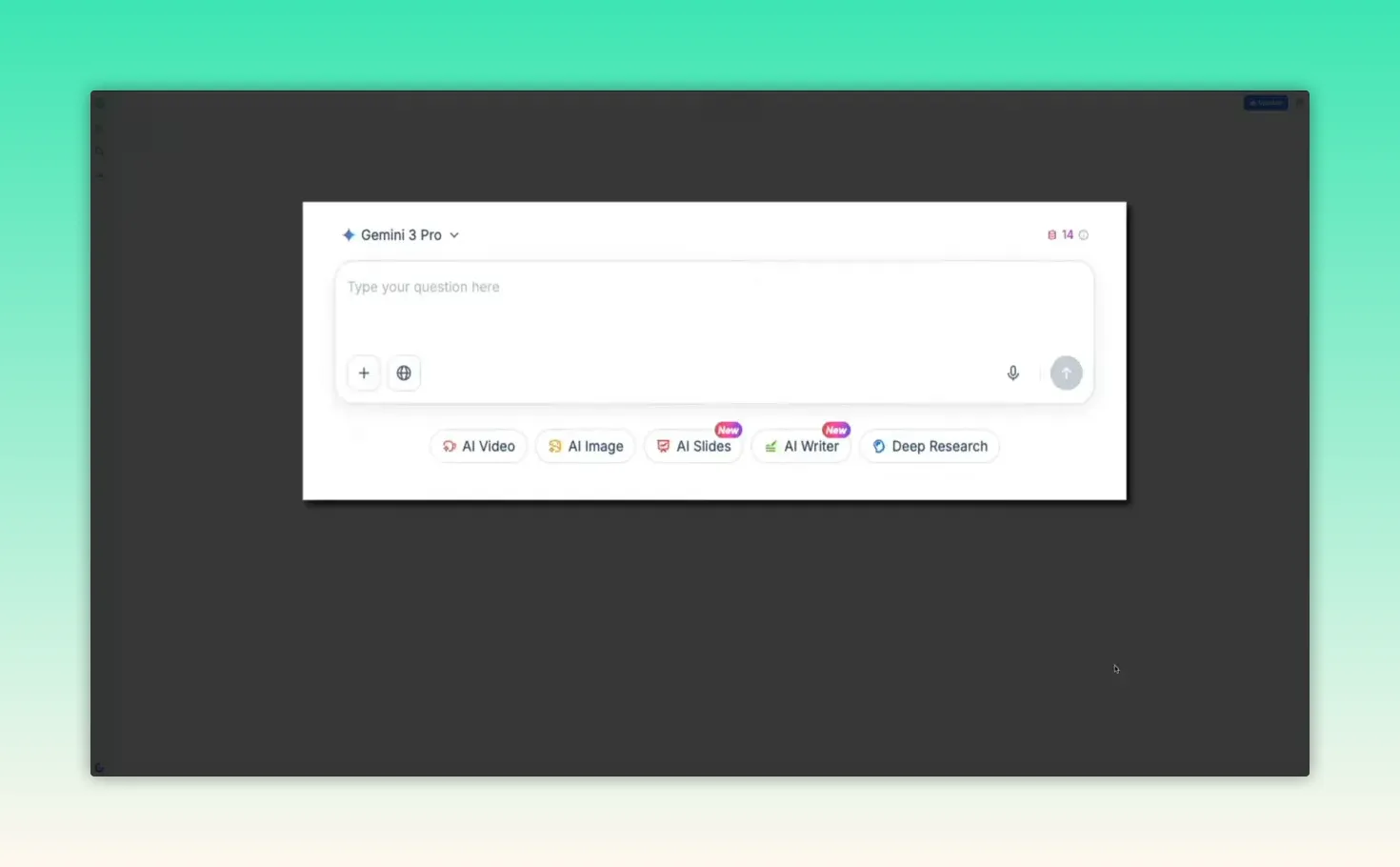
HIX AI is an all-in-one platform that bundles chat, image generation, video, writing, slides, and research into a single dashboard. Start by creating a free account using Google, Facebook, or an email address. The main interface centers on a chat hub that acts as the launching point for everything you’ll build.
Key UI elements to note:
- Model selector at the top of the chat (pick faster or more capable models depending on your task).
- Quick access buttons beneath the chat for AI image, AI video, AI slides, and more.
- Left navigation for New projects, Library (your saved work), Recent tasks, and More tools (a catalog of bots and apps).
Step 2: Use AI Chat as an agent (generate code, prototypes, and debug)
The chat is more than Q&A. Think of it as an agent that can generate functional outputs from a single prompt: full HTML files, small web apps, prototypes, or even games.
How to generate a working HTML tool
- Select a capable model from the model selector (for complex outputs pick a higher-end model like GPT 5.2).
- Type a specific request — for example: create a festive greeting card generator with customizable text, uploads, animations, and sharing options.
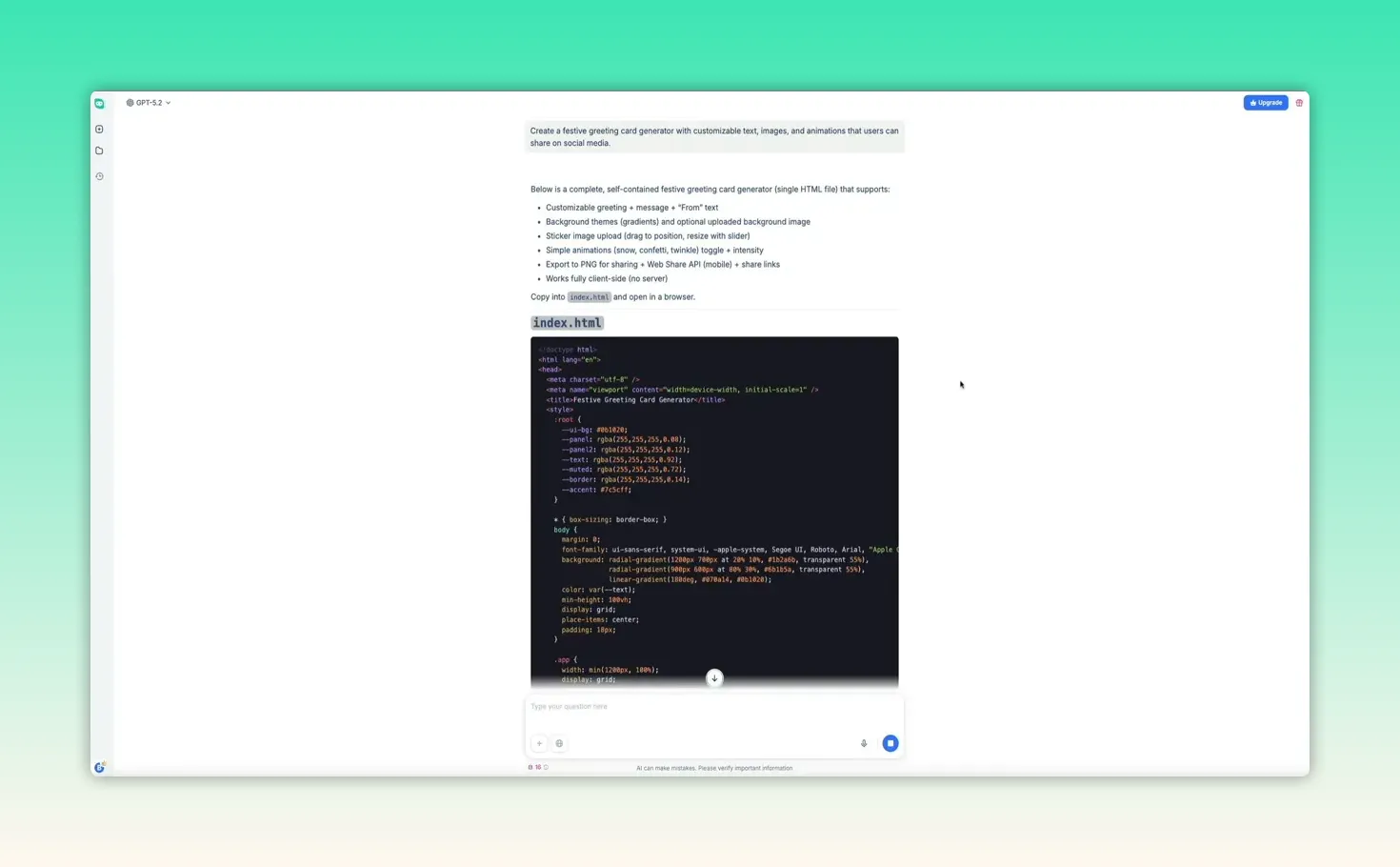
- Send the prompt. HIX AI will return structured output and a complete single-file HTML project you can copy and run locally.
Preview the generated page locally
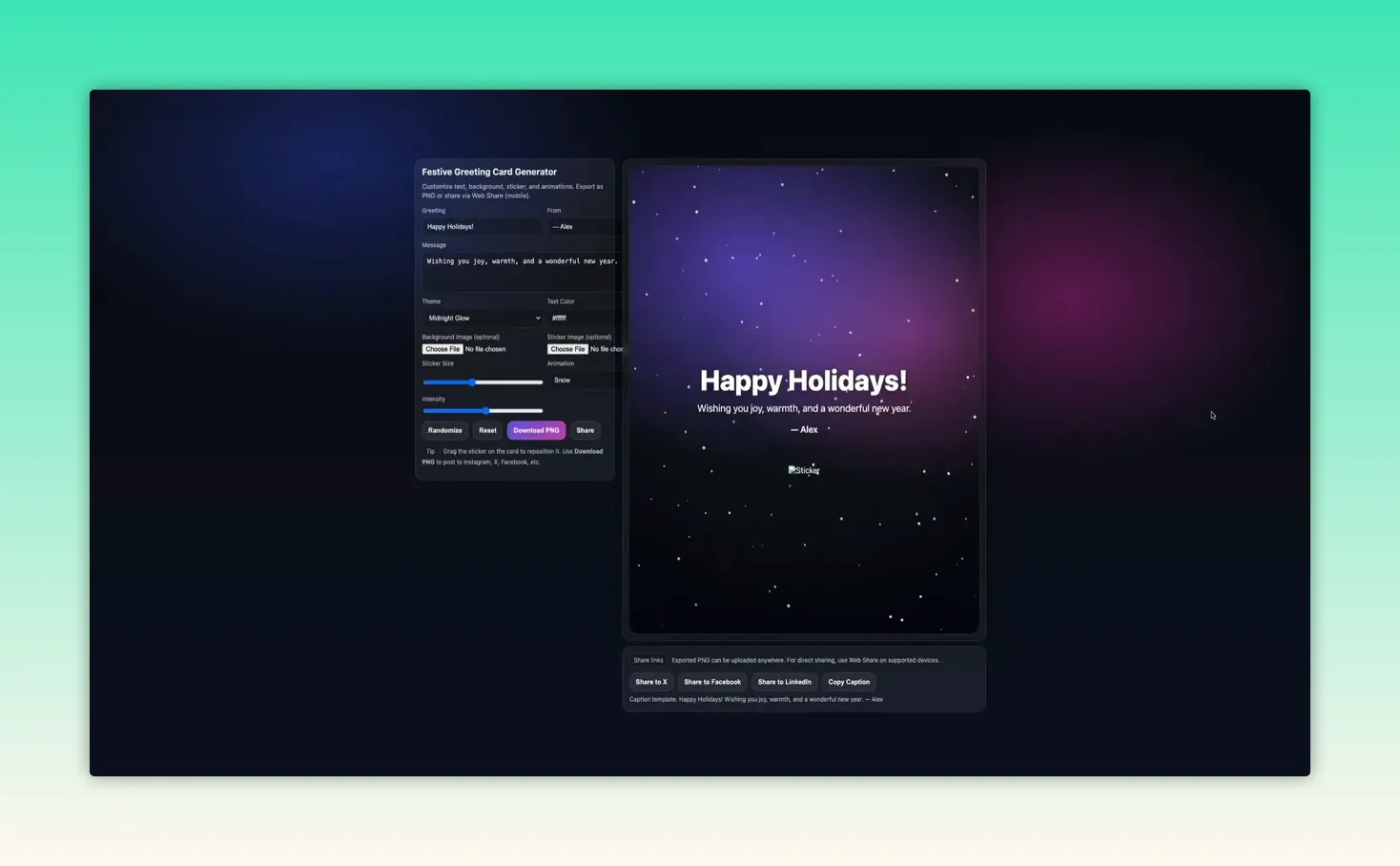
Copy the generated HTML, paste it into a code editor and save it as index.html. Then open that file with your browser to preview the tool instantly.
Use image-based feedback to fix layout bugs
If something looks off, take a screenshot and attach it to the chat with a concise instruction (for example: “the card generator fields are bleeding into the preview—see attached screenshot and fix”). The chat will analyze both the code and the image, then return updated code that you can paste back into your file.
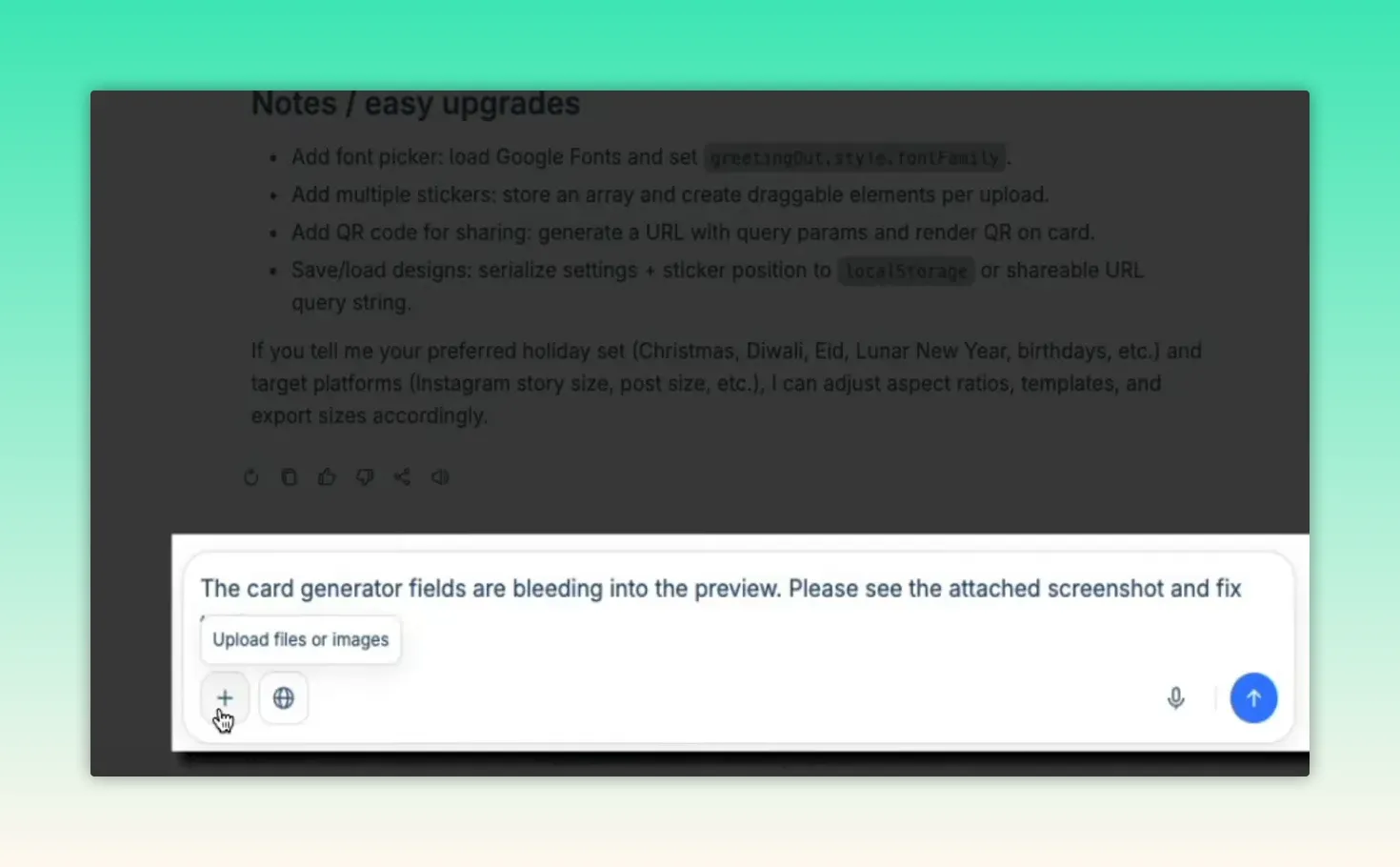
This workflow turns the AI from a generator into a collaborative debugger: show it what’s wrong and let it fix the CSS or layout for you.
Step 3: Generate and expand images (in-chat and via the dedicated image workspace)
HIX AI lets you produce images directly from the chat and also gives a dedicated image workspace when you need more control. You can swap image models depending on style and output quality.
Quick in-chat image generation
Switch the model (examples: Gemini 3 Pro, GPT image 1.5, Nano Banana Pro, Hix 2.0) then send a scene prompt. Once the image generates, click the thumbnail for a larger preview and use the chat to ask the system to “read this image” and generate social captions, reuse prompts, or a video prompt.
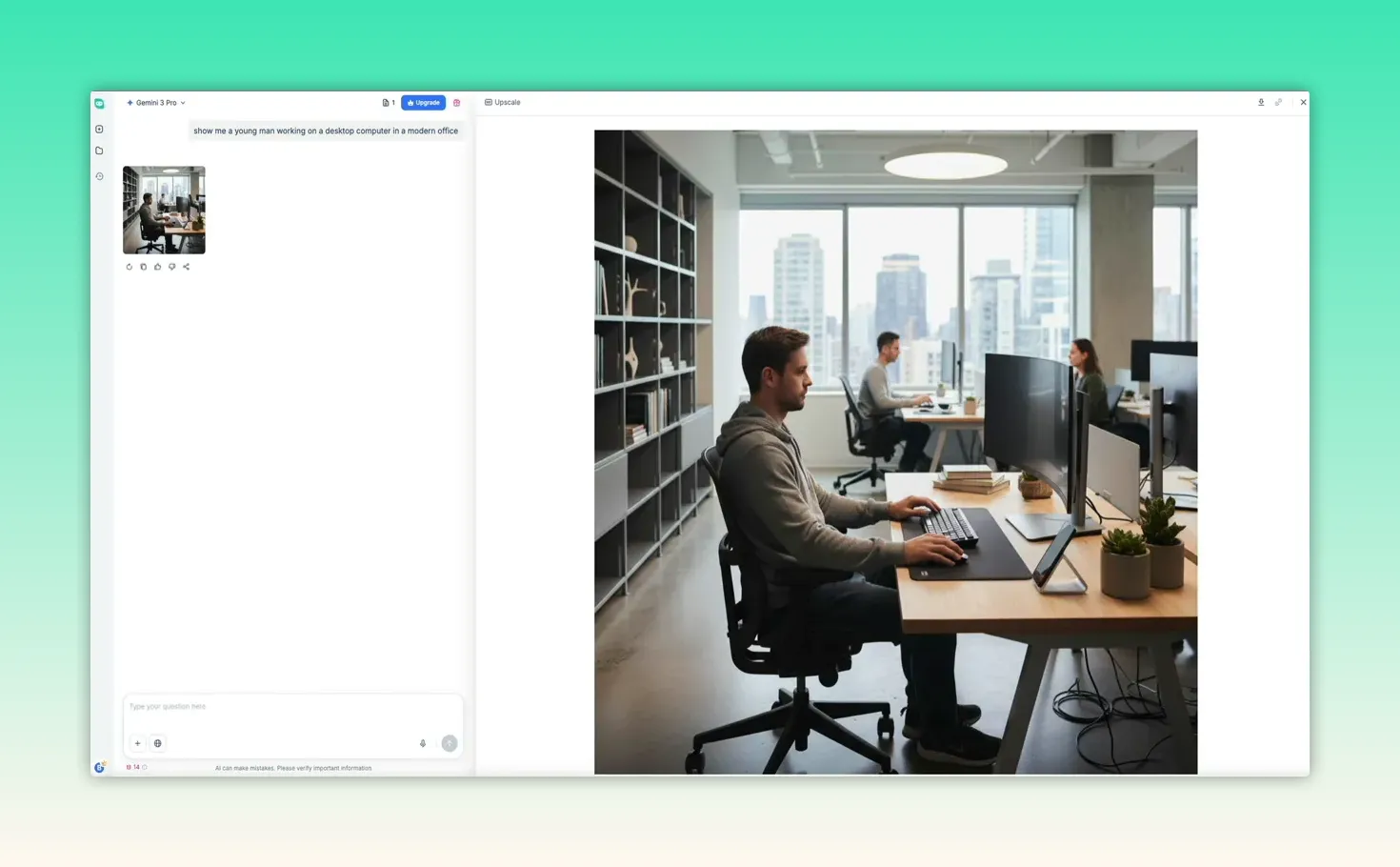
That feature is powerful: you get the visual plus ready-to-use marketing copy and even video ideas in one place.
Dedicated AI image workspace: controls and templates
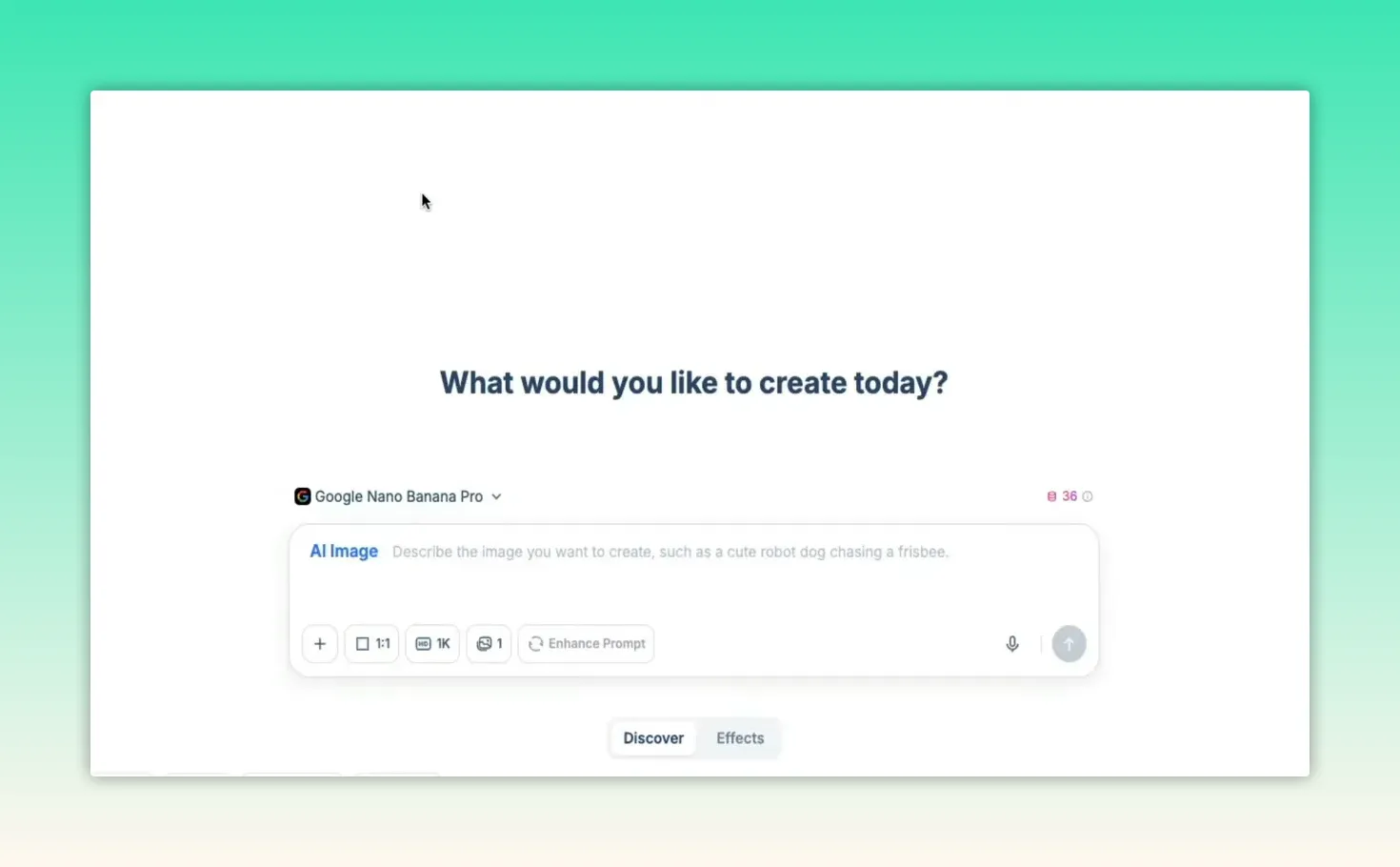
From the left sidebar open the AI image tool for fine-grained controls:
- Aspect ratio presets for social, web, or prints.
- Resolution options (1K, 2K, 4K) and generation count (create variations at once).
- Enhance prompt to automatically expand a basic prompt into a rich scene description.
Reference-image workflows and upscaling
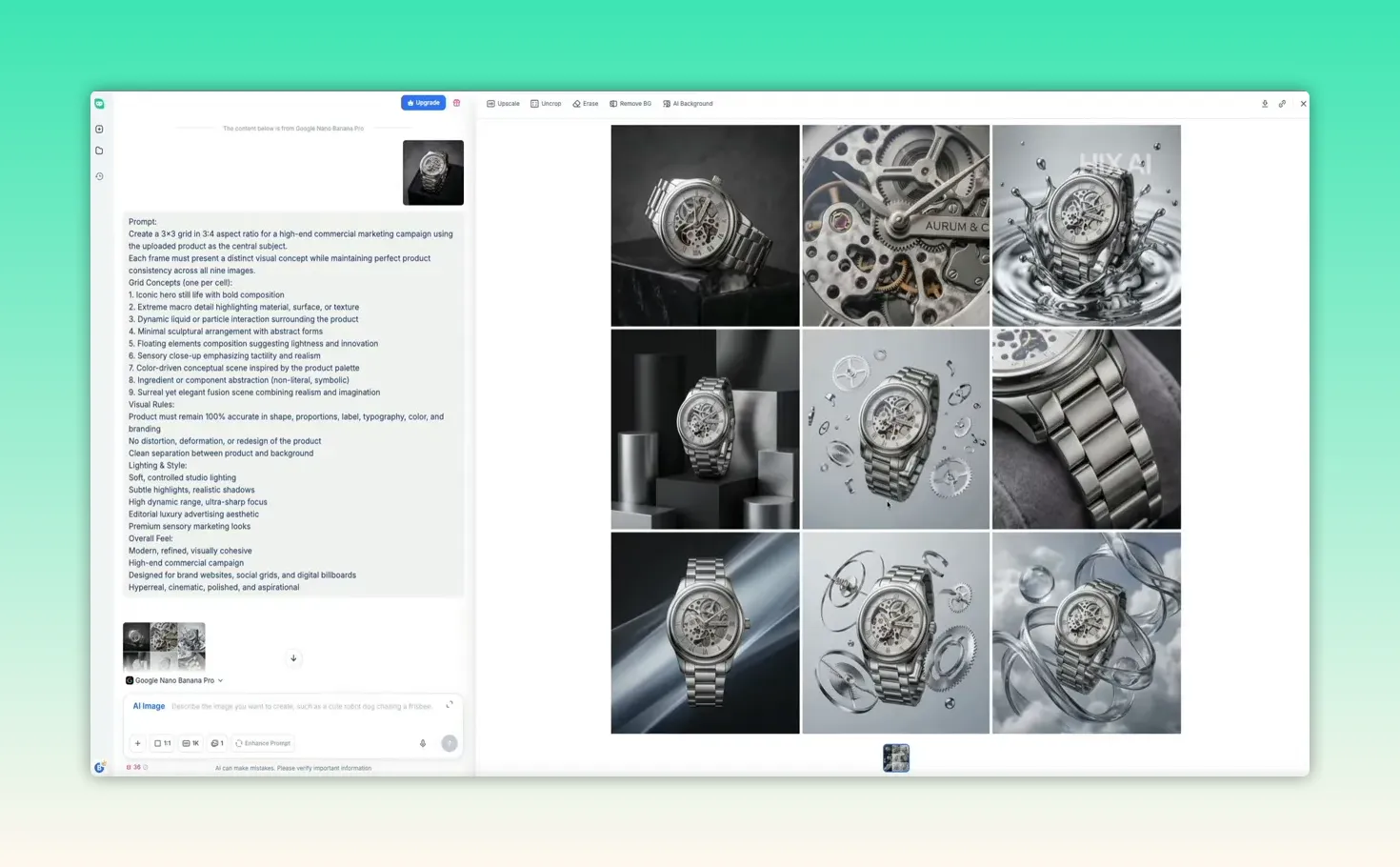
Upload a product photo or headshot as a reference and request a grid, campaign suite, or stylized portrait. After generation you can use tools like crop, erase, background removal, and upscale (2x, 4x, 8x) to make images production ready.
Tip: Paid plans remove the watermark and let you download full-resolution images.
Step 4: Turn images or text into video
The video tool supports multiple creation modes: frames-to-video (image-to-video) and text-to-video. Pick a video model (examples: VO3.1 for cinematic image motion, Cling 2.6 for lightweight text-to-video) and fine-tune aspect ratio, resolution, duration, and generation count.
Image-to-video (commercial ad example)
- Generate or upload an image that will serve as the start frame.
- Select frames-to-video, upload the image, and adjust the crop and aspect ratio for the platform you’re targeting (vertical for reels, horizontal for YouTube, etc.).
- Write a clear prompt describing the desired motion, camera moves, and tone (e.g., high-end burger ad with slow camera push, sizzling sound effects, voiceover).
- Submit and wait a few minutes for the rendered video (the result can include camera movement, sound effects, and a voiceover).
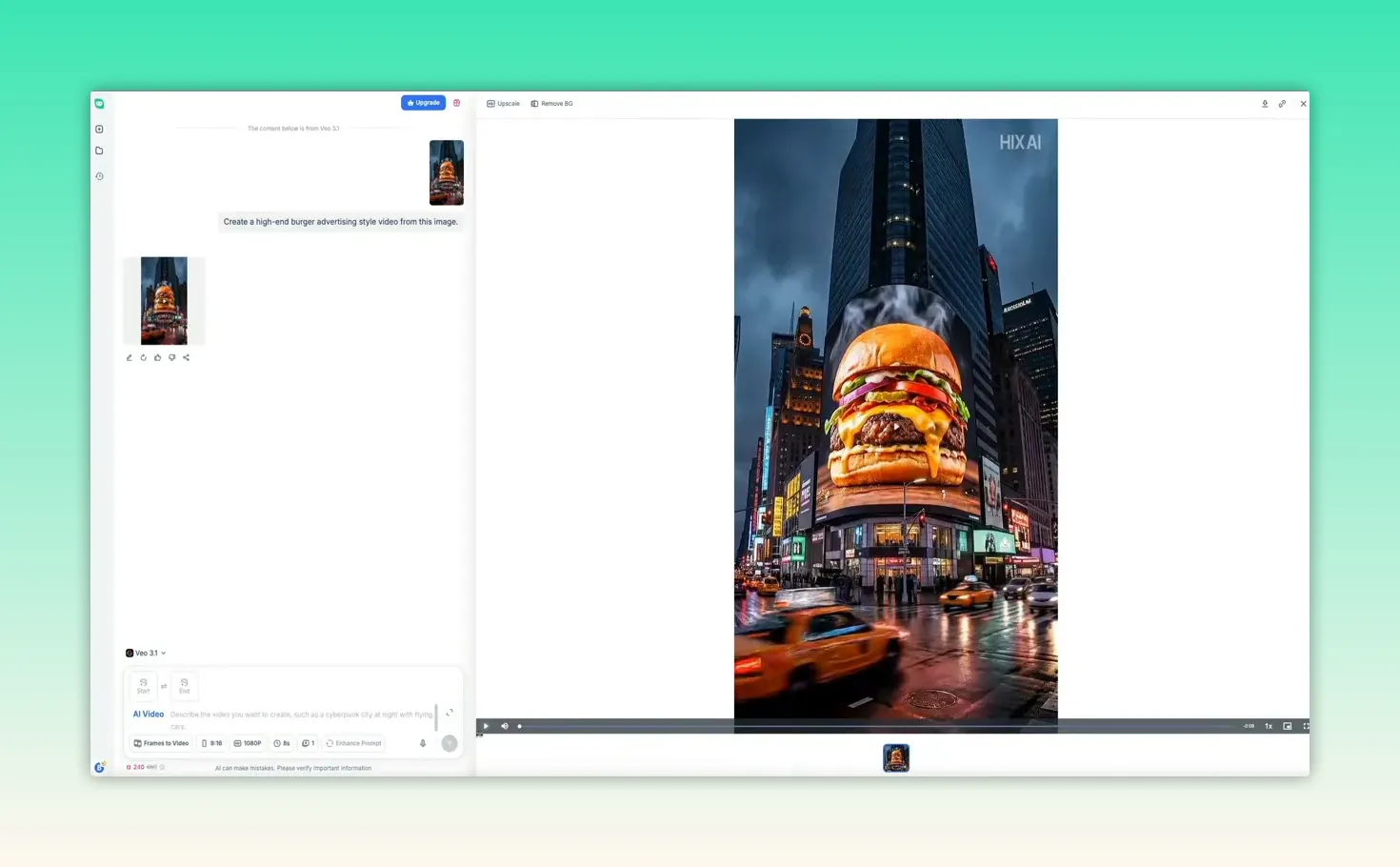
The result is often a polished, advertisement-style clip built from a single image plus a prompt.
Text-to-video (idea to clip)
For fast social clips, enter a concise scene description like “cute kitten surfing in the Pacific Ocean during sunset” and let the model render a short cinematic clip complete with motion and lighting.
Step 5: Draft full articles with AI Writer
The AI writer is a “one prompt to polished content” workspace. Describe the article or guide you want, choose rich text or markdown output, and select a style tile (for example, organized step-by-step how-to). The writer returns a structured draft with headings and sections you can edit.
Export options include PDF for polished sharing or HTML for publishing. This is ideal for producing long-form guides and blog posts quickly.
Step 6: Build presentations with AI Slides
Create a full slide deck from a topic prompt. After submitting, you may be shown a confirm requirements screen to:
- Adjust the presentation title
- Choose the number of slides
- Select a presentation style (professional, creative, minimalist)
HIX AI generates the slide thumbnails and content and lets you export as PPTX or PDF. Great for rapid decks, training materials, or pitch outlines.
Step 7: Run deep research that produces structured reports
The Deep Research workspace breaks a broad topic into multiple research tasks. It actively searches, reviews sources, and assembles a long-form document with an introduction, supporting sections, and references.
Export options include PDF, Word, and Markdown — perfect for pillar content, comparison posts, or reports where source-backed accuracy matters.
Step 8: Pricing, plan selection, and workflow tips
HIX AI offers a free plan for testing. Among paid options, the Unlimited annual plan provides the best value for frequent users. Example pricing referenced:
- Annual (recommended): $14.99 / month (billed yearly) — unlimited standard credits and access to core features.
- Monthly: $29.99 / month.
Choose annual if you plan to use writing, image generation, video, slides, and research regularly. If you’re testing or only have occasional needs, try the free tier first.
Practical workflows that speed up content creation
- From idea to assets: Use AI Writer to outline, AI Image for visual assets, AI Video for short clips, and AI Slides to summarize findings into a deck.
- One platform advantage: Keep everything in one library so images, drafts, and videos are easy to reuse.
- Iterate fast: Use screenshots and visual feedback in the chat to debug layouts, tune images, or refine prompts.
Final thoughts
HIX AI is built to consolidate many creative and production steps into one place. For content creators juggling blog posts, social visuals, short-form video, and presentations, a unified workflow saves time and reduces context switching. The platform shines when you chain tools together — for example, generate an image, create social captions from it, then turn it into an ad-style video — all without leaving the dashboard.
If efficiency and integrated workflows matter to your content process, HIX AI is worth testing. Try the free plan, experiment with a couple of models for images and video, and use the AI chat as your development and debugging partner.
If you create content regularly, you’ve probably noticed how fragmented the AI tool landscape has become. One app for writing, another for images, a separate tool for video, slides, research, and yet another chat interface to tie it all together.
HIX AI aims to solve that problem by bringing all of those capabilities into a single, unified dashboard. In this review, I’ll walk through how HIX AI works step by step, from signing up and navigating the interface to generating code, images, videos, articles, presentations, and research reports. Along the way, you’ll see where it shines, how the tools connect, and whether it truly earns the title of best all-in-one AI tool for content creators.
Step 1: Sign up and understand the dashboard
HIX AI is an all-in-one platform that bundles chat, image generation, video, writing, slides, and research into a single dashboard. Start by creating a free account using Google, Facebook, or an email address. The main interface centers on a chat hub that acts as the launching point for everything you’ll build.
Key UI elements to note:
- Model selector at the top of the chat (pick faster or more capable models depending on your task).
- Quick access buttons beneath the chat for AI image, AI video, AI slides, and more.
- Left navigation for New projects, Library (your saved work), Recent tasks, and More tools (a catalog of bots and apps).
Step 2: Use AI Chat as an agent (generate code, prototypes, and debug)
The chat is more than Q&A. Think of it as an agent that can generate functional outputs from a single prompt: full HTML files, small web apps, prototypes, or even games.
How to generate a working HTML tool
- Select a capable model from the model selector (for complex outputs pick a higher-end model like GPT 5.2).
- Type a specific request — for example: create a festive greeting card generator with customizable text, uploads, animations, and sharing options.
- Send the prompt. HIX AI will return structured output and a complete single-file HTML project you can copy and run locally.
Preview the generated page locally
Copy the generated HTML, paste it into a code editor and save it as index.html. Then open that file with your browser to preview the tool instantly.
Use image-based feedback to fix layout bugs
If something looks off, take a screenshot and attach it to the chat with a concise instruction (for example: “the card generator fields are bleeding into the preview—see attached screenshot and fix”). The chat will analyze both the code and the image, then return updated code that you can paste back into your file.
This workflow turns the AI from a generator into a collaborative debugger: show it what’s wrong and let it fix the CSS or layout for you.
Step 3: Generate and expand images (in-chat and via the dedicated image workspace)
HIX AI lets you produce images directly from the chat and also gives a dedicated image workspace when you need more control. You can swap image models depending on style and output quality.
Quick in-chat image generation
Switch the model (examples: Gemini 3 Pro, GPT image 1.5, Nano Banana Pro, Hix 2.0) then send a scene prompt. Once the image generates, click the thumbnail for a larger preview and use the chat to ask the system to “read this image” and generate social captions, reuse prompts, or a video prompt.
That feature is powerful: you get the visual plus ready-to-use marketing copy and even video ideas in one place.
Dedicated AI image workspace: controls and templates
From the left sidebar open the AI image tool for fine-grained controls:
- Aspect ratio presets for social, web, or prints.
- Resolution options (1K, 2K, 4K) and generation count (create variations at once).
- Enhance prompt to automatically expand a basic prompt into a rich scene description.
Reference-image workflows and upscaling
Upload a product photo or headshot as a reference and request a grid, campaign suite, or stylized portrait. After generation you can use tools like crop, erase, background removal, and upscale (2x, 4x, 8x) to make images production ready.
Tip: Paid plans remove the watermark and let you download full-resolution images.
Step 4: Turn images or text into video
The video tool supports multiple creation modes: frames-to-video (image-to-video) and text-to-video. Pick a video model (examples: VO3.1 for cinematic image motion, Cling 2.6 for lightweight text-to-video) and fine-tune aspect ratio, resolution, duration, and generation count.
Image-to-video (commercial ad example)
- Generate or upload an image that will serve as the start frame.
- Select frames-to-video, upload the image, and adjust the crop and aspect ratio for the platform you’re targeting (vertical for reels, horizontal for YouTube, etc.).
- Write a clear prompt describing the desired motion, camera moves, and tone (e.g., high-end burger ad with slow camera push, sizzling sound effects, voiceover).
- Submit and wait a few minutes for the rendered video (the result can include camera movement, sound effects, and a voiceover).
The result is often a polished, advertisement-style clip built from a single image plus a prompt.
Text-to-video (idea to clip)
For fast social clips, enter a concise scene description like “cute kitten surfing in the Pacific Ocean during sunset” and let the model render a short cinematic clip complete with motion and lighting.
Step 5: Draft full articles with AI Writer
The AI writer is a “one prompt to polished content” workspace. Describe the article or guide you want, choose rich text or markdown output, and select a style tile (for example, organized step-by-step how-to). The writer returns a structured draft with headings and sections you can edit.
Export options include PDF for polished sharing or HTML for publishing. This is ideal for producing long-form guides and blog posts quickly.
Step 6: Build presentations with AI Slides
Create a full slide deck from a topic prompt. After submitting, you may be shown a confirm requirements screen to:
- Adjust the presentation title
- Choose the number of slides
- Select a presentation style (professional, creative, minimalist)
HIX AI generates the slide thumbnails and content and lets you export as PPTX or PDF. Great for rapid decks, training materials, or pitch outlines.
Step 7: Run deep research that produces structured reports
The Deep Research workspace breaks a broad topic into multiple research tasks. It actively searches, reviews sources, and assembles a long-form document with an introduction, supporting sections, and references.
Export options include PDF, Word, and Markdown — perfect for pillar content, comparison posts, or reports where source-backed accuracy matters.
Step 8: Pricing, plan selection, and workflow tips
HIX AI offers a free plan for testing. Among paid options, the Unlimited annual plan provides the best value for frequent users. Example pricing referenced:
- Annual (recommended): $14.99 / month (billed yearly) — unlimited standard credits and access to core features.
- Monthly: $29.99 / month.
Choose annual if you plan to use writing, image generation, video, slides, and research regularly. If you’re testing or only have occasional needs, try the free tier first.
Practical workflows that speed up content creation
- From idea to assets: Use AI Writer to outline, AI Image for visual assets, AI Video for short clips, and AI Slides to summarize findings into a deck.
- One platform advantage: Keep everything in one library so images, drafts, and videos are easy to reuse.
- Iterate fast: Use screenshots and visual feedback in the chat to debug layouts, tune images, or refine prompts.
Final thoughts
HIX AI is built to consolidate many creative and production steps into one place. For content creators juggling blog posts, social visuals, short-form video, and presentations, a unified workflow saves time and reduces context switching. The platform shines when you chain tools together — for example, generate an image, create social captions from it, then turn it into an ad-style video — all without leaving the dashboard.
If efficiency and integrated workflows matter to your content process, HIX AI is worth testing. Try the free plan, experiment with a couple of models for images and video, and use the AI chat as your development and debugging partner.

Written by Ben Cummings
Founder of blogwithben.com
Ben is the Co-Founder of Sage Wave Media, LLC which is the parent company of Blog With Ben. He enjoys teaching, blogging, startups, a hoppy IPA, and college basketball. Whenever he's not blogging, you can find him cruising around sunny San Diego with his amazing family.
0 Comments