
Why I Switched to Norton Neo AI Browser (and What Feels Different)
Why I Switched to Norton Neo AI Browser (and What Feels Different)
How many tabs do you have open right now? Be honest. 10? 20? 40?
You open your browser to do one thing, and somehow you’re 30 minutes deep, buried under a wall of tabs, juggling five tools, and completely forgetting what you were trying to accomplish in the first place.
Most of the time, the browser is not helping. It is just the place where that chaos happens: copying and pasting between windows, installing extensions for basic features, and hunting for the one useful page somewhere in the mess.
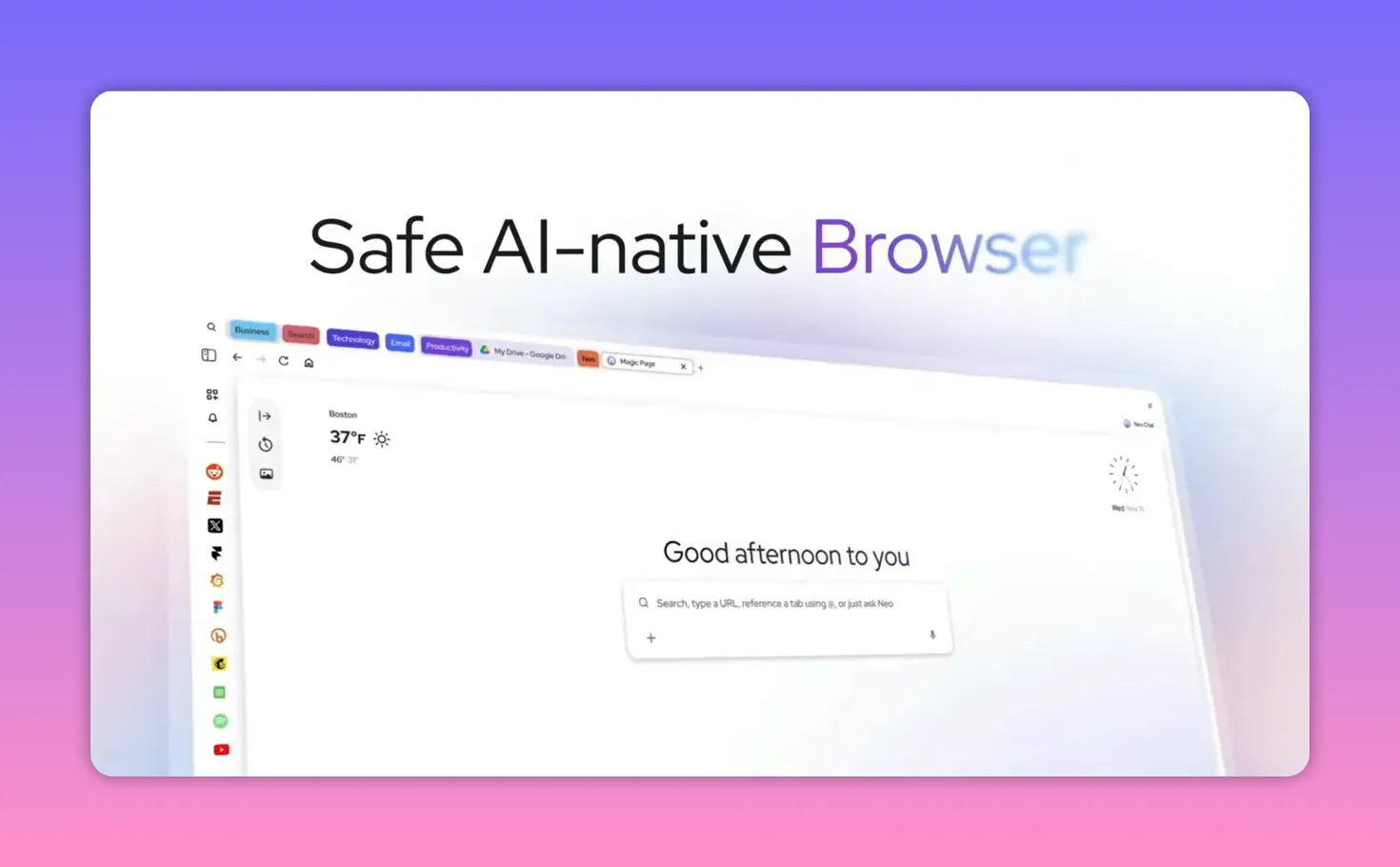
Neo tries to fix that at the root. It is an AI-native browser backed by Norton, built so intelligence is woven into the experience instead of bolted on as a sidebar chatbot. The result is a workflow that feels more like research and writing support, and less like tab management as a lifestyle.
Getting started with Neo (free)
Neo is free to download. The setup is straightforward: download Neo, and follow the install steps for Windows or Mac.
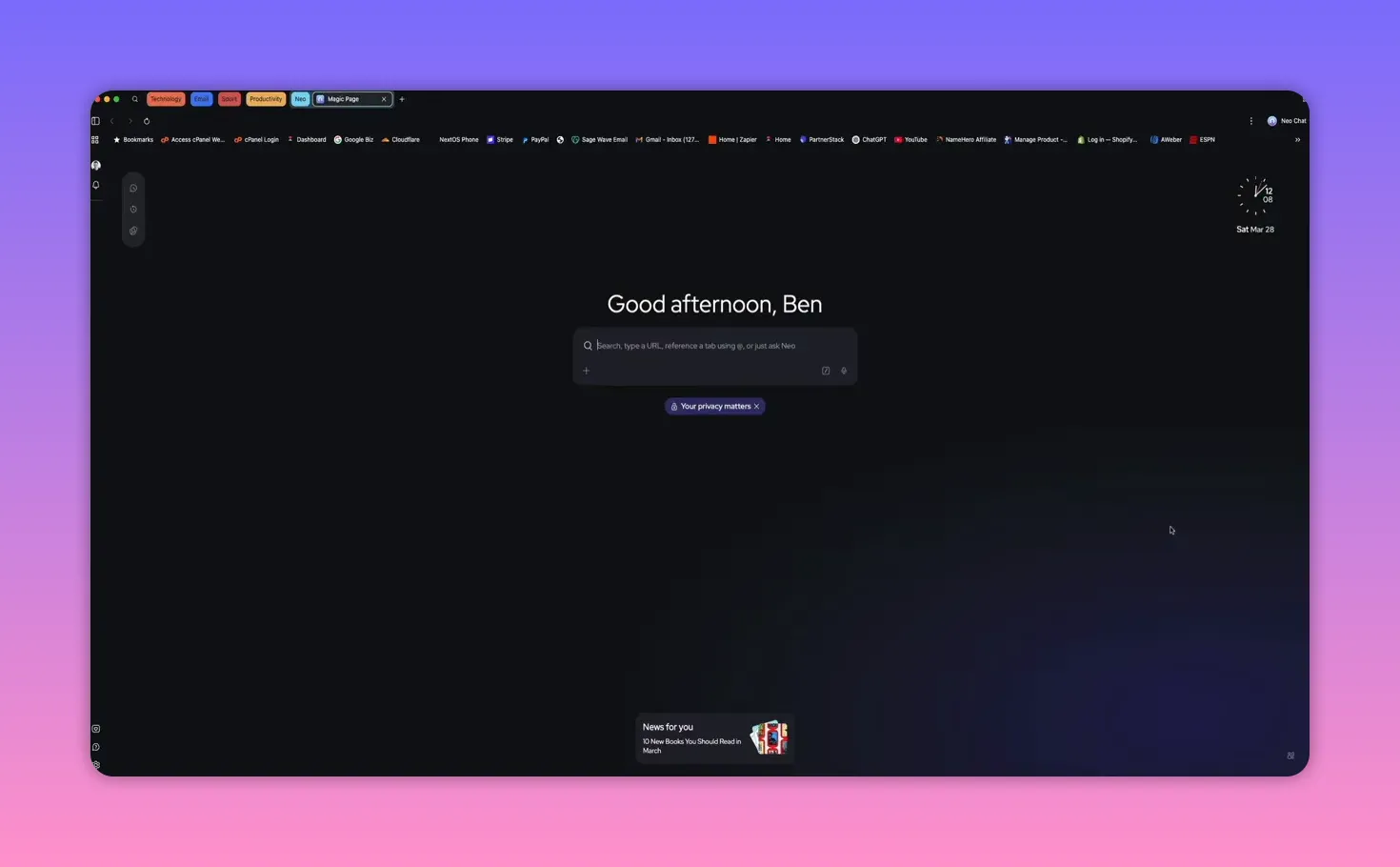
When you open Neo for the first time, you land on what they call the magic box.
The magic box: search, navigation, and AI in one input
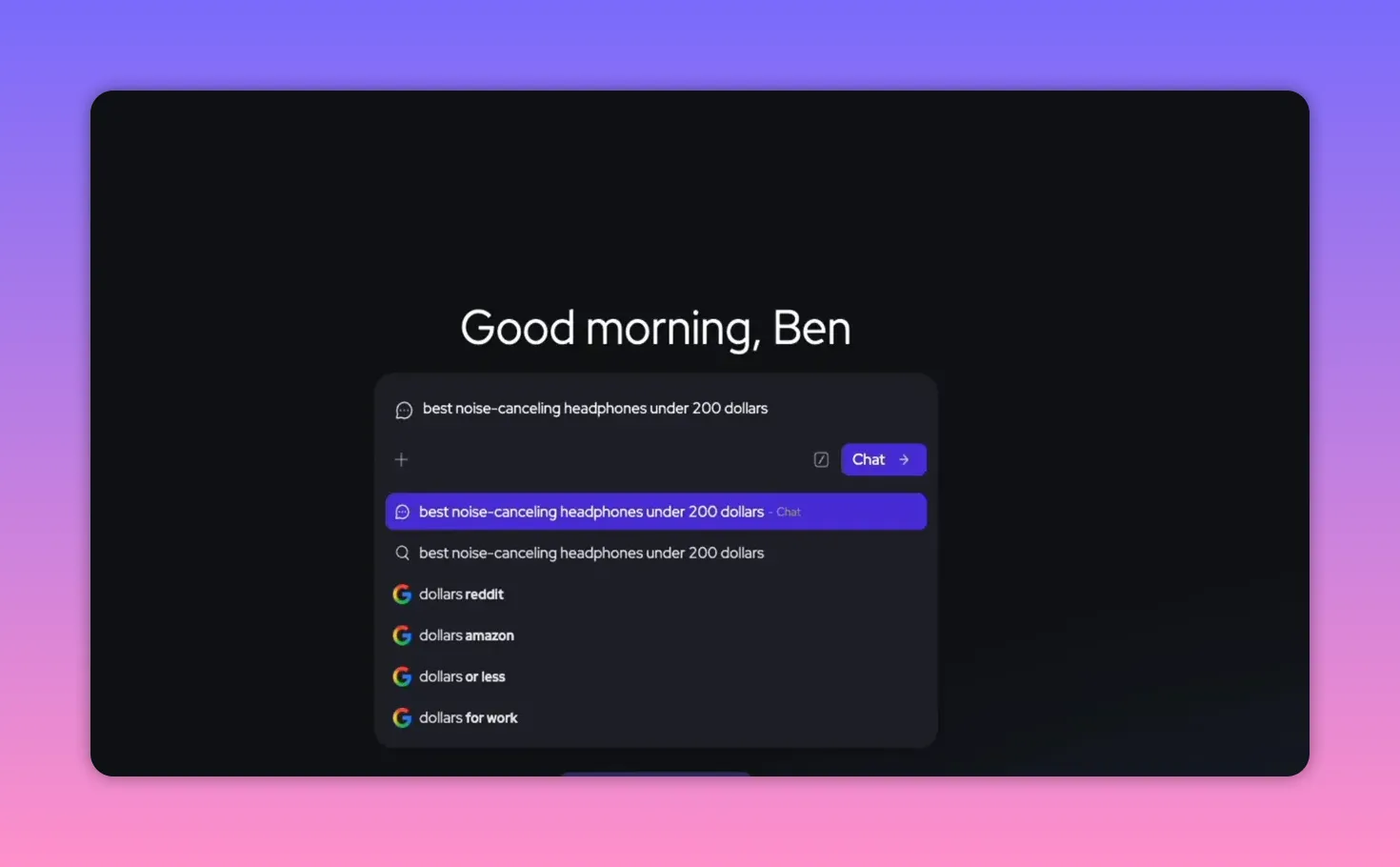
The magic box is basically everything you need in one field: an address bar, a search engine, and an AI assistant.
You do not have to decide what you are doing first. Type a URL and Neo navigates. Type a question and Neo answers. The browser figures out what you mean automatically.
For example, instead of sending you to a page full of sponsored results when you ask something like: “best noise canceling headphones under $200,” Neo pulls together the useful stuff directly in the browser.
That breakdown can include:
- Best overall pick
- Best for silence
- Best battery life
- Budget value picks
- Comparison tables
- Sources and citations
- Related videos
And you can keep asking follow-up questions without bouncing between pages. If you want to dig deeper, you can click sources that lead to review articles and testing summaries, instead of starting over from scratch.
Neo Chat side panel: ask while you read (without losing your place)
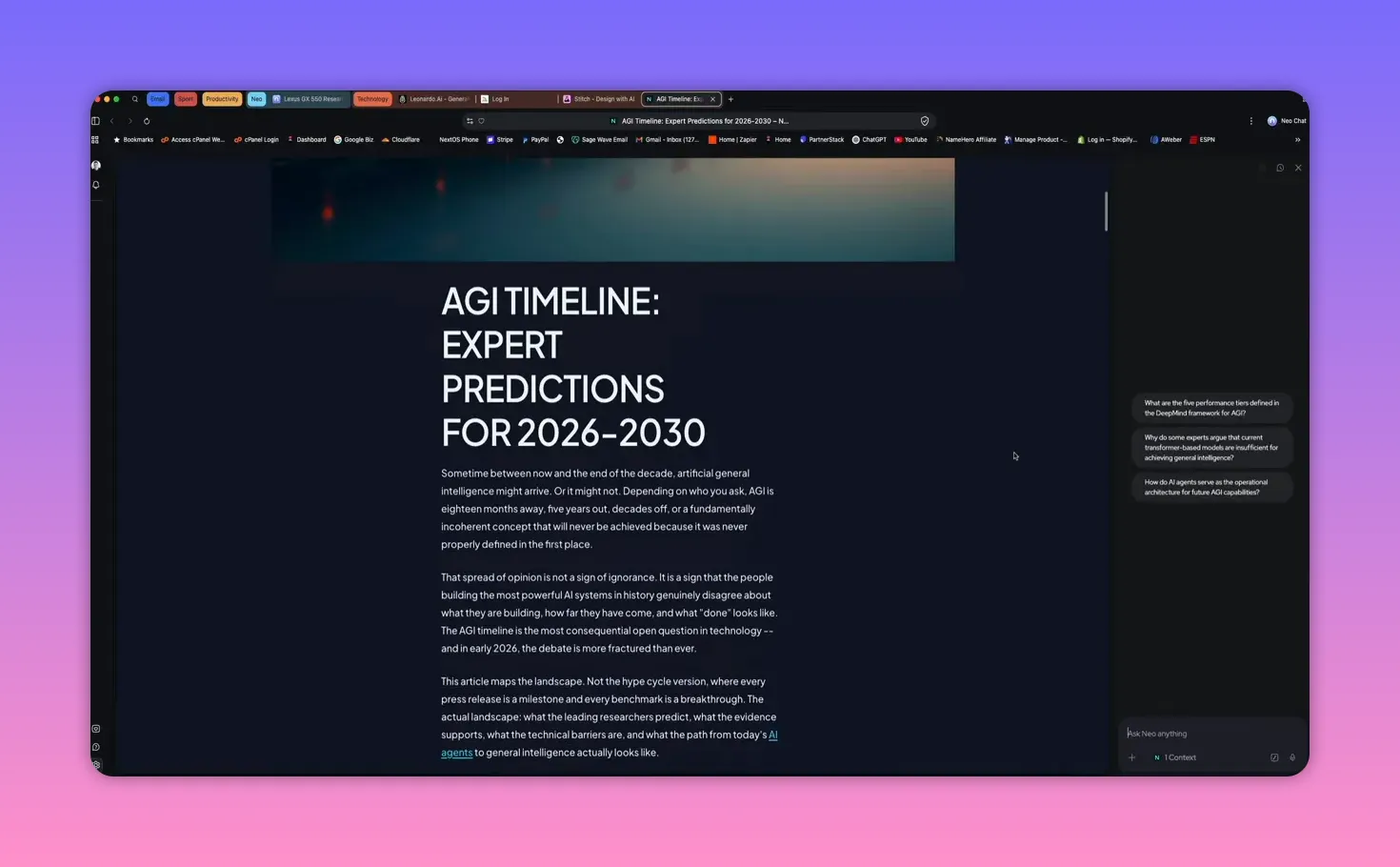
The next major upgrade is Neo Chat, accessible anytime from the upper right corner.
Here’s the key: the chat panel is aware of the page you are currently on. That matters because it turns “AI help” into “in-context help.” You are not asking a generic bot about the internet. You are asking a bot about what you are looking at.
Two examples make the workflow clearer.
1) Summarize long content instantly
If you’re reading a long article and you are short on time, open Neo Chat and say something like “Summarize this for me.”
Neo sends that through and returns a clean key-point breakdown. It also cites where information came from so you can verify it.
2) Compare tools side by side without tab switching
Say you have multiple pages open for tools you are evaluating, like Midjourney vs. Leonardo. Instead of going back and forth across tabs, you can ask Neo Chat to extract:
- Pricing
- Key features
- Limitations
- Drawbacks
- A final recommendation
Neo can generate a comparison table and verdict in seconds, while keeping your attention in the same workflow.
Highlight, then explain, using the page you are already reading
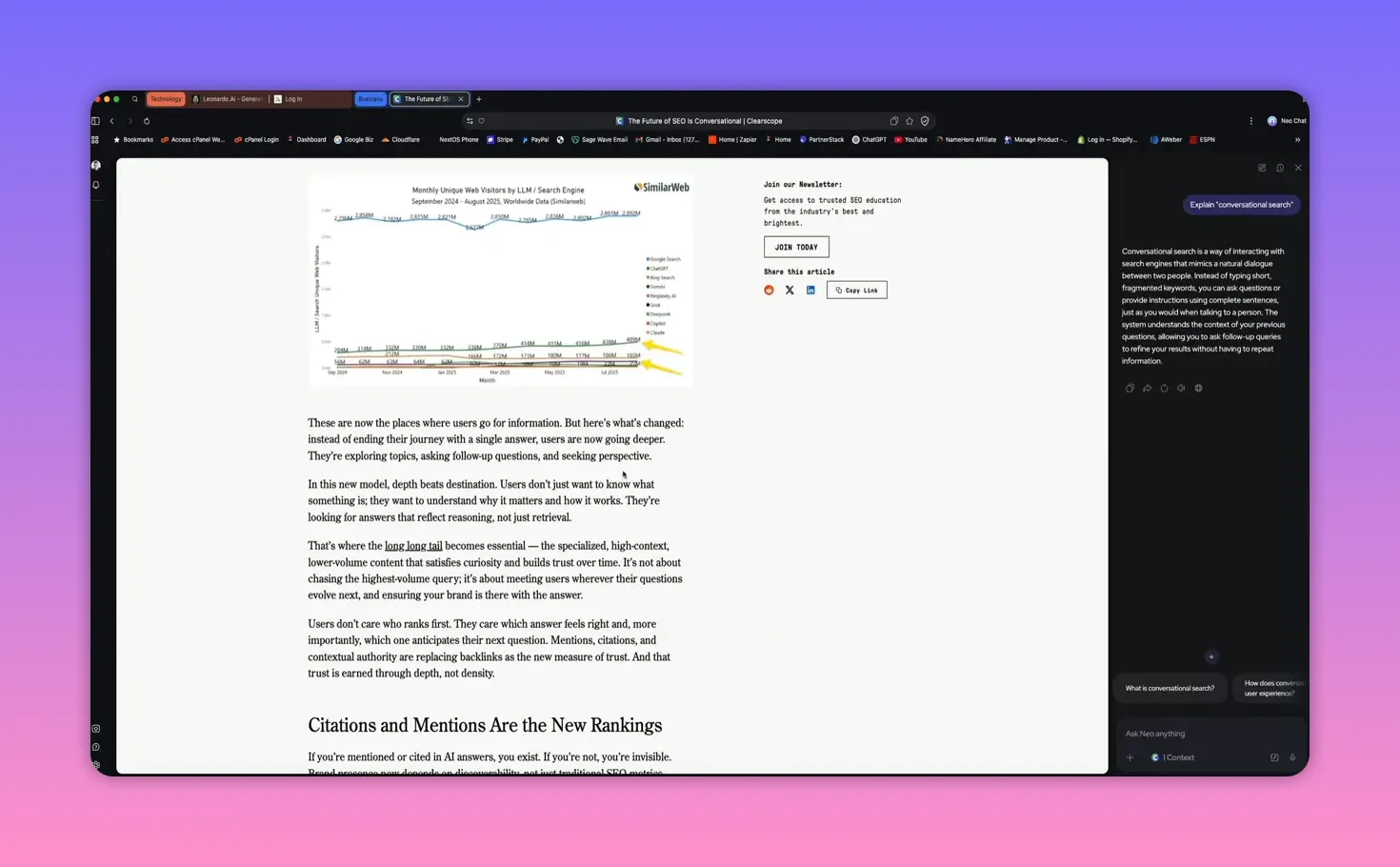
Neo also supports highlighted context. While reading a technical article, you can highlight a term you do not understand, then use Neo’s icon options to get help.
The interaction works like this:
- Highlight a term in Neo
- Hover to reveal a Neo icon
- Use the options to get an explanation or a quick summary
When you select “explain,” Neo opens the panel on the right side and answers based on the article you are already reading. No new tab. No losing your place.
It’s like having a research assistant sitting next to your monitor, but with the crucial difference that it actually understands what page you are on.
Peek and summary: hover links instead of opening new tabs
This is one of those features that feels small until you use it, and then you realize you were wasting time every single day.
In a traditional browser, you click a hyperlink, open a new tab, scan for relevance, realize it is not what you need, and close it. Multiply that by 20 times a day and you lose real focus.
Neo changes the behavior:
- When you hover over a hyperlink, Neo shows an icon
- You can choose peek to open a smaller preview window
- Or choose a summary option
Either way, you decide whether the destination is worth clicking before you break your flow. No tab opened. No context switch. No back-button gymnastics.
Neo’s writing assistant (Composer): better drafts where you type
If you write online, this is the feature that quietly makes everything better.
Neo includes a writing assistant that improves whatever you type: email drafts, contact forms, social comments, client messages, and more. It can help with:
- Tone
- Clarity
- Flow
- Rephrasing awkward sentences
- Auto-completing your thoughts when you are stuck
How it works in practice
When you are composing something, place your cursor where you want text. Hover so the Neo icon appears, click it, and a dialog opens.
From there, you can interact with the AI assistant to generate the content. In the email example, the composer produced a fully drafted email for review.
You can then review the draft and apply it with an accept action. The important part is that you do not have to copy and paste between tools. The composition happens in Neo itself.
It is also free, which is honestly surprising given how much value it adds.
Smart tabs: group by topic, collapse what you’re not using
If you want the biggest day-to-day improvement from a browser, it is tab management. Most browsers do not solve the real problem, they just store clutter.
Neo uses smart tab grouping so tabs organize themselves by topic or task.
Example scenarios:
- When researching AI design tools, Neo groups related pages together at the top.
- If you open multiple email inboxes, they group separately.
- If you are watching YouTube videos on a different topic, Neo keeps them in their own group.
- Tabs you have not touched in a while can be collapsed so they remain accessible without cluttering your workspace.
Instead of squinting at tiny unreadable favicons, you get a clean organized workspace that is easier to navigate and makes it easier to stay focused. It is the difference between a messy desk and labeled folders.
The Neo feed: personalized discovery that stays local and respects privacy
Most browsers start you with a homepage full of trending stories, clickbait, and ads disguised as content. Neo’s approach is different.
The Neo feed gives you personalized content that learns from your browsing interests. You access it by scrolling up on the magic box page.
What matters most is where that learning happens.
Neo processes learning on your device. It is not sending your browsing habits to a server to build an advertising profile.
That means the feed aims to surface content relevant to what you are actually working on, without sensationalized headlines and without the creepy “we’re tracking you” vibe.
In other words: discovery that respects attention and privacy, with no ads and no tracking.
Configurable memory: tell Neo what to remember (and control it fully)
There are a lot of AI tools that “remember” things. The problem is that you usually do not get to see what they are remembering, why they are remembering it, or how to remove it.
Neo takes a different approach: configurable memory.
You explicitly tell Neo what to remember. For example, you can type in chat: “Remember that I’m researching the Lexus GX 550.”
When you send it, Neo confirms that it stored the info in memory. Next time you search for something car-related, it can use that context to give better, more relevant responses.
But the biggest difference is visibility and control.
Every memory is visible in settings. You can:
- Toggle memory on or off
- Manage and view what Neo knows
- Edit memories
- Delete individual memories
- Wipe everything at once
Neo frames this as personalization you build and control, with no hidden behavior profile running in the background.
Norton privacy and safety: Web Shield, local data, and true deletion
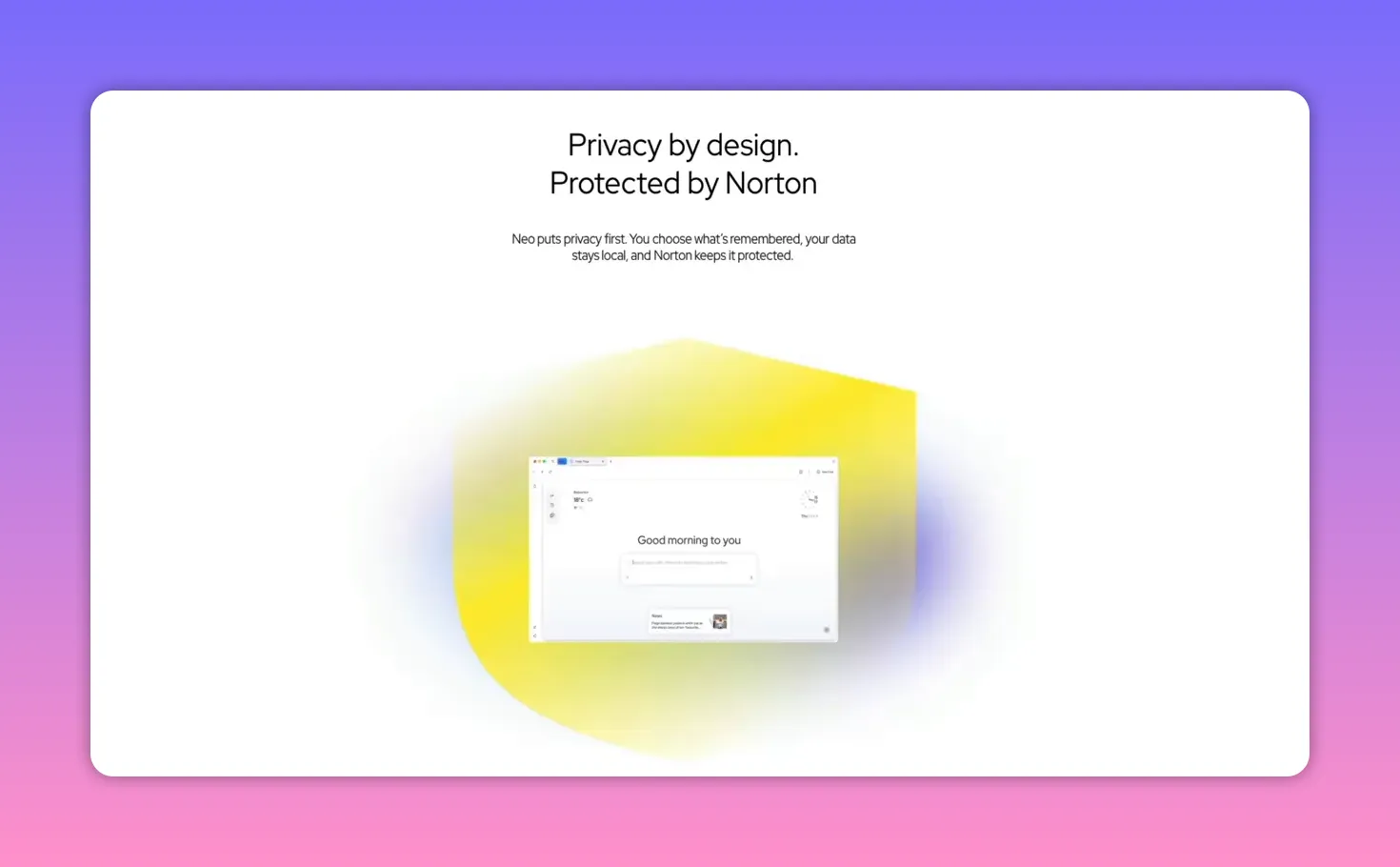
Norton is not just a name attached to the product. Their security expertise is built into Neo.
Norton Web Shield is active while you browse, blocking malicious sites and phishing attempts before you click. If you land on a compromised website or click a sketchy link, Neo warns you beforehand.
Privacy goes deeper than threat blocking.
Neo handles chats and browsing history with a local-first approach:
- Chats and browsing history are stored locally on your device by default.
- If the AI needs cloud processing for more complex tasks, it does so in an isolated environment detached from your identity.
- There’s visibility into what’s stored locally via the history view.
Neo also includes built-in security and privacy controls:
- Safe browsing that scans URLs for threats
- Ad blocking
- Privacy filtering to block tracking
- An anti-CV filter to block circumvention attempts
- Option to exclude specific sites from ad blocking (to support creators)
Another detail worth highlighting: AI-generated summary sites include sources so you can verify where information came from.
And when you delete data, Neo describes it as true deletion. It means deleted data is actually removed, not archived somewhere or flagged as inactive.
Neo vs Chrome-style browsers and AI plugins
To understand why Neo feels different, it helps to compare it to the usual options.
With traditional browsers like Chrome, Firefox, or Edge:
- You organize tabs manually
- You install extensions for basic features
- You do not get AI help built into the core experience
- Your privacy often depends on which extensions you remember to install and configure
With AI plugins or extensions (like a ChatGPT sidebar):
- They can be disruptive because you often have to switch context
- They may not truly understand what you are doing on the page
- They can track behavior behind the scenes to function
- They are still an add-on to a system that was not designed for AI
Neo positions itself as different because the AI is not an add-on. It is the browser. Searching, writing, organizing tabs, discovering content, and configurable memory are powered by intelligence that understands your context while respecting your privacy.
The practical result is simple: once you experience that flow, it becomes hard to go back to a browser that fights your workflow instead of supporting it.
Should you switch?
Neo is free, and it is available on Windows and Mac. If you decide to try it, the best approach is to use it with one afternoon of real work.
- Open your usual sites
- Use the magic box for search and questions
- Hover links and try peek
- Let smart tabs group your browsing
- Tell Neo something to remember and check settings
- Review privacy and safety settings
Students or people who work for nonprofits may be able to skip a wait list to get access right away.
Final thoughts
The biggest takeaway with Neo is that it feels designed around the actual problems people have with browsers:
- Tab chaos
- Context switching
- Searching and researching that turns into busywork
- Writing that stalls when you are stuck
- Privacy concerns tied to tracking and profiling
Neo tries to solve those directly with AI-native features like the magic box, Neo Chat, peek summaries, smart tab grouping, an on-device personalized feed, configurable memory, and Norton-powered safety controls.
If you want a browser that actually works with your workflow instead of constantly getting in your way, it is worth giving Neo a real try.
How many tabs do you have open right now? Be honest. 10? 20? 40?
You open your browser to do one thing, and somehow you’re 30 minutes deep, buried under a wall of tabs, juggling five tools, and completely forgetting what you were trying to accomplish in the first place.
Most of the time, the browser is not helping. It is just the place where that chaos happens: copying and pasting between windows, installing extensions for basic features, and hunting for the one useful page somewhere in the mess.
Neo tries to fix that at the root. It is an AI-native browser backed by Norton, built so intelligence is woven into the experience instead of bolted on as a sidebar chatbot. The result is a workflow that feels more like research and writing support, and less like tab management as a lifestyle.
Getting started with Neo (free)
Neo is free to download. The setup is straightforward: download Neo, and follow the install steps for Windows or Mac.
When you open Neo for the first time, you land on what they call the magic box.
The magic box: search, navigation, and AI in one input
The magic box is basically everything you need in one field: an address bar, a search engine, and an AI assistant.
You do not have to decide what you are doing first. Type a URL and Neo navigates. Type a question and Neo answers. The browser figures out what you mean automatically.
For example, instead of sending you to a page full of sponsored results when you ask something like: “best noise canceling headphones under $200,” Neo pulls together the useful stuff directly in the browser.
That breakdown can include:
- Best overall pick
- Best for silence
- Best battery life
- Budget value picks
- Comparison tables
- Sources and citations
- Related videos
And you can keep asking follow-up questions without bouncing between pages. If you want to dig deeper, you can click sources that lead to review articles and testing summaries, instead of starting over from scratch.
Neo Chat side panel: ask while you read (without losing your place)
The next major upgrade is Neo Chat, accessible anytime from the upper right corner.
Here’s the key: the chat panel is aware of the page you are currently on. That matters because it turns “AI help” into “in-context help.” You are not asking a generic bot about the internet. You are asking a bot about what you are looking at.
Two examples make the workflow clearer.
1) Summarize long content instantly
If you’re reading a long article and you are short on time, open Neo Chat and say something like “Summarize this for me.”
Neo sends that through and returns a clean key-point breakdown. It also cites where information came from so you can verify it.
2) Compare tools side by side without tab switching
Say you have multiple pages open for tools you are evaluating, like Midjourney vs. Leonardo. Instead of going back and forth across tabs, you can ask Neo Chat to extract:
- Pricing
- Key features
- Limitations
- Drawbacks
- A final recommendation
Neo can generate a comparison table and verdict in seconds, while keeping your attention in the same workflow.
Highlight, then explain, using the page you are already reading
Neo also supports highlighted context. While reading a technical article, you can highlight a term you do not understand, then use Neo’s icon options to get help.
The interaction works like this:
- Highlight a term in Neo
- Hover to reveal a Neo icon
- Use the options to get an explanation or a quick summary
When you select “explain,” Neo opens the panel on the right side and answers based on the article you are already reading. No new tab. No losing your place.
It’s like having a research assistant sitting next to your monitor, but with the crucial difference that it actually understands what page you are on.
Peek and summary: hover links instead of opening new tabs
This is one of those features that feels small until you use it, and then you realize you were wasting time every single day.
In a traditional browser, you click a hyperlink, open a new tab, scan for relevance, realize it is not what you need, and close it. Multiply that by 20 times a day and you lose real focus.
Neo changes the behavior:
- When you hover over a hyperlink, Neo shows an icon
- You can choose peek to open a smaller preview window
- Or choose a summary option
Either way, you decide whether the destination is worth clicking before you break your flow. No tab opened. No context switch. No back-button gymnastics.
Neo’s writing assistant (Composer): better drafts where you type
If you write online, this is the feature that quietly makes everything better.
Neo includes a writing assistant that improves whatever you type: email drafts, contact forms, social comments, client messages, and more. It can help with:
- Tone
- Clarity
- Flow
- Rephrasing awkward sentences
- Auto-completing your thoughts when you are stuck
How it works in practice
When you are composing something, place your cursor where you want text. Hover so the Neo icon appears, click it, and a dialog opens.
From there, you can interact with the AI assistant to generate the content. In the email example, the composer produced a fully drafted email for review.
You can then review the draft and apply it with an accept action. The important part is that you do not have to copy and paste between tools. The composition happens in Neo itself.
It is also free, which is honestly surprising given how much value it adds.
Smart tabs: group by topic, collapse what you’re not using
If you want the biggest day-to-day improvement from a browser, it is tab management. Most browsers do not solve the real problem, they just store clutter.
Neo uses smart tab grouping so tabs organize themselves by topic or task.
Example scenarios:
- When researching AI design tools, Neo groups related pages together at the top.
- If you open multiple email inboxes, they group separately.
- If you are watching YouTube videos on a different topic, Neo keeps them in their own group.
- Tabs you have not touched in a while can be collapsed so they remain accessible without cluttering your workspace.
Instead of squinting at tiny unreadable favicons, you get a clean organized workspace that is easier to navigate and makes it easier to stay focused. It is the difference between a messy desk and labeled folders.
The Neo feed: personalized discovery that stays local and respects privacy
Most browsers start you with a homepage full of trending stories, clickbait, and ads disguised as content. Neo’s approach is different.
The Neo feed gives you personalized content that learns from your browsing interests. You access it by scrolling up on the magic box page.
What matters most is where that learning happens.
Neo processes learning on your device. It is not sending your browsing habits to a server to build an advertising profile.
That means the feed aims to surface content relevant to what you are actually working on, without sensationalized headlines and without the creepy “we’re tracking you” vibe.
In other words: discovery that respects attention and privacy, with no ads and no tracking.
Configurable memory: tell Neo what to remember (and control it fully)
There are a lot of AI tools that “remember” things. The problem is that you usually do not get to see what they are remembering, why they are remembering it, or how to remove it.
Neo takes a different approach: configurable memory.
You explicitly tell Neo what to remember. For example, you can type in chat: “Remember that I’m researching the Lexus GX 550.”
When you send it, Neo confirms that it stored the info in memory. Next time you search for something car-related, it can use that context to give better, more relevant responses.
But the biggest difference is visibility and control.
Every memory is visible in settings. You can:
- Toggle memory on or off
- Manage and view what Neo knows
- Edit memories
- Delete individual memories
- Wipe everything at once
Neo frames this as personalization you build and control, with no hidden behavior profile running in the background.
Norton privacy and safety: Web Shield, local data, and true deletion
Norton is not just a name attached to the product. Their security expertise is built into Neo.
Norton Web Shield is active while you browse, blocking malicious sites and phishing attempts before you click. If you land on a compromised website or click a sketchy link, Neo warns you beforehand.
Privacy goes deeper than threat blocking.
Neo handles chats and browsing history with a local-first approach:
- Chats and browsing history are stored locally on your device by default.
- If the AI needs cloud processing for more complex tasks, it does so in an isolated environment detached from your identity.
- There’s visibility into what’s stored locally via the history view.
Neo also includes built-in security and privacy controls:
- Safe browsing that scans URLs for threats
- Ad blocking
- Privacy filtering to block tracking
- An anti-CV filter to block circumvention attempts
- Option to exclude specific sites from ad blocking (to support creators)
Another detail worth highlighting: AI-generated summary sites include sources so you can verify where information came from.
And when you delete data, Neo describes it as true deletion. It means deleted data is actually removed, not archived somewhere or flagged as inactive.
Neo vs Chrome-style browsers and AI plugins
To understand why Neo feels different, it helps to compare it to the usual options.
With traditional browsers like Chrome, Firefox, or Edge:
- You organize tabs manually
- You install extensions for basic features
- You do not get AI help built into the core experience
- Your privacy often depends on which extensions you remember to install and configure
With AI plugins or extensions (like a ChatGPT sidebar):
- They can be disruptive because you often have to switch context
- They may not truly understand what you are doing on the page
- They can track behavior behind the scenes to function
- They are still an add-on to a system that was not designed for AI
Neo positions itself as different because the AI is not an add-on. It is the browser. Searching, writing, organizing tabs, discovering content, and configurable memory are powered by intelligence that understands your context while respecting your privacy.
The practical result is simple: once you experience that flow, it becomes hard to go back to a browser that fights your workflow instead of supporting it.
Should you switch?
Neo is free, and it is available on Windows and Mac. If you decide to try it, the best approach is to use it with one afternoon of real work.
- Open your usual sites
- Use the magic box for search and questions
- Hover links and try peek
- Let smart tabs group your browsing
- Tell Neo something to remember and check settings
- Review privacy and safety settings
Students or people who work for nonprofits may be able to skip a wait list to get access right away.
Final thoughts
The biggest takeaway with Neo is that it feels designed around the actual problems people have with browsers:
- Tab chaos
- Context switching
- Searching and researching that turns into busywork
- Writing that stalls when you are stuck
- Privacy concerns tied to tracking and profiling
Neo tries to solve those directly with AI-native features like the magic box, Neo Chat, peek summaries, smart tab grouping, an on-device personalized feed, configurable memory, and Norton-powered safety controls.
If you want a browser that actually works with your workflow instead of constantly getting in your way, it is worth giving Neo a real try.

Written by Ben Cummings
Founder of blogwithben.com
Ben is the Co-Founder of Sage Wave Media, LLC which is the parent company of Blog With Ben. He enjoys teaching, blogging, startups, a hoppy IPA, and college basketball. Whenever he's not blogging, you can find him cruising around sunny San Diego with his amazing family.
0 Comments