
Rocket Insights for WP Rocket — Setup, Monitoring & Optimization Guide
Rocket Insights for WP Rocket — Setup, Monitoring & Optimization Guide
Rocket Insights brings performance monitoring directly into WP Rocket (affiliate link) so you can track, analyze, and optimize your most important pages without leaving WordPress. It pairs naturally with your caching setup to measure results instantly and highlights what is actually slowing pages down.
Step 1: Make sure WP Rocket is up to date
Before you can use Rocket Insights, confirm you are running the latest WP Rocket release. Open your WordPress plugin management page and update WP Rocket if needed. At the time this guide was written, version 3.2.0 includes Rocket Insights.
Step 2: Open the WP Rocket dashboard
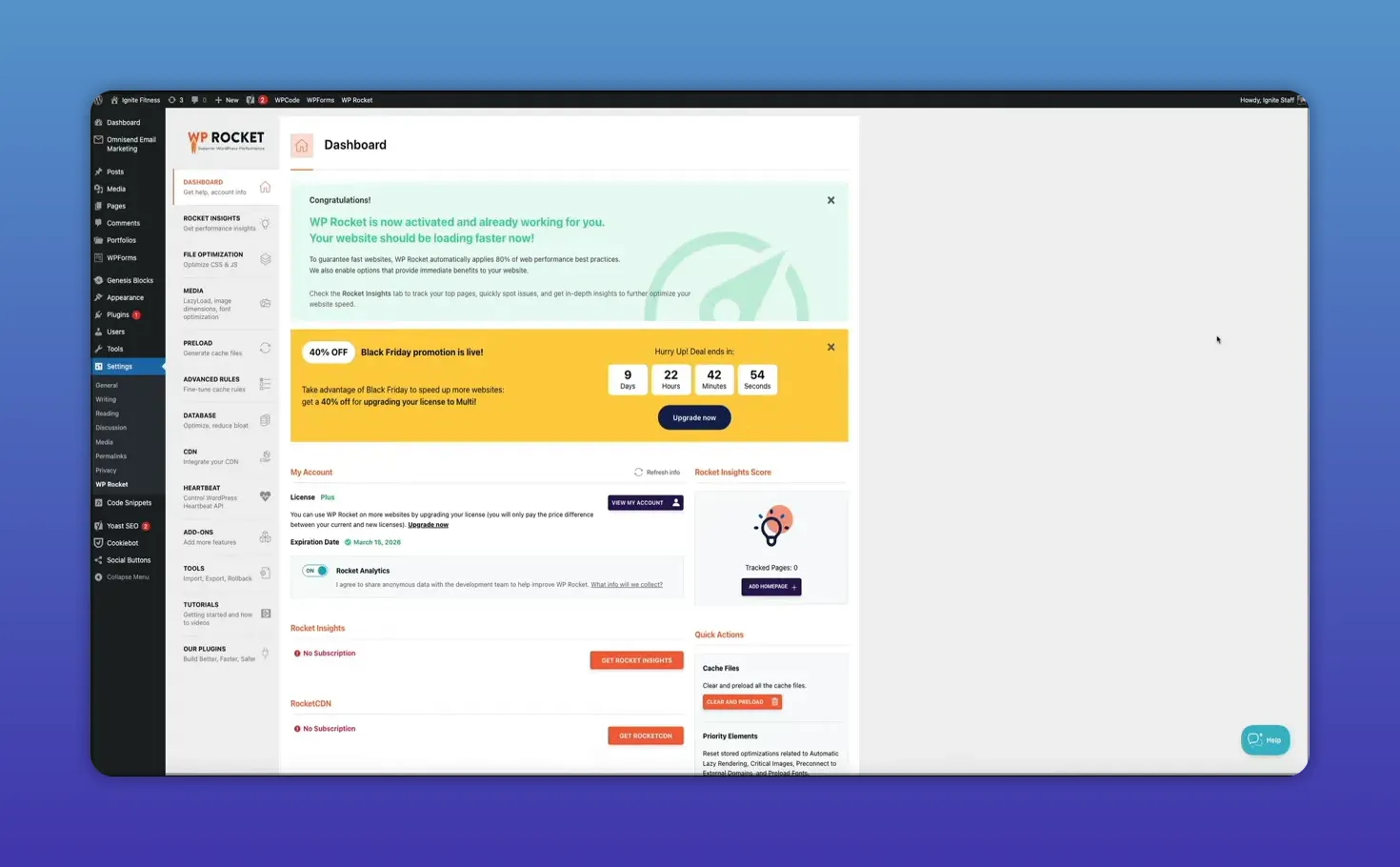
From the WordPress admin, hover over Settings and click WP Rocket. The dashboard now includes performance items and a global score that gives an instant snapshot of how your monitored pages are performing.
Step 3: Scan your homepage (or any page)
Click the button to scan your homepage. New customers will have the homepage added by default. Existing customers may need to implement Rocket Insights for the first scan. The initial scan typically takes about a minute.
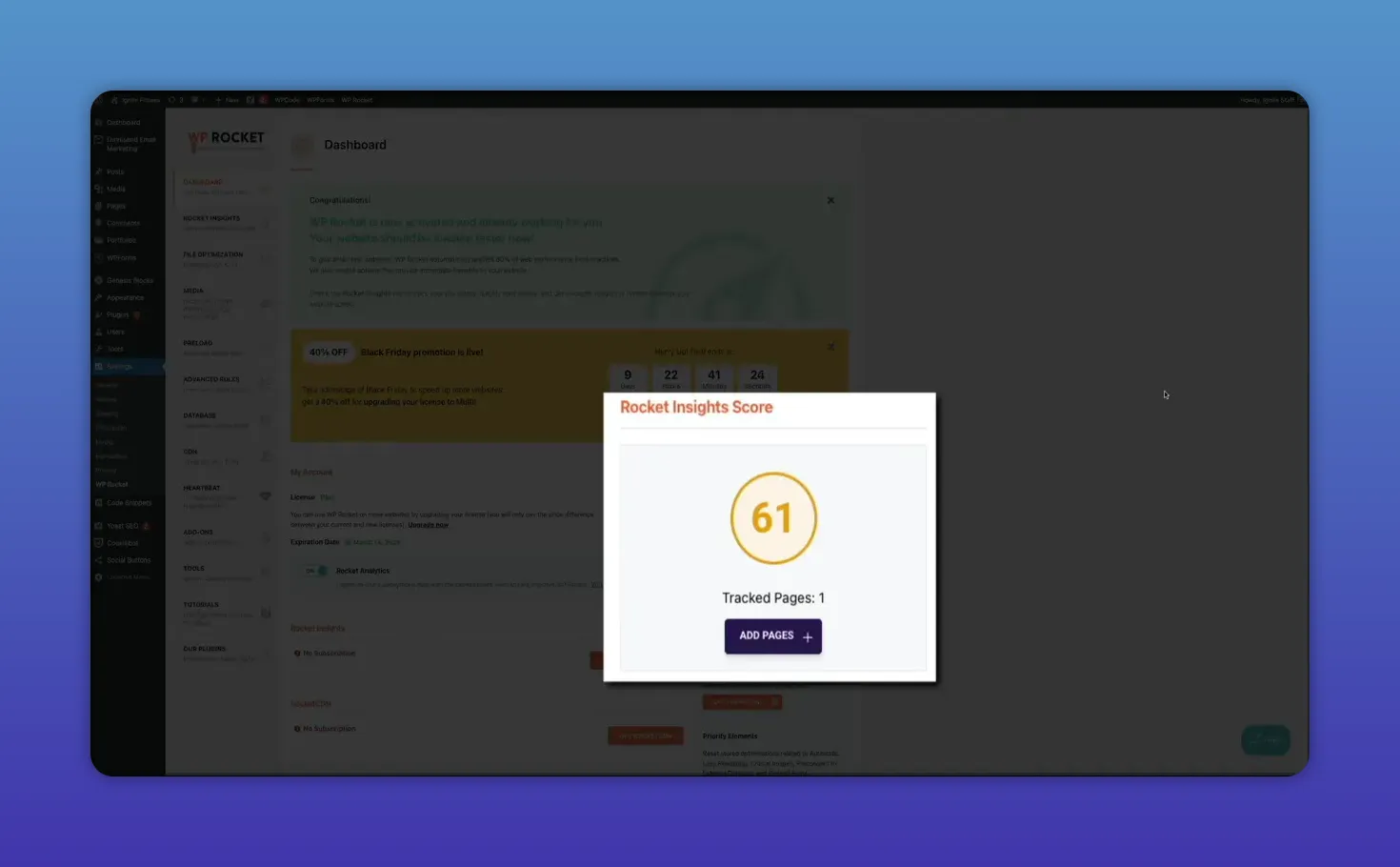
Once the scan completes you will see a Rocket Insights score. That score is your quick indicator, but the real value is in understanding what contributes to it and which elements are dragging performance down.
Step 4: Add additional pages and read the reports
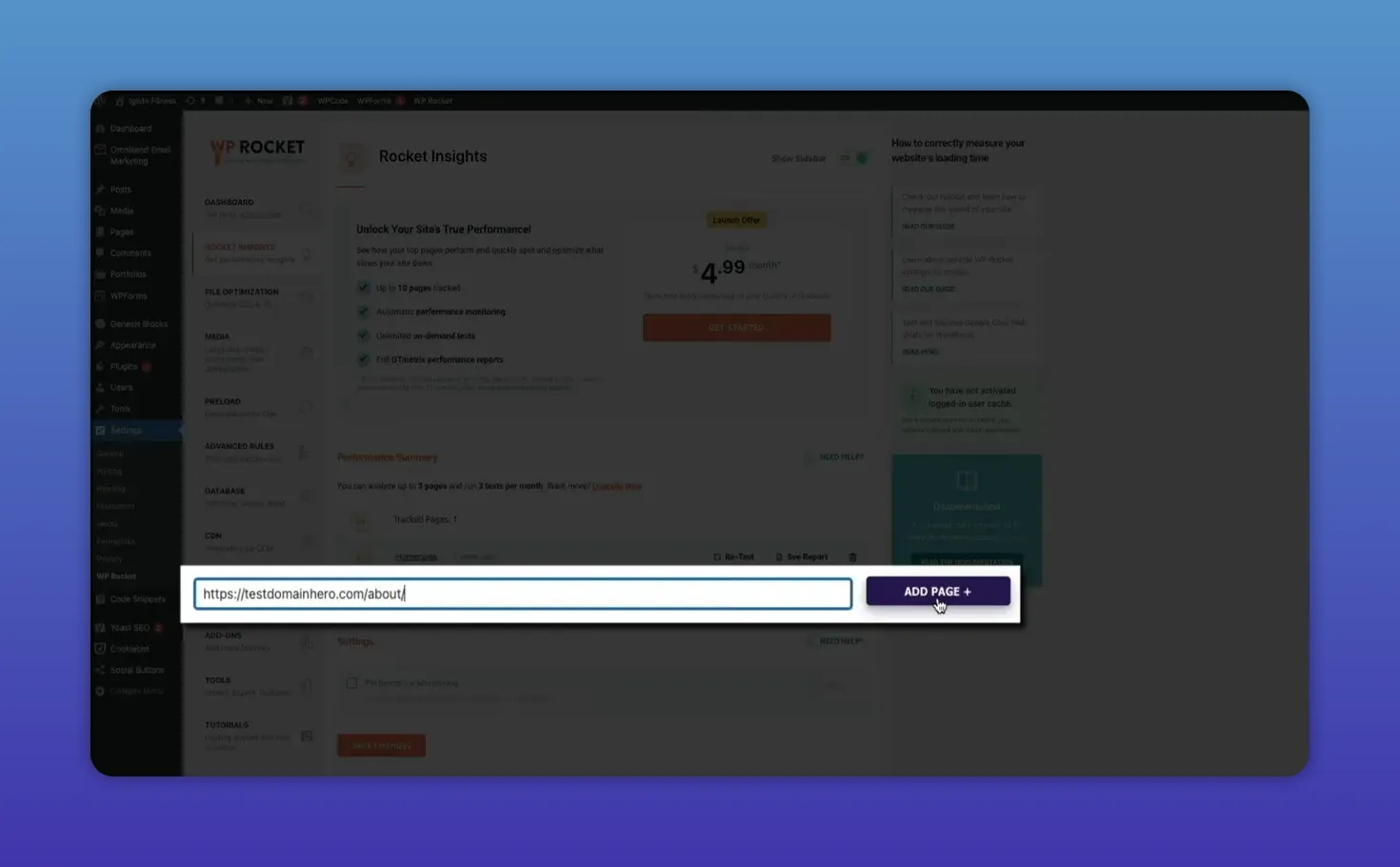
Use the Rocket Insights tab in the dashboard to add any URL you want to monitor. For each added page you get:
- A clean grade showing overall performance
- A summary of results and actionable issues
- An on-demand test option to re-run a scan whenever you need
For deeper technical detail, Rocket Insights links to the full GTMetrix mobile report inside each summary. That report is useful when you need advanced troubleshooting or want to prioritize specific fixes.
Step 5: Automate monitoring with a schedule (premium)
If you want continuous monitoring, the premium plan lets Rocket Insights automatically test pages on a daily, weekly, or monthly schedule. Once configured, Rocket Insights updates results in the background so you do not have to remember to run tests manually.
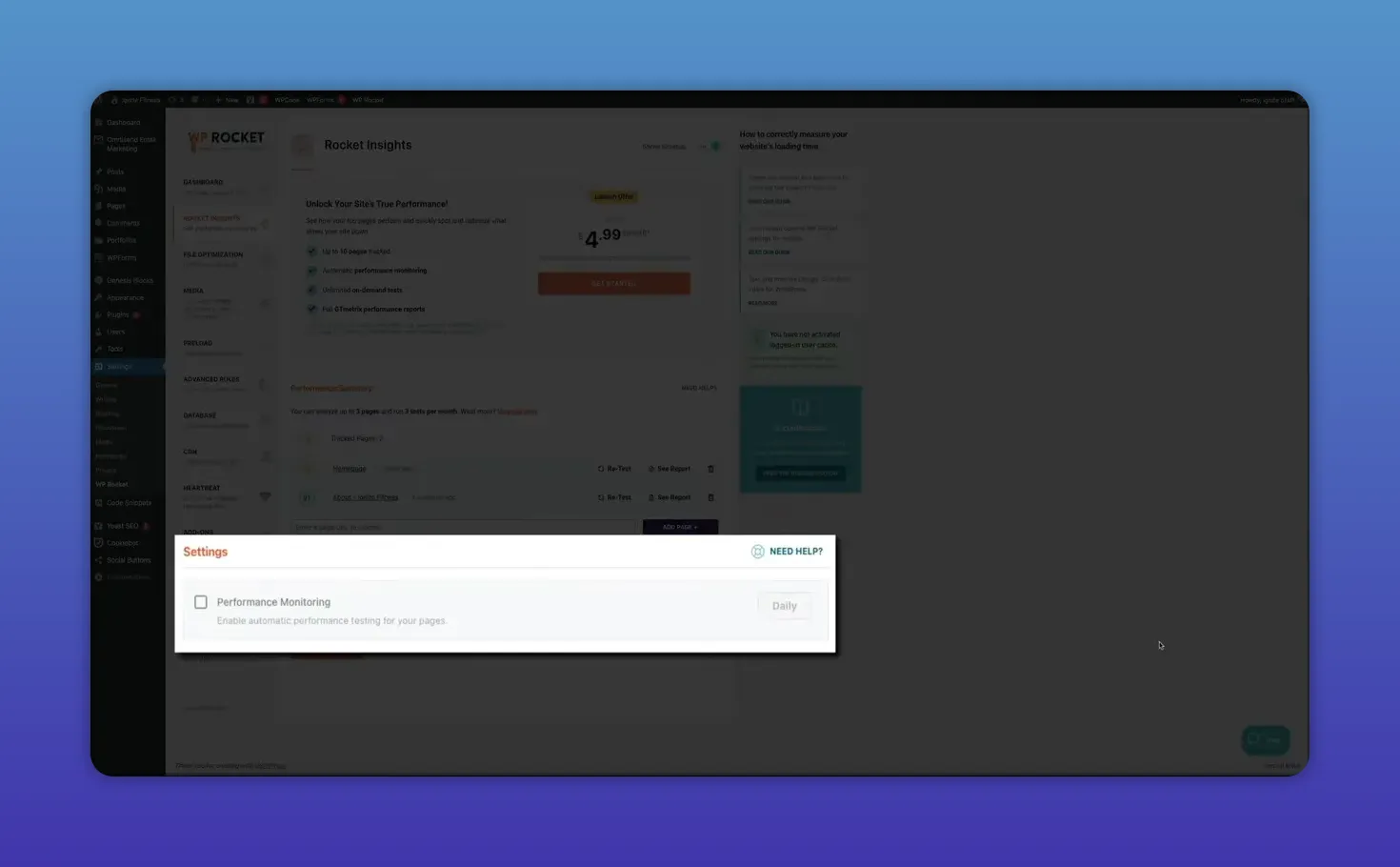
Automated scans are a major time-saver and make it easy to spot regressions quickly—before they affect SEO or user experience.
Step 6: Choose between the free and premium plans
There are two practical tiers to consider:
- Free plan: Included if you already use WP Rocket. Track up to three pages and run instant tests to monitor performance without changing workflow.
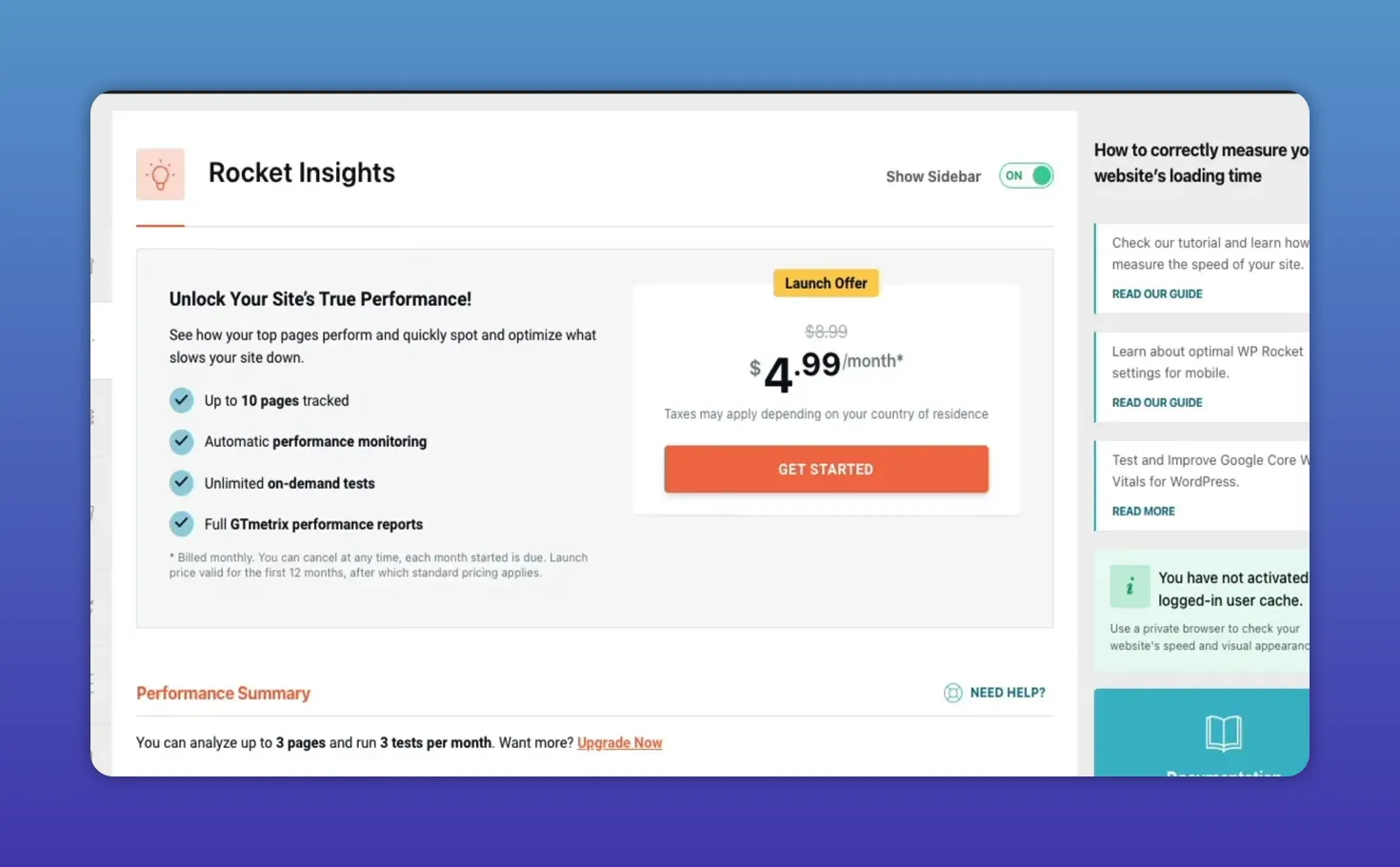
- Premium plan: Unlocks the full feature set—automatic monitoring schedules, unlimited on-demand tests, up to 10 tracked pages, and full GTMetrix performance reports.
At launch, premium was offered at a special price of $4.99 per month for the first year. If you need continual monitoring and more pages tracked, premium is worth considering.
Step 7: Weigh pricing and next steps
WP Rocket pricing (affiliate link) often has promotions. Current plan examples include:
- Multi: Coverage for up to 50 websites
- Plus: Support and updates for three websites
- Single: One-site license
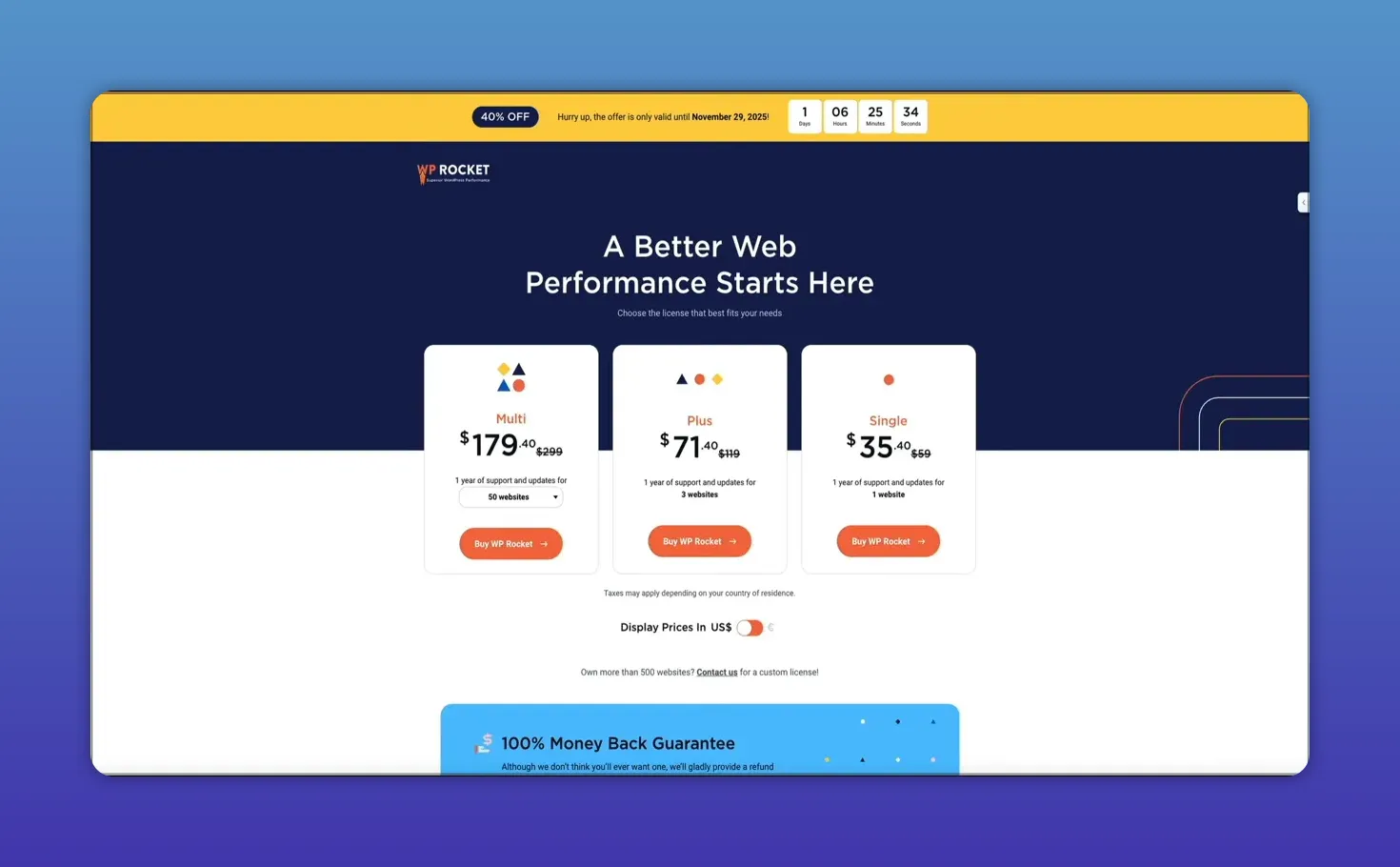
All plans include one year of updates and support and allow currency switching when purchasing. If you have multiple sites or manage client sites, consider the multi or plus plans. For a single blog or small business site, the single plan (affiliate link) is a cost-effective way to get caching and the integrated monitoring features.
How Rocket Insights changes your workflow
Rocket Insights removes the friction of switching between third-party tools like PageSpeed Insights or GTMetrix and your WordPress dashboard. With monitoring baked into WP Rocket, you can:
- Measure how caching and optimization instantly affect your score
- Spot regressions or newly introduced issues quickly
- Run focused tests on high-traffic or conversion pages
- Access technical GTMetrix reports when deeper analysis is required
Everything you need is right inside your WordPress dashboard.
That convenience translates to faster fixes and less time spent piecing together data from different tools.
Final tips for meaningful monitoring
- Start small: Track your homepage and a few high-value pages first.
- Use automation: Set a scan schedule to get baseline trends and detect regressions.
- Combine summary and deep reports: Use the Rocket Insights grade to spot issues, then open the GTMetrix report for technical fixes.
- Prioritize user experience: Focus on metrics that impact visitors—load time, mobile performance, and visual stability.
Rocket Insights pairs with WP Rocket’s optimization features to create a streamlined performance workflow. Whether you stay on the free plan or upgrade to premium, integrated monitoring helps you keep pages fast and your visitors happy.
Start by updating WP Rocket, (affiliate link) scan your most important pages, and let Rocket Insights run in the background so you can focus on building and growing your site while keeping performance under control.
Rocket Insights brings performance monitoring directly into WP Rocket (affiliate link) so you can track, analyze, and optimize your most important pages without leaving WordPress. It pairs naturally with your caching setup to measure results instantly and highlights what is actually slowing pages down.
Step 1: Make sure WP Rocket is up to date
Before you can use Rocket Insights, confirm you are running the latest WP Rocket release. Open your WordPress plugin management page and update WP Rocket if needed. At the time this guide was written, version 3.2.0 includes Rocket Insights.
Step 2: Open the WP Rocket dashboard
From the WordPress admin, hover over Settings and click WP Rocket. The dashboard now includes performance items and a global score that gives an instant snapshot of how your monitored pages are performing.
Step 3: Scan your homepage (or any page)
Click the button to scan your homepage. New customers will have the homepage added by default. Existing customers may need to implement Rocket Insights for the first scan. The initial scan typically takes about a minute.
Once the scan completes you will see a Rocket Insights score. That score is your quick indicator, but the real value is in understanding what contributes to it and which elements are dragging performance down.
Step 4: Add additional pages and read the reports
Use the Rocket Insights tab in the dashboard to add any URL you want to monitor. For each added page you get:
- A clean grade showing overall performance
- A summary of results and actionable issues
- An on-demand test option to re-run a scan whenever you need
For deeper technical detail, Rocket Insights links to the full GTMetrix mobile report inside each summary. That report is useful when you need advanced troubleshooting or want to prioritize specific fixes.
Step 5: Automate monitoring with a schedule (premium)
If you want continuous monitoring, the premium plan lets Rocket Insights automatically test pages on a daily, weekly, or monthly schedule. Once configured, Rocket Insights updates results in the background so you do not have to remember to run tests manually.
Automated scans are a major time-saver and make it easy to spot regressions quickly—before they affect SEO or user experience.
Step 6: Choose between the free and premium plans
There are two practical tiers to consider:
- Free plan: Included if you already use WP Rocket. Track up to three pages and run instant tests to monitor performance without changing workflow.
- Premium plan: Unlocks the full feature set—automatic monitoring schedules, unlimited on-demand tests, up to 10 tracked pages, and full GTMetrix performance reports.
At launch, premium was offered at a special price of $4.99 per month for the first year. If you need continual monitoring and more pages tracked, premium is worth considering.
Step 7: Weigh pricing and next steps
WP Rocket pricing (affiliate link) often has promotions. Current plan examples include:
- Multi: Coverage for up to 50 websites
- Plus: Support and updates for three websites
- Single: One-site license
All plans include one year of updates and support and allow currency switching when purchasing. If you have multiple sites or manage client sites, consider the multi or plus plans. For a single blog or small business site, the single plan (affiliate link) is a cost-effective way to get caching and the integrated monitoring features.
How Rocket Insights changes your workflow
Rocket Insights removes the friction of switching between third-party tools like PageSpeed Insights or GTMetrix and your WordPress dashboard. With monitoring baked into WP Rocket, you can:
- Measure how caching and optimization instantly affect your score
- Spot regressions or newly introduced issues quickly
- Run focused tests on high-traffic or conversion pages
- Access technical GTMetrix reports when deeper analysis is required
Everything you need is right inside your WordPress dashboard.
That convenience translates to faster fixes and less time spent piecing together data from different tools.
Final tips for meaningful monitoring
- Start small: Track your homepage and a few high-value pages first.
- Use automation: Set a scan schedule to get baseline trends and detect regressions.
- Combine summary and deep reports: Use the Rocket Insights grade to spot issues, then open the GTMetrix report for technical fixes.
- Prioritize user experience: Focus on metrics that impact visitors—load time, mobile performance, and visual stability.
Rocket Insights pairs with WP Rocket’s optimization features to create a streamlined performance workflow. Whether you stay on the free plan or upgrade to premium, integrated monitoring helps you keep pages fast and your visitors happy.
Start by updating WP Rocket, (affiliate link) scan your most important pages, and let Rocket Insights run in the background so you can focus on building and growing your site while keeping performance under control.

Written by Ben Cummings
Founder of blogwithben.com
Ben is the Co-Founder of Sage Wave Media, LLC which is the parent company of Blog With Ben. He enjoys teaching, blogging, startups, a hoppy IPA, and college basketball. Whenever he's not blogging, you can find him cruising around sunny San Diego with his amazing family.
0 Comments