
Use ChatGPT, Claude & Gemini in ONE Workspace (Stop Switching Tabs!)
Use ChatGPT, Claude & Gemini in ONE Workspace (Stop Switching Tabs!)
Imagine having access to powerful AI language models like Claude, GPT-4, Gemini, and more, all integrated into a single, seamless workspace where you can instantly build landing pages, generate videos, or deploy full AI agents, without writing a single line of code. This is exactly what Chat LLM Teams by Abacus.AI offers. In this comprehensive tutorial, I’ll guide you step-by-step on how to leverage Chat LLM Teams to supercharge your productivity, whether you’re a blogger, marketer, developer, or simply curious about AI.
This platform simplifies your workflow by consolidating multiple top-tier large language models (LLMs) into one dashboard, allowing you to switch effortlessly between them and harness their unique strengths. From generating long-form blog posts to crafting responsive landing pages and AI-powered videos, Chat LLM Teams is a Swiss Army knife for anyone working with content and AI.
Let’s dive into how you can get started with Chat LLM Teams and unlock its incredible capabilities.
Step 1: Getting Started with Chat LLM Teams
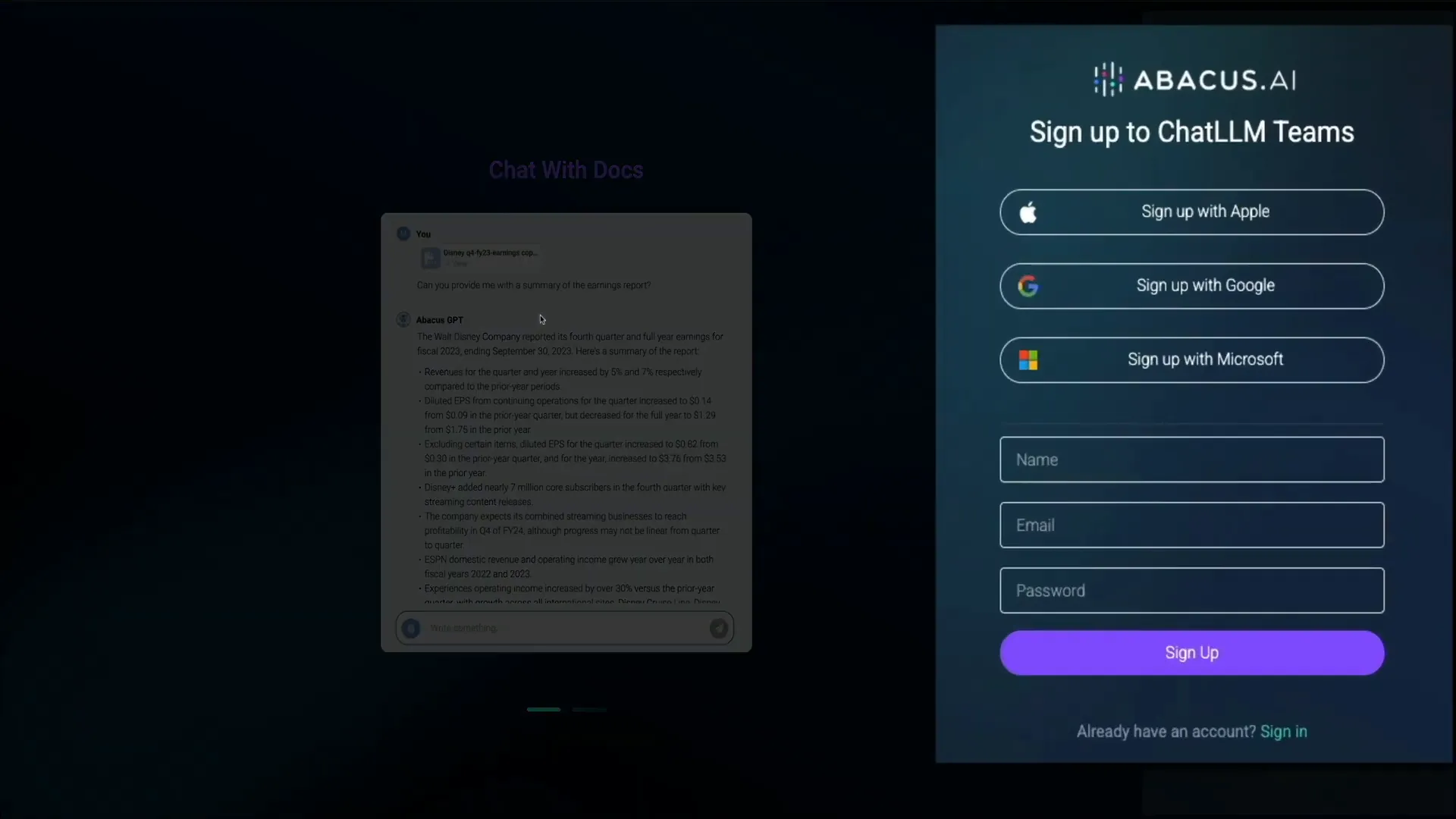
To begin your journey with Chat LLM Teams, head over to their homepage. The signup process is straightforward and offers multiple options for convenience:
- Sign up using your Apple, Google, or Microsoft account
- Or create an account manually by entering your name, email, and password
For example, I used my Google account to sign up quickly and securely. Once you choose your signup method, you’ll be prompted to enter your credit card information. Chat LLM Teams operates on a subscription model costing $10 per user per month.
It’s important to note that your credit card will be charged immediately, but you can cancel anytime. Your subscription will remain active for the remainder of the billing period, allowing you to fully explore the platform without interruption.
When you subscribe, you’ll receive 20,000 credits per month. These credits are your currency for using various AI models and features. Some models have unlimited usage, while others consume credits based on their complexity and computational cost. You can find detailed information about credit allocation and usage limits in the Chat LLM Teams billing FAQ.
After subscribing, you’ll be directed to the main Chat LLM Teams dashboard where your AI-powered creation begins.
Step 2: Navigating the Chat LLM Teams Interface
When you first enter Chat LLM Teams, you’re greeted with a clean, sleek dashboard designed for ease of use. The interface defaults to dark mode, which many users find comfortable for long sessions. However, if you prefer a lighter theme, switching between dark and light modes is just a click away in your profile settings.
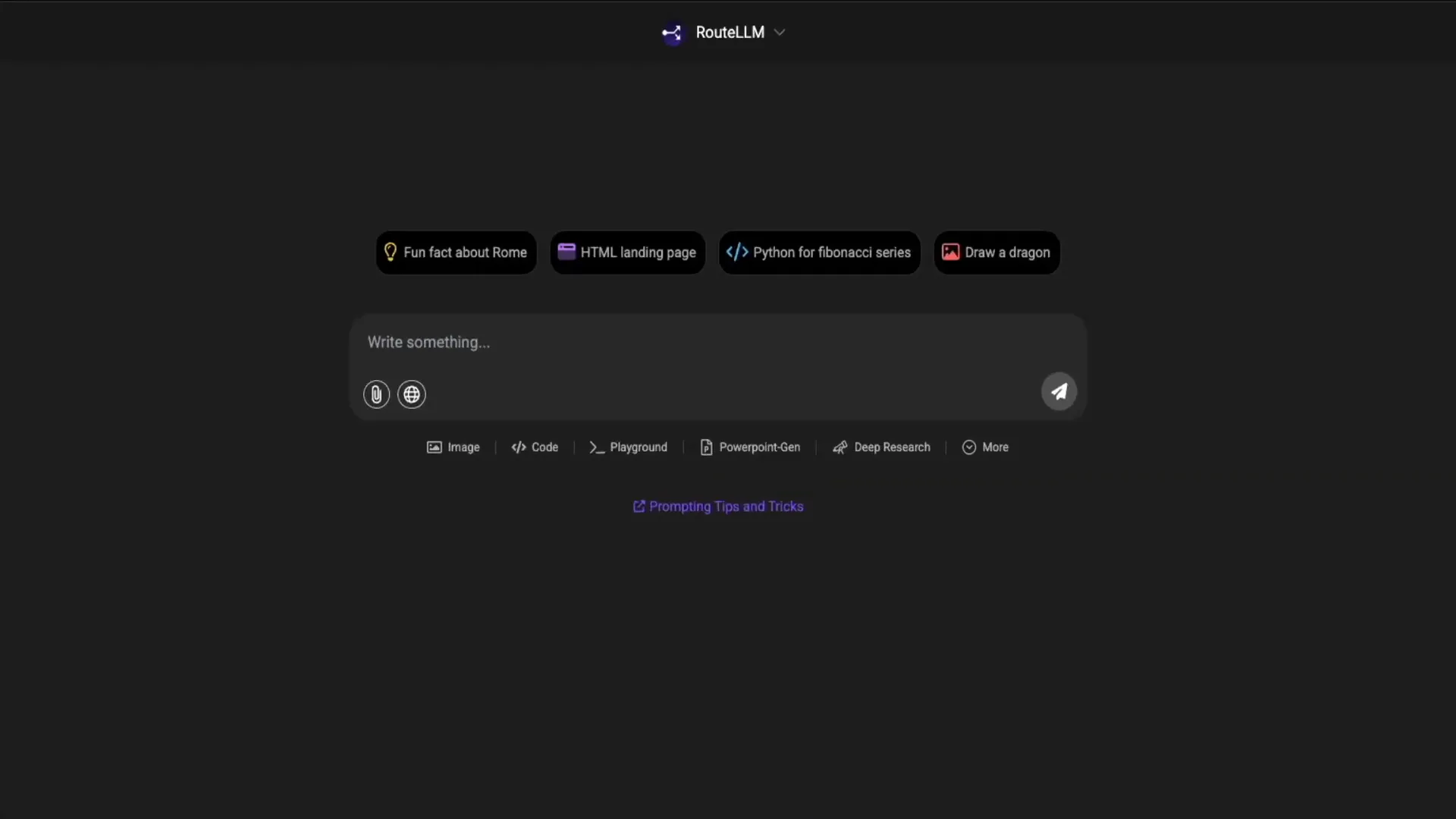
Here’s a quick breakdown of the key interface elements to help you get oriented:
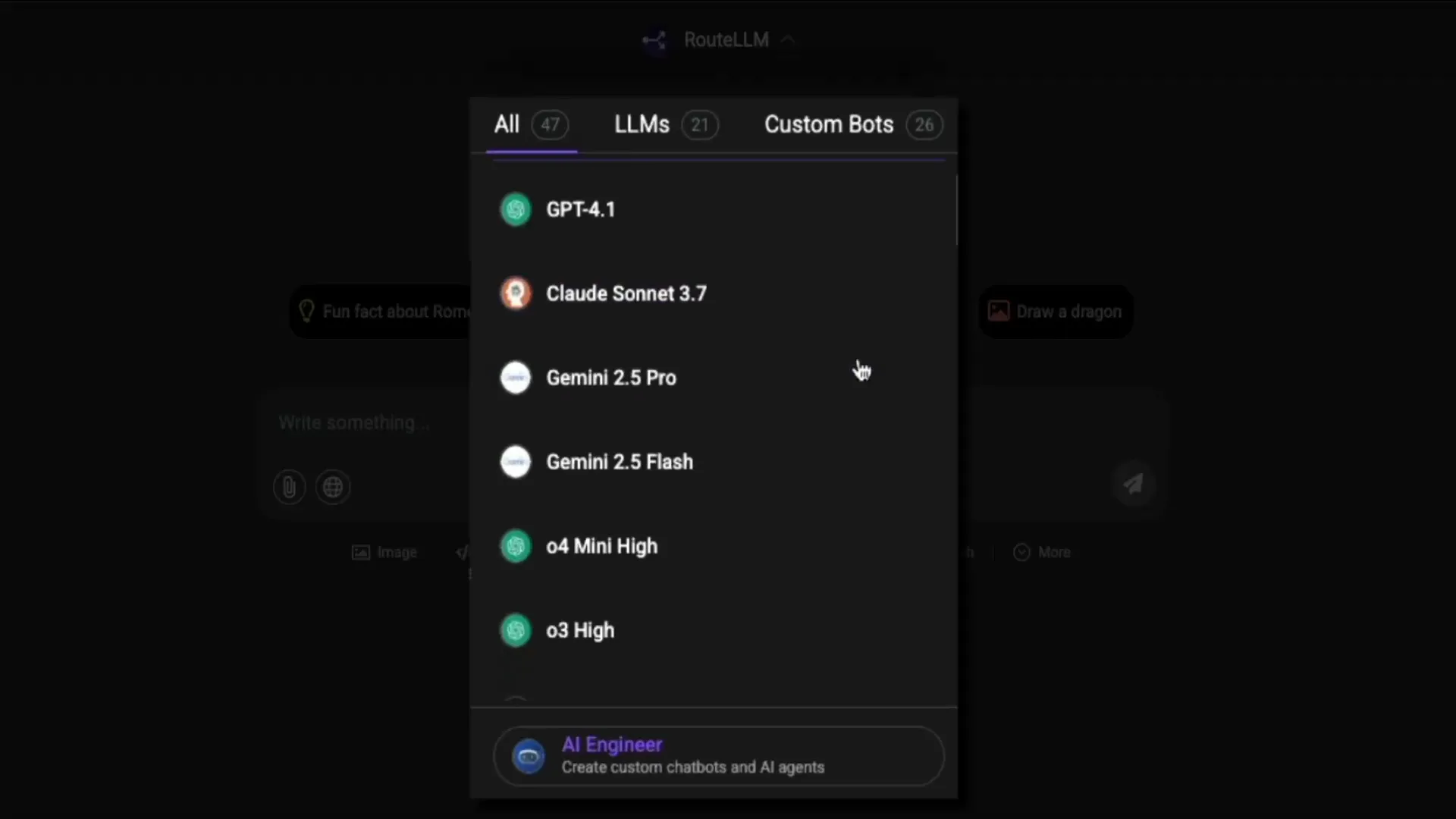
- Model Selector: Located at the top center, this dropdown lets you switch between a variety of AI models including GPT-4.1, Claude Sonnet 3.7, multiple versions of Gemini, and others. You can even add and switch to custom bots you’ve built or integrated.
- Main Chat Input: This is where you type your prompts and interact with the models. Just above the input box are quick start buttons offering sample prompts like “fun fact about Rome” or “HTML landing page” to inspire your queries.
- File Upload & Web Search: To the bottom left of the input field, the paperclip icon lets you upload files directly from your device or cloud services like Google Drive and OneDrive. This feature enables you to feed PDFs, spreadsheets, and other documents into the AI for analysis or content generation. Next to it, the globe icon activates real-time web search, allowing AI responses to include up-to-date information pulled from the internet.
- Toolbar: Below the prompt box, you’ll find shortcuts for features such as image generation, code editor, playground, and PowerPoint generator. These tools transform Chat LLM Teams from a simple chat interface into a versatile AI workspace.
- More Tools Dropdown: On the far right of the toolbar, this opens up advanced options like screenshot capture, video generation, lip sync, text-to-speech, humanize text, video analysis, and more. These utilities extend the platform’s capabilities beyond text into multimedia and automation.
- Prompting Tips: A handy link just below the toolbar opens a detailed guide on crafting effective prompts. Whether you’re new or experienced, this resource helps you communicate clearly with the AI to get the best results.
- Sidebar Navigation: Located on the left side of the screen, you can toggle its visibility and use it to access your tasks, projects, and tools. Tasks help automate repetitive activities like fetching stock market data or receiving workout plans on a schedule. Projects act as folders to keep your work neatly organized by topic or client.
- User Menu: Accessed by clicking your profile avatar in the upper right corner, this panel lets you customize settings like display mode, connectors, profile info, and logout options.
- Share and Download Buttons: Also at the top right, these icons allow you to share your chat outputs with team members via links or download content locally for offline use.
This intuitive layout means you can focus on your creative process without fumbling through complicated menus.
Step 3: Switching Between Multiple AI Models Effortlessly
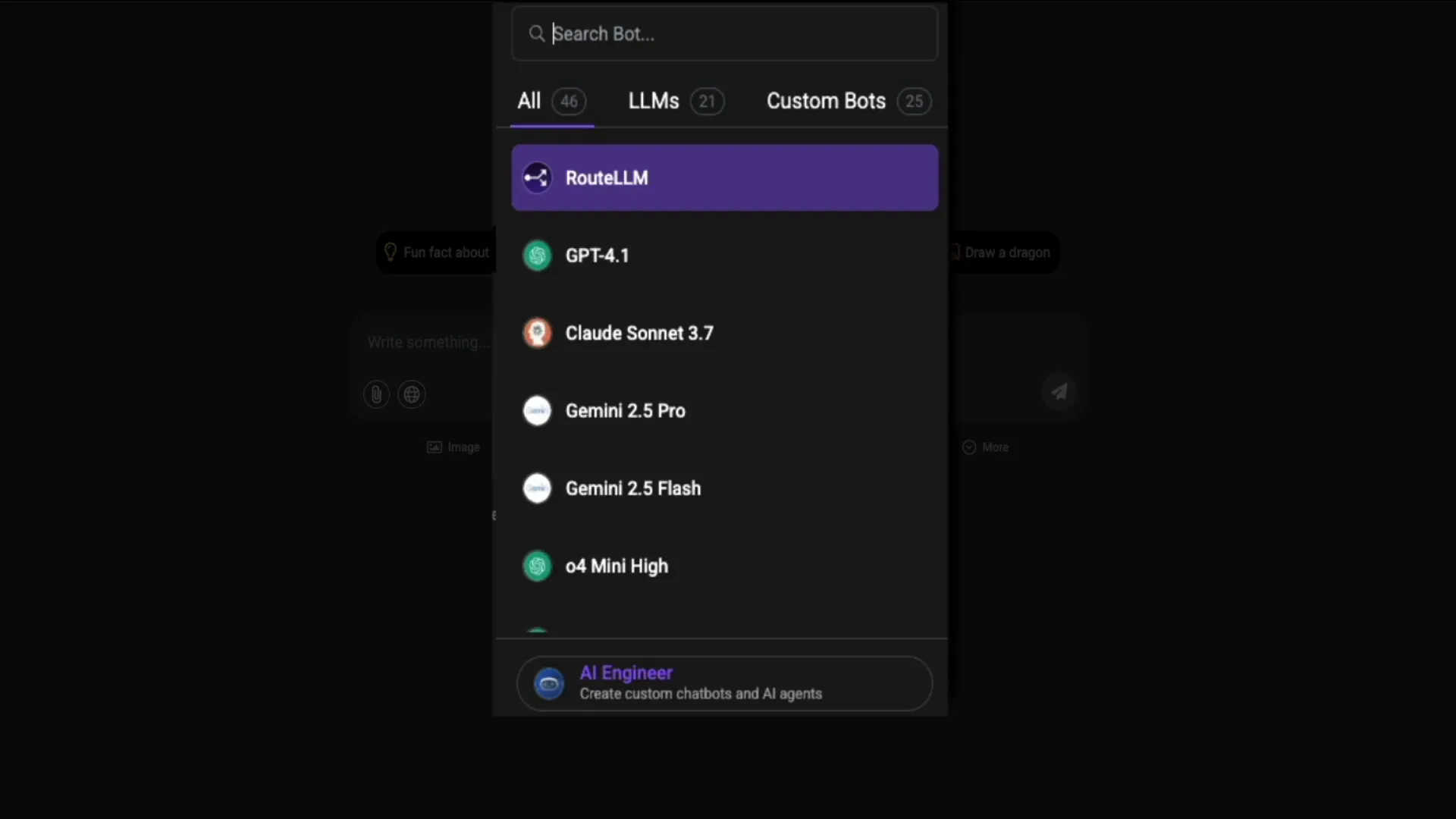
One of the standout features of Chat LLM Teams is the ability to switch between different AI models with a single click. This flexibility lets you route your prompts to the model best suited for the task at hand, without juggling multiple apps or browser tabs.
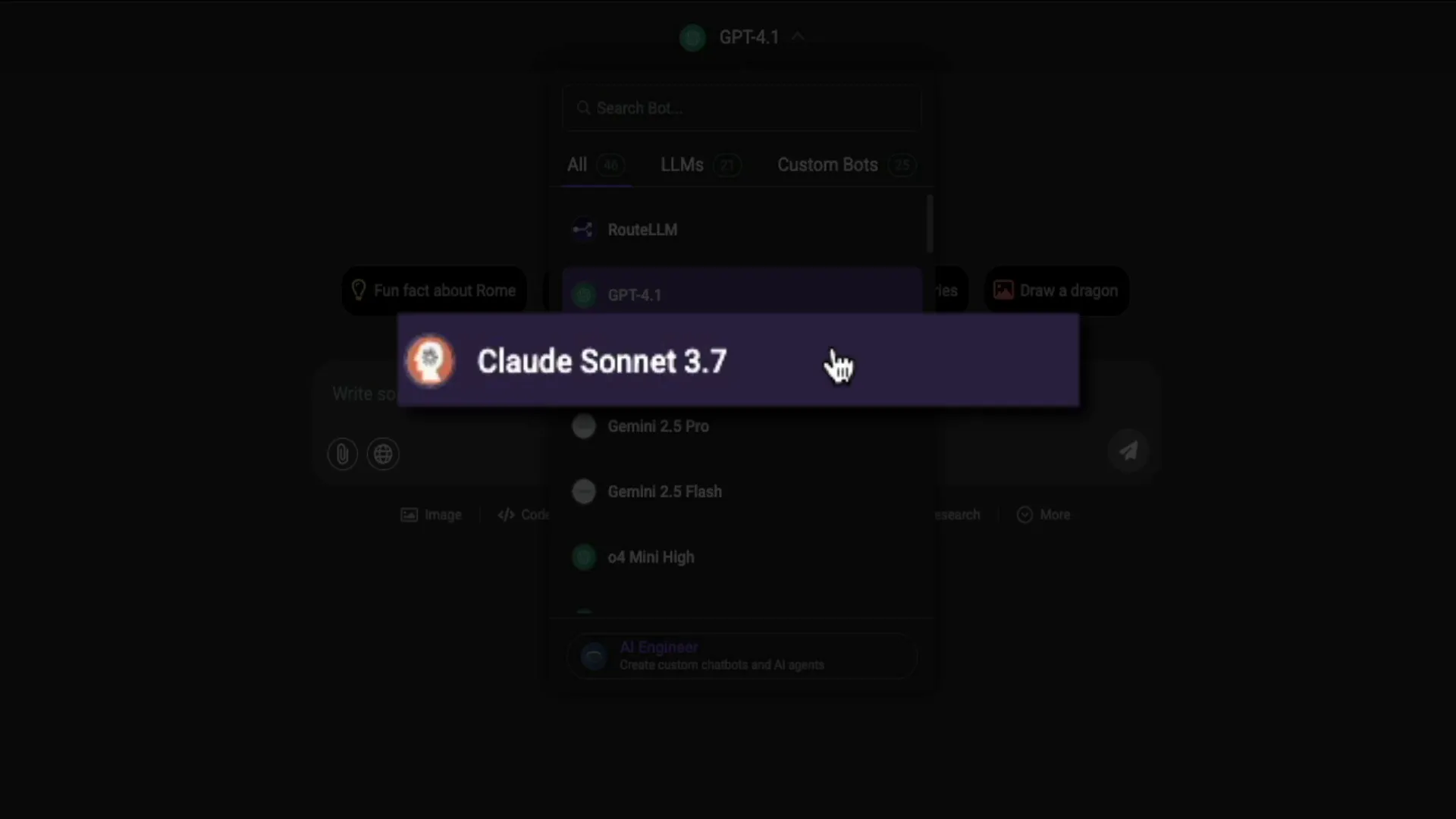
For example, to select a model, click the dropdown above the chat input box labeled with the current active model (e.g., “route LLM”). You’ll see options like GPT-4.1, Claude Sonnet 3.7, Gemini 2.5 Pro, and others.
Let’s walk through a practical example:
- Select GPT-4.1 from the model dropdown.
- Type a prompt requesting a 10,000-word blog post on 10 ways to monetize a WordPress blog.
- Within seconds, the AI generates a detailed and well-structured article complete with subheadings and practical strategies like display ads, affiliate marketing, and selling digital products.
The output is cleanly formatted and ready for refinement or export. You can continue interacting with the AI in the chat box below the article to tweak or expand sections as needed.
To demonstrate switching models, open a new chat thread by clicking the purple pencil icon in the upper left corner. Then select Claude Sonnet 3.7 from the dropdown. This time, ask it to create a weekly meal plan for a family of four on a budget of under $100.
Claude responds with a smart, budget-conscious meal plan organized by day and meal (breakfast, lunch, dinner), cleverly reusing leftovers to reduce waste and maximize savings. This example highlights how different models bring unique strengths and perspectives, and Chat LLM Teams lets you test and compare them side-by-side with ease.
Step 4: Building and Customizing a Landing Page Using Natural Language
Chat LLM Teams isn’t just for generating text—it’s also a powerful tool for web development, even if you don’t know how to code. Let me show you how easy it is to create a fully functional, responsive landing page using just a simple text prompt.
Start by opening a new chat and selecting your preferred model, such as Claude Sonnet 3.7. Then, click one of the quick prompt buttons above the input box labeled HTML landing page. This instantly kicks off the process.
The AI generates a clean HTML layout with CSS styling, including key website elements like a hero section, navigation links, call-to-action buttons, and feature blocks. But it gets better—the response loads inside the Playground, a split-screen workspace that displays both the AI’s explanation and the live code on one side, and a real-time preview of the landing page on the other.
This visual feedback loop is invaluable for marketers, developers, and entrepreneurs who want to prototype or test ideas quickly without switching between code editors and browsers.
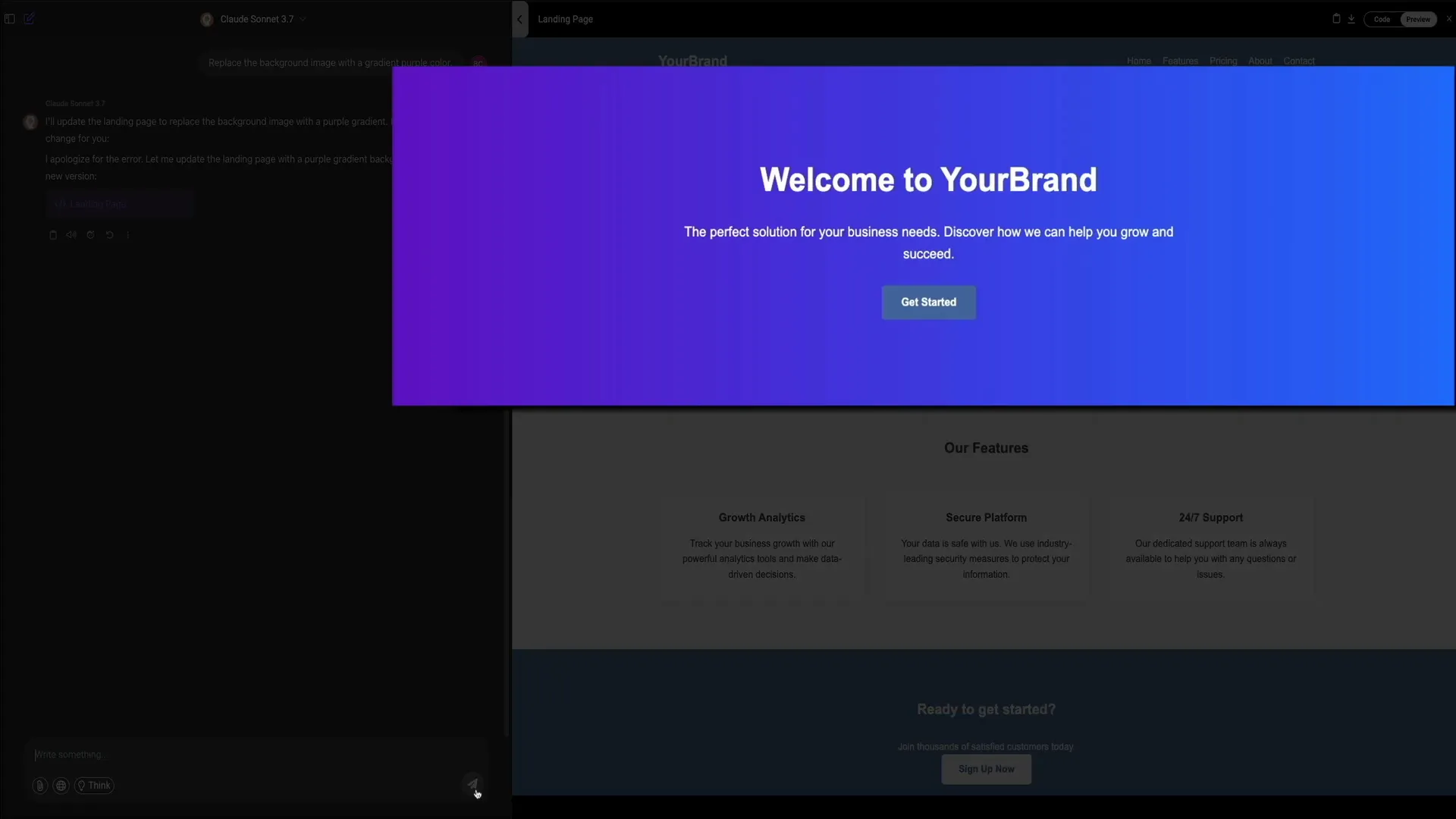
What if you want to customize the design but don’t know CSS? No problem. Just describe your desired change in plain English in the chat box. For example, I typed:
Replace the background image with a gradient purple color.
The AI instantly understood and regenerated the landing page with a modern purple gradient background in the hero section. This took just about 10 seconds and required zero manual coding.
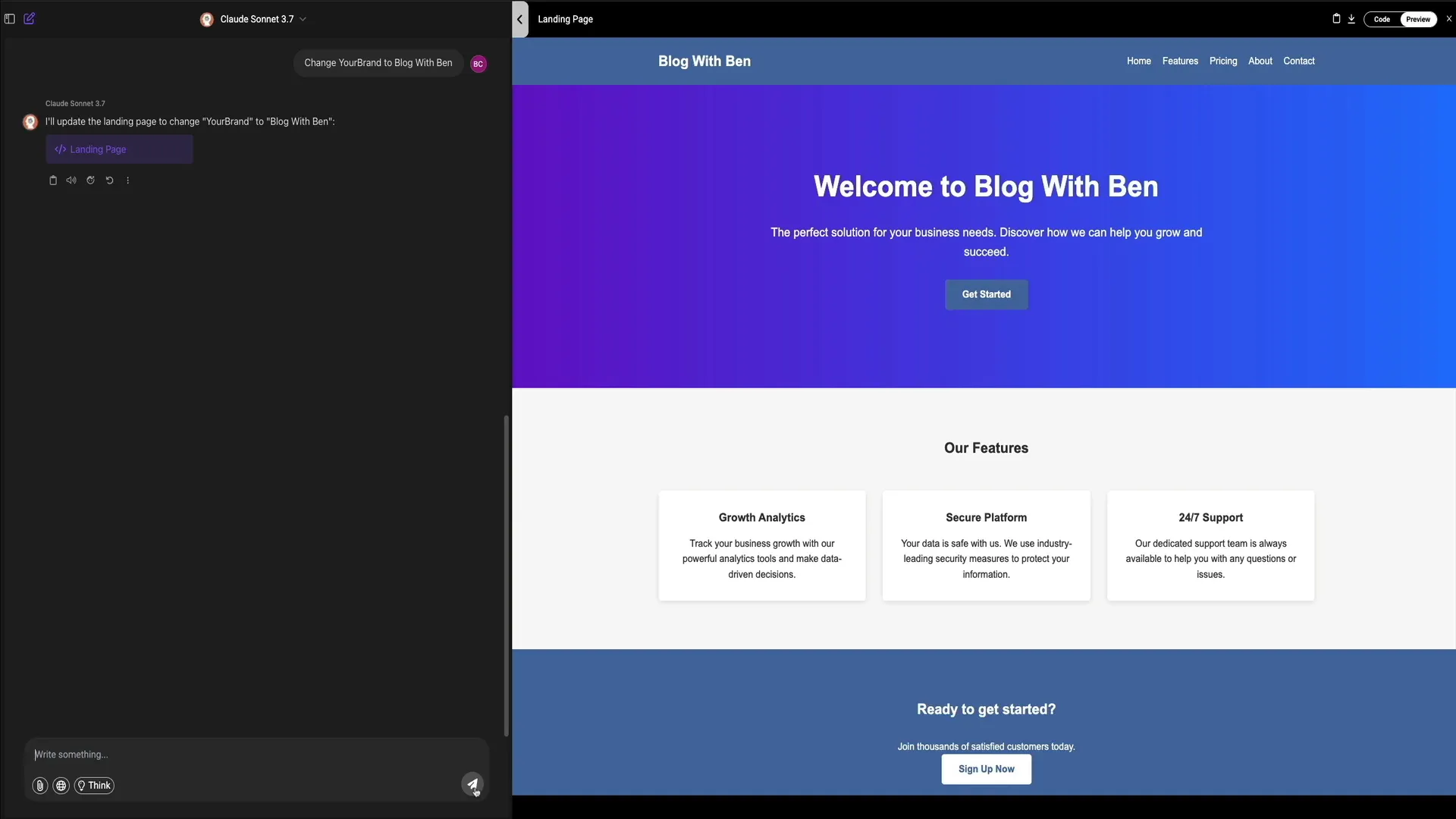
Next, I wanted to update the branding. Instead of the placeholder text “your brand,” I instructed the AI to replace it with “Blog With Ben.” Again, the AI quickly updated every instance across the header and hero section.
This conversational design approach feels like having a developer and designer rolled into one, powered entirely by natural language.
When you’re satisfied with your landing page, you have several export options:
- Copy Code: Instantly copy all HTML and CSS to your clipboard for pasting into your website backend or code editor.
- Download: Download the complete landing page as a ready-to-use file for local storage or uploading to your web host or WordPress site.
- Toggle Preview: Seamlessly switch between code view and live visual preview to check your edits in real time.
This workflow can save you hours of development time and empowers non-coders to create professional web pages with ease.
Step 5: Generating AI Videos with a Single Text Prompt
Beyond text and web pages, Chat LLM Teams offers state-of-the-art AI video generation. Let’s explore how to create a cinematic video clip using just a descriptive prompt.
From the main dashboard, click the purple new chat icon and then open the More dropdown menu in the toolbar below the prompt box. Select Video Gen to launch the video generation interface.
Here’s how to configure your video:
- Select AI Model: Options include Cling AI, LumaLabs, Runway, and others. For this example, I chose Cling AI version 2, which is powerful but uses a significant portion of your monthly credits.
- Upload Frame (Optional): You can drag and drop an image to guide video generation or leave it blank to create footage entirely from the prompt.
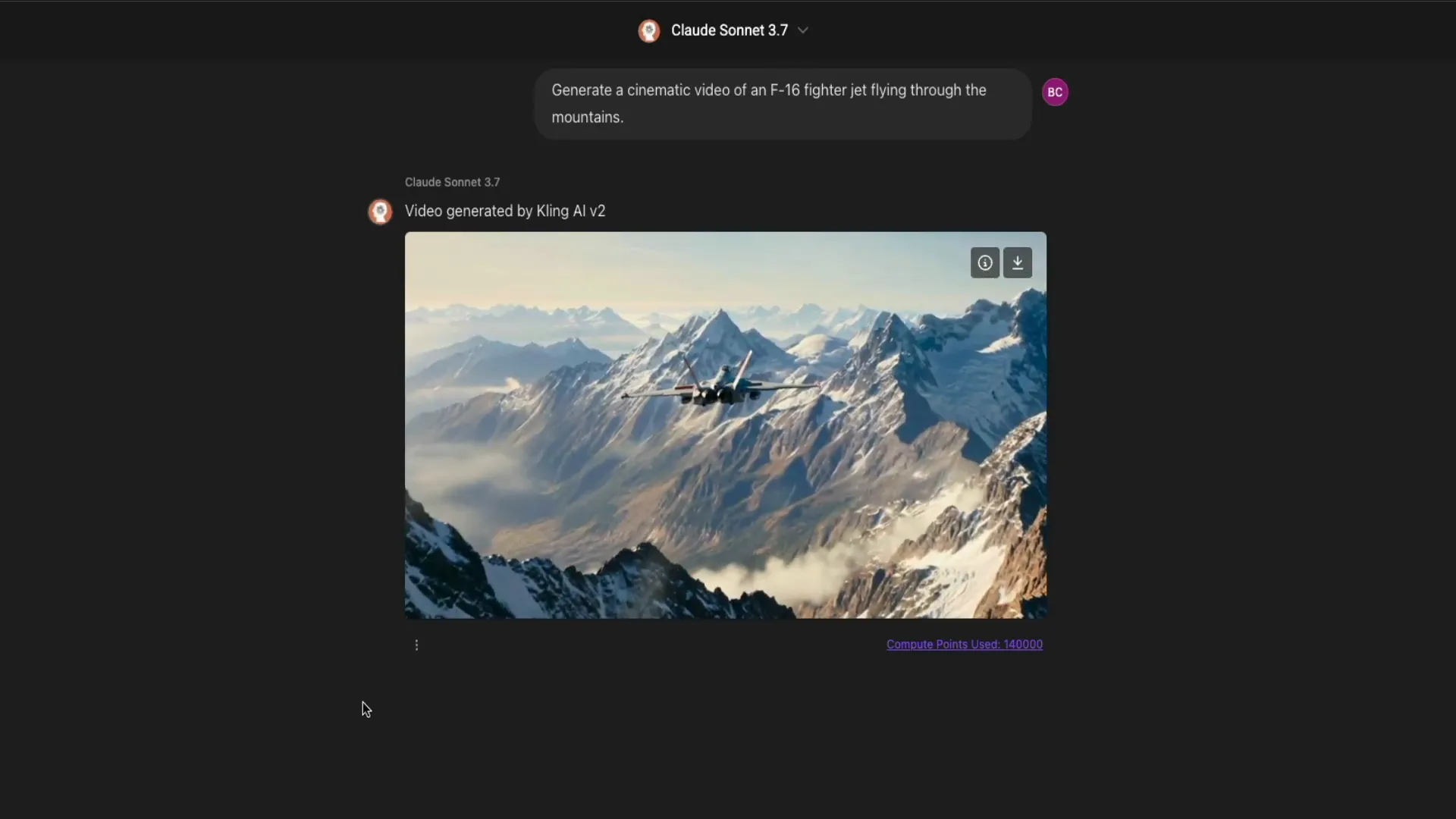
- Enter Video Description: Provide a clear, visual prompt. I used: Generate a cinematic video of an F-16 fighter jet flying through the mountains.
- Adjust Settings: Tweak CFG scale to control how closely the video follows your prompt, choose aspect ratio (16:9 widescreen is standard), and optionally set negative prompts to exclude unwanted elements like blur or distortion.
- AI Prompt Enhancement: Enable the toggle that lets the AI modify your input prompt for improved video quality.
Click Generate and wait a few minutes while the AI renders your video. The result is a smooth, 5-second cinematic clip of an F-16 jet soaring over snowcapped mountains—an impressive output from a simple text description.
Keep in mind that video generation consumes credits quickly, so plan your usage accordingly. For more details on credit consumption, check the billing FAQ.
Frequently Asked Questions (FAQ)
What is Chat LLM Teams?
Chat LLM Teams is a multi-language model workspace by Abacus.AI that integrates various large language models like GPT-4.1, Claude Sonnet 3.7, Gemini, and others into a single platform. It allows users to generate text, code, websites, videos, and automate tasks without coding.
How much does Chat LLM Teams cost?
The subscription costs $10 per user per month, which includes 20,000 credits for usage across different AI models and features. Some models have unlimited usage, while others consume credits based on computational demand.
Can I switch between different AI models within the platform?
Yes! One of Chat LLM Teams’ key features is seamless switching between models like GPT-4.1, Claude, Gemini, and custom bots, all within the same interface.
Do I need coding skills to use Chat LLM Teams?
No coding is required. You can build websites, generate content, and create videos using natural language prompts. The platform’s Playground feature lets you see and edit code visually if desired.
How do I manage my projects and tasks?
The sidebar includes sections for tasks and projects. Tasks help automate recurring actions, while projects organize your chats, outputs, and files by topic or client, keeping everything neat and accessible.
Can I collaborate with others using Chat LLM Teams?
Yes, you can share your chat outputs with team members via shareable links and export content for offline use with the download feature.
Is there a mobile app for Chat LLM Teams?
Yes, Abacus.AI offers mobile apps for iOS and Android, allowing you to work with Chat LLM Teams on the go.
Where can I learn more or get help?
The platform includes a helpful Prompting Tips and Tricks guide, FAQs, and how-to resources accessible from the sidebar and linked in the documentation.
Final Thoughts
If you’re juggling content creation, coding, or client projects, Chat LLM Teams consolidates everything you need into one powerful, easy-to-use platform. Whether you want to generate long-form blog posts, build responsive landing pages, produce AI-generated videos, or automate complex workflows with AI agents, this workspace has you covered.
With its intuitive interface, seamless model switching, and rich feature set, Chat LLM Teams is a game changer for bloggers, marketers, developers, and creators alike. It saves time, reduces tool fatigue, and lets you focus on what matters—creating amazing content and solutions.
Ready to stop switching tabs and start creating smarter? Try Chat LLM Teams today and experience the future of AI-powered productivity.
Happy creating!
Imagine having access to powerful AI language models like Claude, GPT-4, Gemini, and more, all integrated into a single, seamless workspace where you can instantly build landing pages, generate videos, or deploy full AI agents, without writing a single line of code. This is exactly what Chat LLM Teams by Abacus.AI offers. In this comprehensive tutorial, I’ll guide you step-by-step on how to leverage Chat LLM Teams to supercharge your productivity, whether you’re a blogger, marketer, developer, or simply curious about AI.
This platform simplifies your workflow by consolidating multiple top-tier large language models (LLMs) into one dashboard, allowing you to switch effortlessly between them and harness their unique strengths. From generating long-form blog posts to crafting responsive landing pages and AI-powered videos, Chat LLM Teams is a Swiss Army knife for anyone working with content and AI.
Let’s dive into how you can get started with Chat LLM Teams and unlock its incredible capabilities.
Step 1: Getting Started with Chat LLM Teams
To begin your journey with Chat LLM Teams, head over to their homepage. The signup process is straightforward and offers multiple options for convenience:
- Sign up using your Apple, Google, or Microsoft account
- Or create an account manually by entering your name, email, and password
For example, I used my Google account to sign up quickly and securely. Once you choose your signup method, you’ll be prompted to enter your credit card information. Chat LLM Teams operates on a subscription model costing $10 per user per month.
It’s important to note that your credit card will be charged immediately, but you can cancel anytime. Your subscription will remain active for the remainder of the billing period, allowing you to fully explore the platform without interruption.
When you subscribe, you’ll receive 20,000 credits per month. These credits are your currency for using various AI models and features. Some models have unlimited usage, while others consume credits based on their complexity and computational cost. You can find detailed information about credit allocation and usage limits in the Chat LLM Teams billing FAQ.
After subscribing, you’ll be directed to the main Chat LLM Teams dashboard where your AI-powered creation begins.
Step 2: Navigating the Chat LLM Teams Interface
When you first enter Chat LLM Teams, you’re greeted with a clean, sleek dashboard designed for ease of use. The interface defaults to dark mode, which many users find comfortable for long sessions. However, if you prefer a lighter theme, switching between dark and light modes is just a click away in your profile settings.
Here’s a quick breakdown of the key interface elements to help you get oriented:
- Model Selector: Located at the top center, this dropdown lets you switch between a variety of AI models including GPT-4.1, Claude Sonnet 3.7, multiple versions of Gemini, and others. You can even add and switch to custom bots you’ve built or integrated.
- Main Chat Input: This is where you type your prompts and interact with the models. Just above the input box are quick start buttons offering sample prompts like “fun fact about Rome” or “HTML landing page” to inspire your queries.
- File Upload & Web Search: To the bottom left of the input field, the paperclip icon lets you upload files directly from your device or cloud services like Google Drive and OneDrive. This feature enables you to feed PDFs, spreadsheets, and other documents into the AI for analysis or content generation. Next to it, the globe icon activates real-time web search, allowing AI responses to include up-to-date information pulled from the internet.
- Toolbar: Below the prompt box, you’ll find shortcuts for features such as image generation, code editor, playground, and PowerPoint generator. These tools transform Chat LLM Teams from a simple chat interface into a versatile AI workspace.
- More Tools Dropdown: On the far right of the toolbar, this opens up advanced options like screenshot capture, video generation, lip sync, text-to-speech, humanize text, video analysis, and more. These utilities extend the platform’s capabilities beyond text into multimedia and automation.
- Prompting Tips: A handy link just below the toolbar opens a detailed guide on crafting effective prompts. Whether you’re new or experienced, this resource helps you communicate clearly with the AI to get the best results.
- Sidebar Navigation: Located on the left side of the screen, you can toggle its visibility and use it to access your tasks, projects, and tools. Tasks help automate repetitive activities like fetching stock market data or receiving workout plans on a schedule. Projects act as folders to keep your work neatly organized by topic or client.
- User Menu: Accessed by clicking your profile avatar in the upper right corner, this panel lets you customize settings like display mode, connectors, profile info, and logout options.
- Share and Download Buttons: Also at the top right, these icons allow you to share your chat outputs with team members via links or download content locally for offline use.
This intuitive layout means you can focus on your creative process without fumbling through complicated menus.
Step 3: Switching Between Multiple AI Models Effortlessly
One of the standout features of Chat LLM Teams is the ability to switch between different AI models with a single click. This flexibility lets you route your prompts to the model best suited for the task at hand, without juggling multiple apps or browser tabs.
For example, to select a model, click the dropdown above the chat input box labeled with the current active model (e.g., “route LLM”). You’ll see options like GPT-4.1, Claude Sonnet 3.7, Gemini 2.5 Pro, and others.
Let’s walk through a practical example:
- Select GPT-4.1 from the model dropdown.
- Type a prompt requesting a 10,000-word blog post on 10 ways to monetize a WordPress blog.
- Within seconds, the AI generates a detailed and well-structured article complete with subheadings and practical strategies like display ads, affiliate marketing, and selling digital products.
The output is cleanly formatted and ready for refinement or export. You can continue interacting with the AI in the chat box below the article to tweak or expand sections as needed.
To demonstrate switching models, open a new chat thread by clicking the purple pencil icon in the upper left corner. Then select Claude Sonnet 3.7 from the dropdown. This time, ask it to create a weekly meal plan for a family of four on a budget of under $100.
Claude responds with a smart, budget-conscious meal plan organized by day and meal (breakfast, lunch, dinner), cleverly reusing leftovers to reduce waste and maximize savings. This example highlights how different models bring unique strengths and perspectives, and Chat LLM Teams lets you test and compare them side-by-side with ease.
Step 4: Building and Customizing a Landing Page Using Natural Language
Chat LLM Teams isn’t just for generating text—it’s also a powerful tool for web development, even if you don’t know how to code. Let me show you how easy it is to create a fully functional, responsive landing page using just a simple text prompt.
Start by opening a new chat and selecting your preferred model, such as Claude Sonnet 3.7. Then, click one of the quick prompt buttons above the input box labeled HTML landing page. This instantly kicks off the process.
The AI generates a clean HTML layout with CSS styling, including key website elements like a hero section, navigation links, call-to-action buttons, and feature blocks. But it gets better—the response loads inside the Playground, a split-screen workspace that displays both the AI’s explanation and the live code on one side, and a real-time preview of the landing page on the other.
This visual feedback loop is invaluable for marketers, developers, and entrepreneurs who want to prototype or test ideas quickly without switching between code editors and browsers.
What if you want to customize the design but don’t know CSS? No problem. Just describe your desired change in plain English in the chat box. For example, I typed:
Replace the background image with a gradient purple color.
The AI instantly understood and regenerated the landing page with a modern purple gradient background in the hero section. This took just about 10 seconds and required zero manual coding.
Next, I wanted to update the branding. Instead of the placeholder text “your brand,” I instructed the AI to replace it with “Blog With Ben.” Again, the AI quickly updated every instance across the header and hero section.
This conversational design approach feels like having a developer and designer rolled into one, powered entirely by natural language.
When you’re satisfied with your landing page, you have several export options:
- Copy Code: Instantly copy all HTML and CSS to your clipboard for pasting into your website backend or code editor.
- Download: Download the complete landing page as a ready-to-use file for local storage or uploading to your web host or WordPress site.
- Toggle Preview: Seamlessly switch between code view and live visual preview to check your edits in real time.
This workflow can save you hours of development time and empowers non-coders to create professional web pages with ease.
Step 5: Generating AI Videos with a Single Text Prompt
Beyond text and web pages, Chat LLM Teams offers state-of-the-art AI video generation. Let’s explore how to create a cinematic video clip using just a descriptive prompt.
From the main dashboard, click the purple new chat icon and then open the More dropdown menu in the toolbar below the prompt box. Select Video Gen to launch the video generation interface.
Here’s how to configure your video:
- Select AI Model: Options include Cling AI, LumaLabs, Runway, and others. For this example, I chose Cling AI version 2, which is powerful but uses a significant portion of your monthly credits.
- Upload Frame (Optional): You can drag and drop an image to guide video generation or leave it blank to create footage entirely from the prompt.
- Enter Video Description: Provide a clear, visual prompt. I used: Generate a cinematic video of an F-16 fighter jet flying through the mountains.
- Adjust Settings: Tweak CFG scale to control how closely the video follows your prompt, choose aspect ratio (16:9 widescreen is standard), and optionally set negative prompts to exclude unwanted elements like blur or distortion.
- AI Prompt Enhancement: Enable the toggle that lets the AI modify your input prompt for improved video quality.
Click Generate and wait a few minutes while the AI renders your video. The result is a smooth, 5-second cinematic clip of an F-16 jet soaring over snowcapped mountains—an impressive output from a simple text description.
Keep in mind that video generation consumes credits quickly, so plan your usage accordingly. For more details on credit consumption, check the billing FAQ.
Frequently Asked Questions (FAQ)
What is Chat LLM Teams?
Chat LLM Teams is a multi-language model workspace by Abacus.AI that integrates various large language models like GPT-4.1, Claude Sonnet 3.7, Gemini, and others into a single platform. It allows users to generate text, code, websites, videos, and automate tasks without coding.
How much does Chat LLM Teams cost?
The subscription costs $10 per user per month, which includes 20,000 credits for usage across different AI models and features. Some models have unlimited usage, while others consume credits based on computational demand.
Can I switch between different AI models within the platform?
Yes! One of Chat LLM Teams’ key features is seamless switching between models like GPT-4.1, Claude, Gemini, and custom bots, all within the same interface.
Do I need coding skills to use Chat LLM Teams?
No coding is required. You can build websites, generate content, and create videos using natural language prompts. The platform’s Playground feature lets you see and edit code visually if desired.
How do I manage my projects and tasks?
The sidebar includes sections for tasks and projects. Tasks help automate recurring actions, while projects organize your chats, outputs, and files by topic or client, keeping everything neat and accessible.
Can I collaborate with others using Chat LLM Teams?
Yes, you can share your chat outputs with team members via shareable links and export content for offline use with the download feature.
Is there a mobile app for Chat LLM Teams?
Yes, Abacus.AI offers mobile apps for iOS and Android, allowing you to work with Chat LLM Teams on the go.
Where can I learn more or get help?
The platform includes a helpful Prompting Tips and Tricks guide, FAQs, and how-to resources accessible from the sidebar and linked in the documentation.
Final Thoughts
If you’re juggling content creation, coding, or client projects, Chat LLM Teams consolidates everything you need into one powerful, easy-to-use platform. Whether you want to generate long-form blog posts, build responsive landing pages, produce AI-generated videos, or automate complex workflows with AI agents, this workspace has you covered.
With its intuitive interface, seamless model switching, and rich feature set, Chat LLM Teams is a game changer for bloggers, marketers, developers, and creators alike. It saves time, reduces tool fatigue, and lets you focus on what matters—creating amazing content and solutions.
Ready to stop switching tabs and start creating smarter? Try Chat LLM Teams today and experience the future of AI-powered productivity.
Happy creating!

Written by Ben Cummings
Co-Founder of Sage Wave Media
Ben is the Co-Founder of Sage Wave Media, LLC which is the parent company of Blog With Ben. He enjoys teaching, blogging, startups, a hoppy IPA, and college basketball. Whenever he's not blogging, you can find him cruising around sunny San Diego with his amazing family.
0 Comments